
HashiCorp Vault with AWS: What It Is and Why Dynamic Secrets Matter
Tarek Cheikh
Founder & AWS Cloud Architect
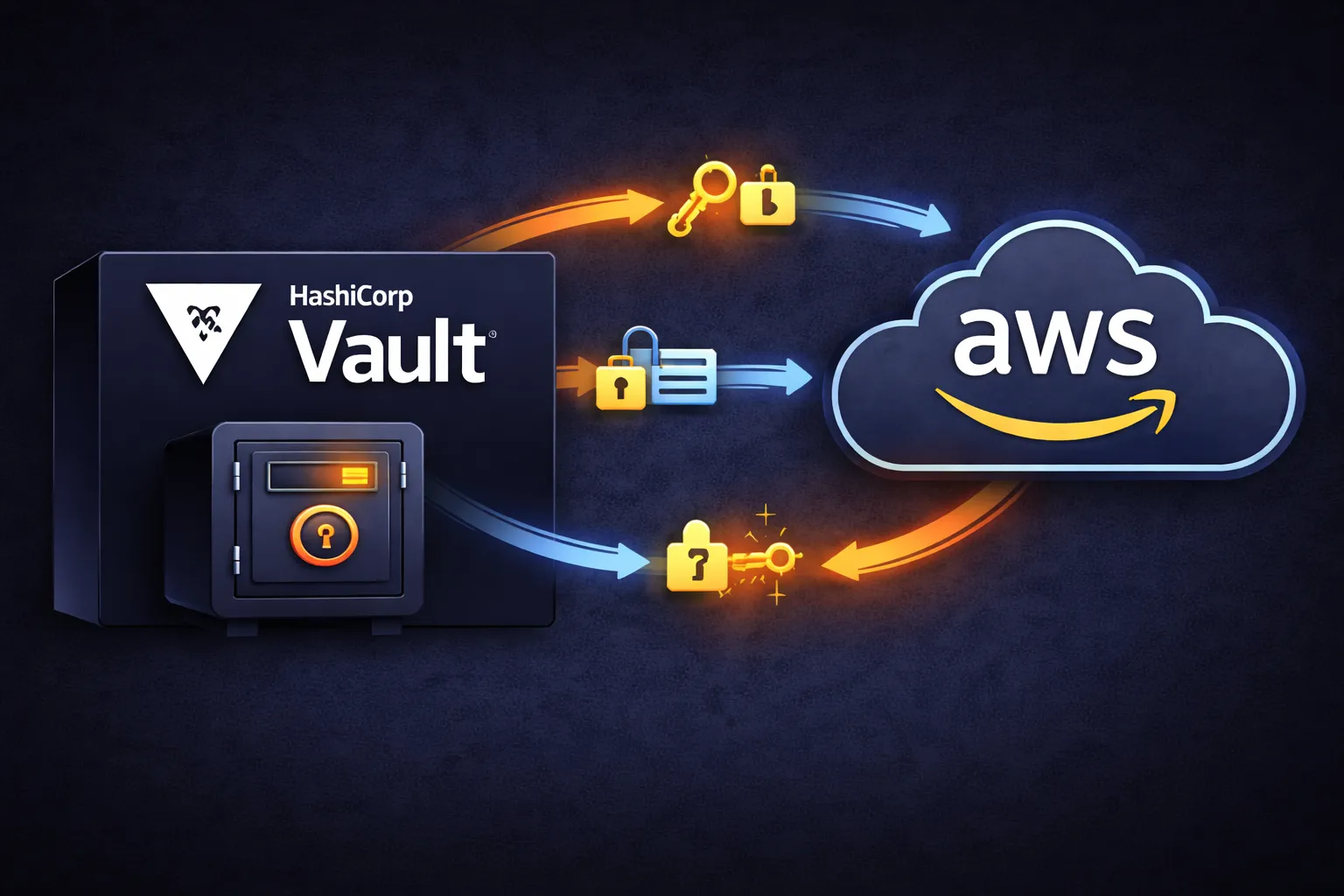
In the previous articles, we covered IAM users, policies, roles, and access key lifecycle management. The recurring theme was clear: prefer temporary credentials over long-lived access keys wherever possible. But even with disciplined rotation, static credentials remain a liability — they exist permanently until someone remembers to rotate or delete them.
HashiCorp Vault takes this principle to its logical conclusion. Instead of managing the lifecycle of static credentials, Vault generates credentials on-demand that automatically expire and get cleaned up. No more rotation schedules, no more credential sprawl, no more forgotten access keys sitting in configuration files.
This is the first of three articles on Vault. Here we cover what Vault is, why it exists, and how to configure it to generate dynamic AWS credentials. The next two articles cover authentication and application integration, then production deployment.
What Is HashiCorp Vault?
HashiCorp Vault is a secrets management tool designed to control access to sensitive data. It provides a unified interface for managing secrets — API keys, passwords, certificates, encryption keys — while maintaining a detailed audit log of who accessed what and when.
Vault is not just a secure storage system. It is an active participant in your security architecture. Rather than passively holding credentials like a password manager or encrypted file, Vault actively generates, distributes, revokes, and rotates secrets on your behalf.
Vault provides four core capabilities:
1. Dynamic Secrets Generation
This is the capability that makes Vault fundamentally different from other secret storage tools. Instead of storing a static credential and handing it out when asked, Vault generates a brand new credential for each request, with a built-in expiration time. When that time is up, Vault automatically revokes the credential.
For AWS, this means Vault creates a temporary IAM user with specific permissions, generates access keys for that user, hands them to your application, and then deletes that IAM user when the lease expires. Your application never stores a permanent credential — it gets a fresh one every time it needs access.
2. Encryption as a Service
Vault can encrypt and decrypt data on behalf of your applications without them ever seeing the encryption keys. Your application sends plaintext to Vault and gets ciphertext back (or vice versa). The encryption keys never leave Vault. This is particularly useful for applications that need to encrypt sensitive data but should not be responsible for key management.
3. Identity-Based Access Control
Every interaction with Vault is authenticated and authorized. Before Vault will generate a credential or decrypt data for you, you must prove who you are and Vault checks whether you have permission to perform that operation. This is controlled through Vault policies — HCL documents that define which paths (resources) an identity can access and what operations it can perform.
4. Complete Audit Logging
Every single request to Vault is logged with full context: who made the request, what they requested, when, and whether it was allowed or denied. This creates a complete audit trail for compliance and security analysis. If a credential is compromised, you can trace exactly when it was issued, to whom, and what it was used for.
Why Traditional Credential Management Is Broken
To understand why Vault matters, consider how most organizations handle AWS credentials today.
The Standard Approach
Step 1: Create an IAM user with access keys.
aws iam create-user --user-name myapp-user
aws iam create-access-key --user-name myapp-user
Step 2: Store those credentials somewhere. Common locations include:
- Environment variables — visible in process lists and shell history
- Configuration files — risk of accidental git commits
- Secret management systems — still static credentials that need rotation
- Developer laptops — lost, stolen, or left behind when people leave
Step 3: Use the credentials in applications.
# This pattern is common and dangerous
import boto3

client = boto3.client(
    's3',
    aws_access_key_id='AKIAIOSFODNN7EXAMPLE',
    aws_secret_access_key='wJalrXUtnFEMI/K7MDENG/bPxRfiCYEXAMPLEKEY'
)
Step 4: Rotate those credentials every 90 days. This means updating credentials in every system that uses them, testing every application to verify the new credentials work, and hoping nothing breaks during the transition.
The Problems This Creates
Security issues:
- Long-lived credentials are permanent attack targets — if stolen, they work indefinitely until someone notices
- Credential sprawl across multiple systems makes it impossible to track who has access to what
- No automatic cleanup — old credentials accumulate over months and years
- Difficult to audit — which application is using which credential, and when was it last rotated?
Operational issues:
- Manual rotation is error-prone — updating credentials in 15 different systems without breaking any of them is difficult
- Downtime risk during rotation — if you update the credential in AWS before updating your application, the application breaks
- Compliance burden — proving to auditors that all credentials are rotated on schedule and properly tracked requires significant effort
How Dynamic Secrets Solve These Problems
Vault dynamic secrets eliminate the entire lifecycle problem by making credentials ephemeral.
With static credentials:
Application -> Static AWS Keys (stored permanently) -> AWS API
                     |
              Must be rotated manually every 90 days
              Must be tracked across all systems
              If stolen, work indefinitely
With Vault dynamic secrets:
Application -> Vault (authenticate) -> Fresh AWS Keys -> AWS API
                                             |
                                    Automatically revoked after 1 hour
                                    Unique per request
                                    If stolen, expire quickly
When your application needs AWS access, the following happens:
- Application authenticates to Vault — proves its identity using one of Vault's authentication methods (AppRole, IAM role, Kubernetes service account, etc.)
- Vault checks permissions — verifies that this application is allowed to request the type of AWS credentials it is asking for
- Vault creates a temporary IAM user in AWS — with a random name like
vault-token-abc123 - Vault attaches the specified permissions — only the exact AWS permissions defined in the Vault role
- Vault generates access keys — for this temporary IAM user
- Vault returns the credentials — to the application, along with a lease ID and duration
- Vault starts a timer — when the lease expires, Vault automatically deletes the IAM user and its access keys
The result: your application never stores a permanent AWS credential. It gets fresh, short-lived credentials every time it needs them. If those credentials are stolen, they stop working within hours. There is nothing to rotate because credentials are created on-demand and destroyed automatically.
Setting Up Vault with AWS
Prerequisites
- AWS CLI installed and configured with IAM administrative permissions (from our earlier setup article)
- Terminal access and internet connection
- Familiarity with AWS IAM concepts from the previous articles in this series
Installing Vault
# On macOS
brew tap hashicorp/tap
brew install hashicorp/tap/vault

# On Ubuntu/Debian
wget -O- https://apt.releases.hashicorp.com/gpg | sudo gpg --dearmor -o /usr/share/keyrings/hashicorp-archive-keyring.gpg
echo "deb [signed-by=/usr/share/keyrings/hashicorp-archive-keyring.gpg] https://apt.releases.hashicorp.com $(lsb_release -cs) main" | sudo tee /etc/apt/sources.list.d/hashicorp.list
sudo apt-get update && sudo apt-get install vault

# Verify installation
vault --version
Starting the Development Server
Vault has a built-in development mode that runs entirely in memory with a pre-configured root token. This is designed for learning and testing — never use dev mode in production, as all data is lost when the process stops and there is no encryption or access control.
# Start Vault in development mode
vault server -dev
Vault will print output including a root token. In a separate terminal:
# Point the CLI at the dev server
export VAULT_ADDR='http://127.0.0.1:8200'
export VAULT_TOKEN="<root-token-from-output>"

# Verify Vault is running
vault status
You should see output showing Sealed: false and Storage Type: inmem. The dev server starts unsealed (ready to use) with in-memory storage.
Understanding sealed vs unsealed: In production, Vault encrypts all its data at rest. When Vault starts, it cannot read its own data until it is “unsealed” — a process that reconstructs the master encryption key. In dev mode, this step is skipped for convenience. We will cover the unsealing process in the production deployment article.
Enabling the AWS Secrets Engine
Vault uses a plugin architecture called “secrets engines.” Each secrets engine knows how to generate a specific type of credential. The AWS secrets engine knows how to create and manage AWS IAM users and access keys.
vault secrets enable awsThis tells Vault to load the AWS secrets engine at the path aws/. All subsequent AWS-related configuration and credential requests go through this path.
Creating a Vault IAM User
Vault needs its own AWS credentials to create and manage temporary IAM users. We create a dedicated IAM user for this purpose with only the permissions Vault needs:
# Create the IAM user
aws iam create-user --user-name vault-root

# Generate access keys
aws iam create-access-key --user-name vault-root
Save the AccessKeyId and SecretAccessKey from the output — you will need them in the next step.
Now grant this user the IAM permissions Vault needs. Vault must be able to create and delete IAM users and their access keys, and attach policies to those users:
{
  "Version": "2012-10-17",
  "Statement": [
    {
      "Effect": "Allow",
      "Action": [
        "iam:AttachUserPolicy",
        "iam:CreateAccessKey",
        "iam:CreateUser",
        "iam:DeleteAccessKey",
        "iam:DeleteUser",
        "iam:DeleteUserPolicy",
        "iam:DetachUserPolicy",
        "iam:GetUser",
        "iam:ListAccessKeys",
        "iam:ListAttachedUserPolicies",
        "iam:ListGroupsForUser",
        "iam:ListUserPolicies",
        "iam:PutUserPolicy",
        "iam:RemoveUserFromGroup"
      ],
      "Resource": "*"
    }
  ]
}
Each permission serves a specific purpose in Vault's lifecycle management:
- CreateUser / DeleteUser — Vault creates a temporary IAM user for each credential request and deletes it when the lease expires
- CreateAccessKey / DeleteAccessKey — Vault generates access keys for the temporary user and cleans them up
- PutUserPolicy / DeleteUserPolicy — Vault attaches the permissions you specify in the Vault role to each temporary user
- List* / Get* — Vault needs to inspect existing state for cleanup and verification
# Save the policy to a file and attach it
aws iam put-user-policy \
    --user-name vault-root \
    --policy-name VaultDynamicSecretsPolicy \
    --policy-document file://vault-policy.json
Configuring Vault with Root Credentials
Now tell Vault about its AWS credentials:
vault write aws/config/root \
    access_key=AKIAIOSFODNN7EXAMPLE \
    secret_key=wJalrXUtnFEMI/K7MDENG/bPxRfiCYEXAMPLEKEY \
    region=us-east-1
These are the only long-lived AWS credentials in the entire system. Every other credential will be dynamic and short-lived. Vault uses these root credentials solely to create and delete temporary IAM users on behalf of your applications. Protect them accordingly — anyone with these credentials could create IAM users in your account.
Creating Vault Roles
A Vault role is a template that defines what AWS permissions temporary credentials should have. When an application requests credentials from a specific role, Vault creates a temporary IAM user with exactly those permissions.
Important distinction: Vault roles and AWS IAM roles are different concepts. A Vault role is a configuration object within Vault that defines a credential template. An AWS IAM role is an AWS identity that can be assumed for temporary credentials. They serve similar conceptual purposes but operate in different systems.
vault write aws/roles/my-role \
    credential_type=iam_user \
    policy_document=-<<EOF
{
  "Version": "2012-10-17",
  "Statement": [
    {
      "Effect": "Allow",
      "Action": [
        "s3:GetObject",
        "s3:PutObject"
      ],
      "Resource": [
        "arn:aws:s3:::my-bucket/*"
      ]
    }
  ]
}
EOF
Breaking this down:
aws/roles/my-role— creates a role named “my-role” under the AWS secrets enginecredential_type=iam_user— tells Vault to create temporary IAM users (as opposed to STS tokens or assumed roles)policy_document— the AWS IAM policy that will be attached to each temporary user. This is standard AWS policy JSON — the same format you would use for any IAM policy
When you run this command, nothing is created in AWS yet. The role is just a template stored in Vault. The actual AWS IAM user is created only when someone requests credentials from this role.
Generating Your First Dynamic Credentials
vault read aws/creds/my-roleOutput:
Key                Value
---                -----
lease_id           aws/creds/my-role/f3e92392-7d9c-09c8-c921-575d62fe80d8
lease_duration     768h
lease_renewable    true
access_key         AKIAI44QH8DHBEXAMPLE
secret_key         je7MtGbClwBF/2Zp9Utk/h3yCo8nvbEXAMPLEKEY
security_token     <nil>
Behind the scenes, Vault just:
- Created a new IAM user in your AWS account (with a name like
vault-token-f3e92392) - Attached the S3 read/write policy you defined to that user
- Generated access keys for the user
- Returned those keys to you
- Started a 768-hour timer to delete the user automatically
You can verify this in AWS:
# List IAM users - you will see the Vault-created user
aws iam list-users | grep vault-token
Understanding Leases
The lease_id and lease_duration in the output are central to how Vault manages credential lifecycle:
- Lease ID — a unique identifier for this specific set of credentials. You can use it to renew or revoke the credentials manually
- Lease duration — how long before Vault automatically revokes the credentials
- Renewable — whether the lease can be extended before it expires
You can manually revoke credentials before the lease expires:
# Revoke a specific lease
vault lease revoke aws/creds/my-role/f3e92392-7d9c-09c8-c921-575d62fe80d8

# Revoke ALL credentials from a role
vault lease revoke -prefix aws/creds/my-role
The prefix revocation is particularly useful for incident response — if you suspect credentials from a role have been compromised, you can revoke all of them instantly.
Configuring Shorter Lease Times
The default 768-hour (32-day) lease is too long for most use cases. The whole point of dynamic secrets is short-lived credentials. Configure the lease duration to match your security requirements:
vault write aws/config/lease \
    lease=3600s \
    lease_max=7200s
lease=3600s — new credentials expire after 1 hour by default.
lease_max=7200s — even if an application renews its credentials, they must be completely replaced after 2 hours. This is the absolute maximum lifetime.
How renewal works in practice:
- Application gets credentials (valid for 1 hour)
- After 45 minutes, application renews the lease — extends it by another hour
- After 2 hours total, renewal stops working — the application must request completely new credentials
- Vault deletes the old IAM user and the application gets a new one
This means that even if credentials are compromised, they become useless within 2 hours maximum. Compare this to static credentials that could work for months before anyone notices they were stolen.
Application-Specific Roles
In a real environment, different applications need different AWS permissions. Following the principle of least privilege, create a separate Vault role for each application with only the permissions it needs:
# Web application: S3 file operations only
vault write aws/roles/webapp \
    credential_type=iam_user \
    policy_document=-<<EOF
{
  "Version": "2012-10-17",
  "Statement": [
    {
      "Effect": "Allow",
      "Action": ["s3:GetObject", "s3:PutObject", "s3:DeleteObject"],
      "Resource": "arn:aws:s3:::webapp-bucket/*"
    }
  ]
}
EOF

# Analytics: read-only access to data and metrics
vault write aws/roles/analytics \
    credential_type=iam_user \
    policy_document=-<<EOF
{
  "Version": "2012-10-17",
  "Statement": [
    {
      "Effect": "Allow",
      "Action": ["s3:GetObject", "s3:ListBucket", "cloudwatch:GetMetricStatistics"],
      "Resource": "*"
    }
  ]
}
EOF

# Backup system: write-only to backup bucket + database snapshots
vault write aws/roles/backup \
    credential_type=iam_user \
    policy_document=-<<EOF
{
  "Version": "2012-10-17",
  "Statement": [
    {
      "Effect": "Allow",
      "Action": ["s3:PutObject"],
      "Resource": "arn:aws:s3:::backup-bucket/*"
    },
    {
      "Effect": "Allow",
      "Action": ["rds:CreateDBSnapshot", "rds:DescribeDBSnapshots"],
      "Resource": "*"
    }
  ]
}
EOF
Now when each application requests credentials, it gets a completely different temporary IAM user with only its specific permissions:
# Web app gets S3 read/write credentials
vault read aws/creds/webapp

# Analytics gets read-only credentials
vault read aws/creds/analytics

# Backup system gets write-only + snapshot credentials
vault read aws/creds/backup
If the webapp credentials are compromised, the attacker can access the webapp S3 bucket but cannot read analytics data, create database snapshots, or access backup storage. Each application is isolated from the others.
Credential Types
The examples above use credential_type=iam_user, which creates a full IAM user for each credential request. Vault also supports two other credential types:
iam_user— creates a temporary IAM user with access keys. Most flexible, works everywhere, but creates actual IAM users that count toward your account limits. Vault handles cleanup.assumed_role— assumes an existing IAM role and returns STS temporary credentials. No IAM user is created. Requires the role to already exist in AWS with a trust policy that allows Vault to assume it. Better for environments with strict IAM user limits.federation_token— generates a federation token using STS. Faster than creating IAM users but with more limited permissions. Cannot call IAM or STS APIs with these credentials.
For most use cases, iam_user is the simplest starting point. As your deployment matures, assumed_role is preferred because it avoids creating IAM users entirely and leverages existing IAM role infrastructure.
Key Takeaways
- HashiCorp Vault is a secrets management tool that actively generates, distributes, and revokes credentials rather than just storing them
- Traditional static credential management creates security risks through long-lived credentials, credential sprawl, and manual rotation burden
- Dynamic secrets solve these problems by generating short-lived, unique credentials for each request with automatic cleanup
- The AWS secrets engine creates temporary IAM users (or STS tokens) with scoped permissions for each credential request
- Vault roles define what AWS permissions temporary credentials will have — create one role per application following least privilege
- Configure short lease times (1-2 hours) so compromised credentials expire quickly
- Lease management (renewal, revocation, prefix revocation) gives you fine-grained control over credential lifecycle
In the next article, we will cover Vault authentication and application integration — how applications prove their identity to Vault using AppRole and AWS IAM authentication, and how to build a Python application that uses dynamic credentials transparently.
Go Deeper: The State of AWS Security 2026
This article is just the start. Get the full picture with our free whitepaper - 8 chapters covering IAM, S3, VPC, monitoring, agentic AI security, compliance, and a prioritized action plan with 50+ CLI commands.
KloudSec, built by the team behind Toc Consulting
See AWS Security checked automatically, continuously
What you just read is a manual, one-time check. KloudSec runs this and 400+ more automated checks across 90+ AWS services, continuously, agentless, live in about 5 minutes.
Toc Consulting: AWS Security & Cloud Architecture
Want expert help with AWS Security?
Our team helps engineering teams secure and architect AWS the right way: assessment in week one, a prioritized action plan in week two.
More Articles
Anatomy of a Real AWS Breach: Capital One, 2019
How a misconfigured WAF, an unauthenticated metadata service, and an over-privileged IAM role combined to expose data on roughly 100 million people in the US and 6 million in Canada, and the specific checks that would have stopped it.
Anatomy of a Real AWS Breach: Code Spaces, 2014
A single compromised AWS console login, no MFA, and a company was gone within 12 hours. The full story, and why "our backups are in AWS too" was the real failure.
Anatomy of a Real AWS Breach: Imperva, 2019
A security company got breached through one exposed AWS API key on an internet-reachable instance. Even the people who build WAFs for a living can miss this.