
Chaos Engineering on AWS: Observability and Stop Conditions with CloudWatch and FIS
Tarek Cheikh
Founder & AWS Cloud Architect
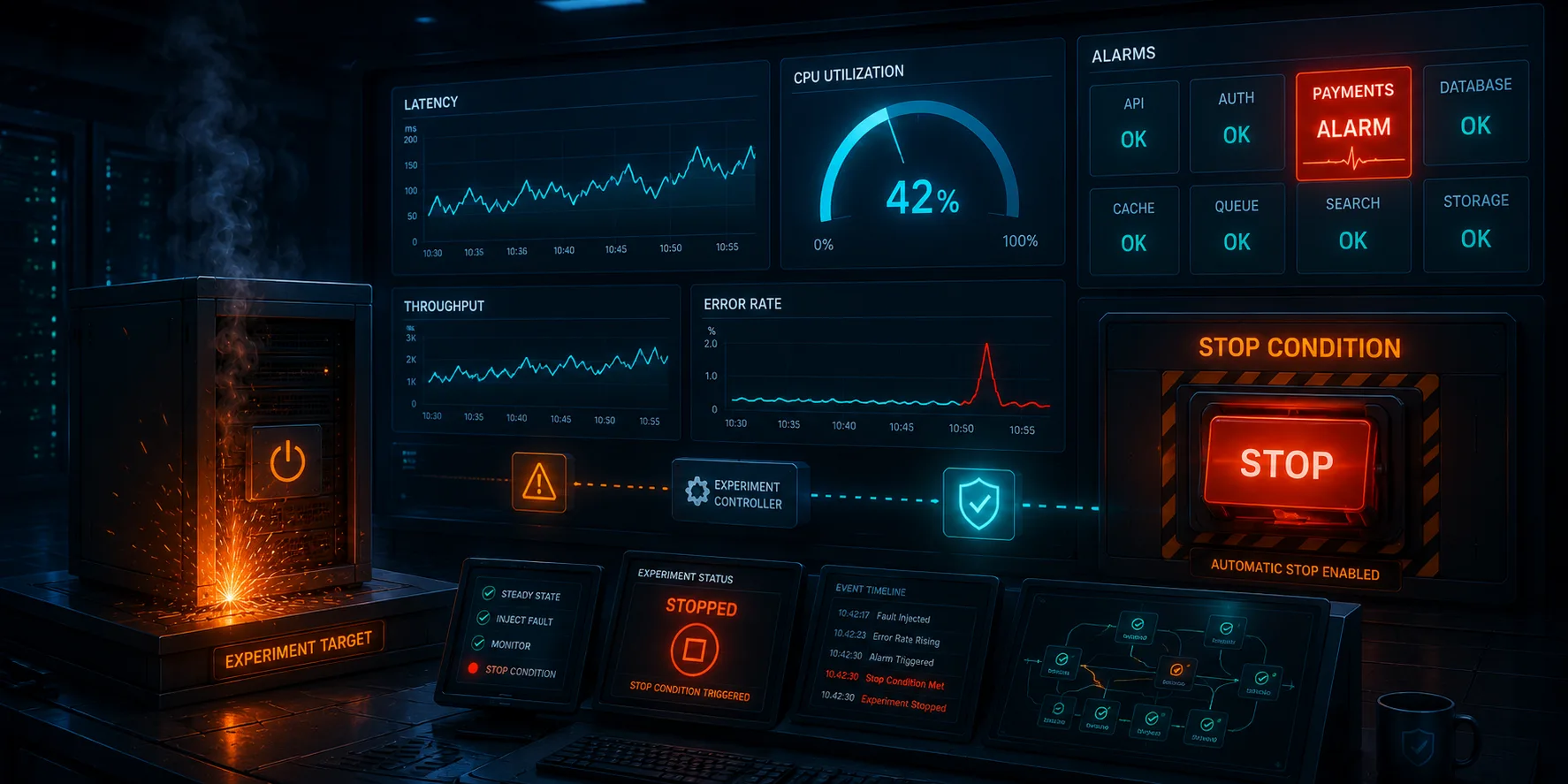
This is Article 2 in the "Chaos Engineering on AWS" series. We add CloudWatch dashboards, alarms, and FIS stop conditions so our experiments have eyes and guardrails.
You Cannot Break What You Cannot See
In Article 1, we deployed Chaos Shop (a product catalog and order API backed by Aurora), stopped an EC2 instance with FIS, and discovered a detection window where customer requests returned 502s and timeouts. We verified that our orders and stock data survived the failure. But we ran that experiment blind. We watched curl output in a terminal and counted errors by hand. There was no dashboard, no alarm, and no automatic way to stop the experiment if it went sideways.
That approach worked because the experiment was small and the blast radius was limited to a lab environment. In a real system, you need more. You need to see what is happening while the experiment runs, and you need the experiment to stop itself if the impact exceeds what you expected.
This is the observability-first principle: before you design more experiments, build the instrumentation to observe them. A chaos experiment without observability is just an outage you caused on purpose.
What We Are Adding
This article builds on the same infrastructure from Article 1: two EC2 instances behind an ALB, both running the Chaos Shop API, backed by Aurora Serverless v2 with products and orders tables. We are adding three things:
- A CloudWatch dashboard with eight widgets covering ALB traffic, response times, healthy hosts, 5xx errors, Aurora connections, CPU, and database read/write latency.
- Three CloudWatch alarms that define what "too much impact" looks like: unhealthy hosts, error rate, and latency.
- FIS stop conditions that wire one of those alarms directly to the experiment, so FIS aborts automatically if healthy host count drops below 2.
We are also adding a second experiment template. Article 1 only had stop-instance. This time we add terminate-instance, which is a different failure mode with different recovery characteristics.
The full code is at github.com/TocConsulting/chaos-on-aws, in the 02-observability-first/terraform/ directory.
The CloudWatch Dashboard
The dashboard gives you a single screen to watch during experiments. Eight widgets, four rows, each one chosen because it answers a specific question you will have when something is breaking.
Row 1: ALB Traffic
- Request Count: Are requests still flowing? A sudden drop to zero means nobody can reach the application, not just that some requests are failing.
- Target Response Time: How fast are responses? We track both the average and the p99. The average can hide problems; the p99 shows the worst experience real users are having.
Row 2: Health and Errors
- Healthy Host Count: How many instances are serving traffic? This widget includes a red annotation line at 2, which is our minimum safe count. When the line dips below that marker, you know exactly when the failure was detected.
- HTTP 5xx Errors: We track both
HTTPCode_ELB_5XX_Count(errors generated by the ALB itself, like 502s when a target is unreachable) andHTTPCode_Target_5XX_Count(errors returned by the application). The distinction matters. During our Article 1 experiment, the 502s came from the ALB, not the app.
Row 3: Aurora Connections and CPU
- Database Connections: Connection count tells you whether instances are properly connecting and disconnecting. When an EC2 instance dies, its connections to Aurora drop. When a replacement boots, new connections appear. A spike after recovery could indicate connection leaks. Each Gunicorn worker maintains a persistent database connection, so you should see a stable connection count during normal operation (4 workers per instance, 2 instances, roughly 8 connections). When an EC2 instance dies, half the connections drop. When a replacement boots, new connections appear. A spike after recovery could indicate connection leaks.
- CPU Utilization: Baseline visibility into database load. We are not targeting the database yet (that is Article 3), but if a compute experiment somehow spikes database CPU, you want to see it.
Row 4: Aurora Latency
- Read Latency (SelectLatency): How long are SELECT queries taking? Every call to
GET /productsandGET /orders/{id}runs a SELECT against Aurora. This metric establishes the baseline that will change dramatically when we test database failover in Article 3. - Write Latency (CommitLatency and DMLLatency): How long are writes taking? Every
POST /ordersruns a transaction: SELECT FOR UPDATE, UPDATE stock, INSERT order, COMMIT. The commit latency is the end-to-end cost of persisting that transaction. When Aurora has a bad day, this number tells the story.
Here is how one of the dashboard widgets looks in Terraform. This is the Healthy Host Count widget with its annotation line:
{
  type   = "metric"
  x      = 0
  y      = 6
  width  = 12
  height = 6
  properties = {
    title   = "Healthy Host Count"
    view    = "timeSeries"
    stacked = false
    region  = var.region
    period  = 60
    metrics = [
      ["AWS/ApplicationELB", "HealthyHostCount",
       "TargetGroup", aws_lb_target_group.main.arn_suffix,
       "LoadBalancer", aws_lb.main.arn_suffix,
       { stat = "Minimum" }]
    ]
    annotations = {
      horizontal = [
        {
          label = "Minimum safe (2 hosts)"
          value = 2
          color = "#d62728"
        }
      ]
    }
  }
}
The stat = "Minimum" is deliberate. We want to see the lowest healthy host count within each 60-second period, not the average. If hosts dropped to 1 for 10 seconds and then recovered, the average might show 1.8, which looks fine. The minimum shows 1, which is the truth.
And here is the Aurora write latency widget, which tracks both commit latency and DML latency:
{
  type   = "metric"
  x      = 12
  y      = 18
  width  = 12
  height = 6
  properties = {
    title   = "Aurora Write Latency (seconds)"
    view    = "timeSeries"
    stacked = false
    region  = var.region
    period  = 60
    metrics = [
      ["AWS/RDS", "CommitLatency", "DBClusterIdentifier",
       aws_rds_cluster.main.cluster_identifier, { stat = "Average" }],
      ["AWS/RDS", "DMLLatency", "DBClusterIdentifier",
       aws_rds_cluster.main.cluster_identifier, { stat = "Average" }]
    ]
  }
}
All eight widgets follow the same pattern. The full dashboard definition is in observability.tf in the companion repository.
The Three Alarms
Dashboards show you what happened. Alarms tell you when something is happening right now. We define three alarms, each targeting a different failure signal.
Alarm 1: Unhealthy Hosts
resource "aws_cloudwatch_metric_alarm" "unhealthy_hosts" {
  alarm_name          = "chaos-lab-unhealthy-hosts"
  alarm_description   = "Healthy host count dropped below 2. FIS stop condition."
  comparison_operator = "LessThanThreshold"
  evaluation_periods  = 1
  metric_name         = "HealthyHostCount"
  namespace           = "AWS/ApplicationELB"
  period              = 60
  statistic           = "Minimum"
  threshold           = 2
  treat_missing_data  = "breaching"

  dimensions = {
    TargetGroup  = aws_lb_target_group.main.arn_suffix
    LoadBalancer = aws_lb.main.arn_suffix
  }
}
This alarm fires when the minimum healthy host count drops below 2 within any 60-second period. One evaluation period, no waiting for confirmation. If hosts are down, we want to know immediately.
The treat_missing_data = "breaching" setting is important. If CloudWatch stops receiving HealthyHostCount data, that probably means the target group or load balancer is in trouble. Missing data should be treated as bad news, not ignored. This is the conservative choice for a safety-critical alarm.
Alarm 2: High Error Rate
resource "aws_cloudwatch_metric_alarm" "high_error_rate" {
  alarm_name          = "chaos-lab-high-error-rate"
  alarm_description   = "ALB 5xx error rate exceeds 10%."
  comparison_operator = "GreaterThanThreshold"
  evaluation_periods  = 1
  threshold           = 10

  metric_query {
    id          = "error_rate"
    expression  = "IF(requests > 0, ((FILL(elb_errors, 0) + FILL(target_errors, 0)) / requests) * 100, 0)"
    label       = "Error Rate %"
    return_data = true
  }

  metric_query {
    id = "elb_errors"
    metric {
      metric_name = "HTTPCode_ELB_5XX_Count"
      namespace   = "AWS/ApplicationELB"
      period      = 60
      stat        = "Sum"
      dimensions = {
        LoadBalancer = aws_lb.main.arn_suffix
      }
    }
  }

  metric_query {
    id = "target_errors"
    metric {
      metric_name = "HTTPCode_Target_5XX_Count"
      namespace   = "AWS/ApplicationELB"
      period      = 60
      stat        = "Sum"
      dimensions = {
        LoadBalancer = aws_lb.main.arn_suffix
      }
    }
  }

  metric_query {
    id = "requests"
    metric {
      metric_name = "RequestCount"
      namespace   = "AWS/ApplicationELB"
      period      = 60
      stat        = "Sum"
      dimensions = {
        LoadBalancer = aws_lb.main.arn_suffix
      }
    }
  }

  treat_missing_data = "notBreaching"
}
This alarm uses a metric math expression to calculate the error percentage: the sum of ALB-generated 5xx errors (HTTPCode_ELB_5XX_Count) and application-generated 5xx errors (HTTPCode_Target_5XX_Count) divided by total requests, multiplied by 100. The IF(requests > 0, ...) guard prevents division by zero when there is no traffic, and FILL(..., 0) treats missing error metrics as zero (CloudWatch only publishes error counts when errors exist). It fires when the error rate exceeds 10%.
Notice treat_missing_data = "notBreaching" here, the opposite of the unhealthy hosts alarm. If there is no traffic data, it means nobody is sending requests. No traffic means no errors. That is not a problem, so we do not want the alarm to fire.
This is the key design decision with treat_missing_data: ask yourself, "If I am not getting data, should I assume the worst or assume everything is fine?" For infrastructure health signals like host count, assume the worst. For traffic-based signals like error rate, no data usually means no traffic.
Alarm 3: High Latency
resource "aws_cloudwatch_metric_alarm" "high_latency" {
  alarm_name          = "chaos-lab-high-latency"
  alarm_description   = "ALB p99 response time exceeds 2 seconds."
  comparison_operator = "GreaterThanThreshold"
  evaluation_periods  = 2
  metric_name         = "TargetResponseTime"
  namespace           = "AWS/ApplicationELB"
  period              = 60
  extended_statistic  = "p99"
  threshold           = 2

  dimensions = {
    LoadBalancer = aws_lb.main.arn_suffix
  }

  treat_missing_data = "notBreaching"
}
This one fires when the p99 response time exceeds 2 seconds for two consecutive evaluation periods. The two-period requirement is intentional. A single spike in latency can happen during normal operation: maybe a cold database connection, maybe a garbage collection pause. Two consecutive periods of high p99 latency suggests a sustained problem.
Like the error rate alarm, treat_missing_data = "notBreaching" because no response time data means no requests, which is not a latency problem.
FIS Stop Conditions
This is where observability and chaos engineering connect directly. A stop condition tells FIS: "Watch this CloudWatch alarm. If it enters the ALARM state, abort the experiment immediately."
In Article 1, our FIS experiment had stop_condition { source = "none" }. The experiment ran to completion regardless of what happened. Now we wire it to the unhealthy hosts alarm:
resource "aws_fis_experiment_template" "stop_instance_with_guardrail" {
  description = "Stop one EC2 instance with CloudWatch stop condition"
  role_arn    = aws_iam_role.fis.arn

  action {
    name      = "stop-instance"
    action_id = "aws:ec2:stop-instances"

    parameter {
      key   = "startInstancesAfterDuration"
      value = "PT5M"
    }

    target {
      key   = "Instances"
      value = "chaos-lab-instances"
    }
  }

  target {
    name           = "chaos-lab-instances"
    resource_type  = "aws:ec2:instance"
    selection_mode = "COUNT(1)"

    resource_tag {
      key   = "Project"
      value = "chaos-lab"
    }
  }

  stop_condition {
    source = "aws:cloudwatch:alarm"
    value  = aws_cloudwatch_metric_alarm.unhealthy_hosts.arn
  }
}
Two changes from Article 1 worth noting.
First, the stop condition now points to aws:cloudwatch:alarm with the ARN of our unhealthy hosts alarm. When FIS is running this experiment, it polls the alarm state. If the alarm transitions to ALARM, FIS halts the experiment and reports "Experiment halted by stop condition."
Second, we added startInstancesAfterDuration = "PT5M". This tells FIS to keep the instance stopped for 5 minutes before restarting it. In Article 1, the stop action completed immediately. Here, the experiment stays active for up to 5 minutes, which gives the stop condition time to evaluate. Without a duration, the experiment would complete before the alarm even had a chance to fire.
We also add a second experiment template for terminating instances:
resource "aws_fis_experiment_template" "terminate_instance" {
  description = "Terminate one EC2 instance to test full replacement"
  role_arn    = aws_iam_role.fis.arn

  action {
    name      = "terminate-instance"
    action_id = "aws:ec2:terminate-instances"

    target {
      key   = "Instances"
      value = "chaos-lab-instances"
    }
  }

  target {
    name           = "chaos-lab-instances"
    resource_type  = "aws:ec2:instance"
    selection_mode = "COUNT(1)"

    resource_tag {
      key   = "Project"
      value = "chaos-lab"
    }
  }

  stop_condition {
    source = "aws:cloudwatch:alarm"
    value  = aws_cloudwatch_metric_alarm.unhealthy_hosts.arn
  }
}
Terminate is a different failure mode from stop. When you stop an instance, it stays in the ASG but is not running. When you terminate it, the ASG removes it entirely and launches a fresh replacement. Terminate tests the full recovery path: new instance, new boot, new application startup, new database connection, new table initialization. We will see the difference in the results.
The IAM Addition
For FIS to evaluate stop conditions, it needs permission to read CloudWatch alarm state. The FIS IAM role from Article 1 only had ec2:StopInstances, ec2:StartInstances, and ec2:DescribeInstances. Now we add ec2:TerminateInstances (for the new experiment) and cloudwatch:DescribeAlarms (for stop condition evaluation):
{
  # FIS needs this to evaluate stop conditions
  Effect = "Allow"
  Action = [
    "cloudwatch:DescribeAlarms"
  ]
  Resource = "*"
}
Without this permission, FIS cannot check the alarm state and the stop condition will not work. You will get an access denied error when the experiment tries to evaluate the alarm. This is easy to miss: the experiment template will create successfully without the permission, but it will fail at runtime.
Deploy
The code for this article is in a separate directory from Article 1. It is a standalone deployment that includes everything from Article 1 plus the observability layer.
cd chaos-on-aws/02-observability-first/terraform
terraform init
terraform plan
terraform apply
Terraform deploys 42 resources. When it completes, you will see outputs including the ALB endpoint, the two FIS experiment template IDs, and the dashboard URL:
Outputs:

alb_dns_name = "chaos-lab-alb-636595371.us-east-1.elb.amazonaws.com"
fis_stop_with_guardrail_id = "EXT6CdqZCxFNnUQac"
fis_terminate_instance_id = "EXTUuE4S9dXNXjW"
dashboard_url = "https://us-east-1.console.aws.amazon.com/cloudwatch/home?region=us-east-1#dashboards:name=chaos-lab"
Open the dashboard URL in your browser. You should see all eight widgets. The ALB widgets will be empty until traffic starts flowing. The Aurora widgets should show baseline metrics as soon as the cluster is running.
Verify Chaos Shop is working
Give the instances a couple of minutes to boot, install dependencies, and initialize the database. Then verify the app is healthy and the database is connected:
$ ALB="chaos-lab-alb-636595371.us-east-1.elb.amazonaws.com"

$ curl -s http://$ALB/products | python3 -m json.tool
{
    "products": [
        {"id": 1, "name": "Wireless Keyboard", "price": 49.99, "stock": 98},
        {"id": 2, "name": "USB-C Hub", "price": 34.99, "stock": 150},
        ...
    ],
    "count": 10,
    "db_latency_ms": 206.62,
    "served_by": "i-00edc6d9f204115d2"
}
Ten products from Aurora. Now place a few orders to establish baseline data that we can verify survives the experiments:
$ curl -s -X POST http://$ALB/orders \
    -H "Content-Type: application/json" \
    -d '{"product_id": 3, "quantity": 2}' | python3 -m json.tool
{
    "order_id": 5,
    "product_name": "Mechanical Keyboard",
    "quantity": 2,
    "total": 259.98,
    "status": "confirmed",
    "served_by": "i-09c857d6e040564b6"
}
This order draws stock from product 3 (Mechanical Keyboard), which we will use as our data-integrity check after each experiment. Then confirm all three alarms are in OK state:
$ aws cloudwatch describe-alarms \
    --alarm-name-prefix "chaos-lab" \
    --query 'MetricAlarms[].{Name:AlarmName,State:StateValue}' \
    --output table

---------------------------------------------
|              DescribeAlarms               |
+----------------------------+--------------+
|           Name             |    State     |
+----------------------------+--------------+
|  chaos-lab-high-error-rate |  OK          |
|  chaos-lab-high-latency    |  OK          |
|  chaos-lab-unhealthy-hosts |  OK          |
+----------------------------+--------------+
All three alarms are in OK state. The system is healthy. The dashboard is showing traffic. Time to break things.
Experiment 1: Stop Instance with Guardrail
The Hypothesis
Hypothesis: If we stop one EC2 instance, the unhealthy hosts alarm will fire when CloudWatch detects the drop in healthy host count. FIS will then abort the experiment automatically via the stop condition. The system will recover without manual intervention.
This is a different hypothesis from Article 1. We are not just asking "does the system recover?" We are asking "do the guardrails work?"
Run It
Start the experiment:
$ aws fis start-experiment \
    --experiment-template-id EXT6CdqZCxFNnUQac \
    --query 'experiment.id' \
    --output text

EXPezUApU6uUwbuD3Y
In a second terminal, start polling the ALB. We are hitting the /products endpoint, which reads all 10 products from Aurora on every request. This is a real database operation, not a synthetic health check:
$ while true; do
    echo "$(date -u '+%H:%M:%S') - $(curl -s -o /dev/null -w '%{http_code}' \
      --connect-timeout 3 --max-time 5 \
      http://$ALB/products)"
    sleep 2
  done
The Results
The experiment started at 21:55:38 UTC. This template has startInstancesAfterDuration = PT5M, so FIS keeps the instance stopped for up to 5 minutes while the stop condition watches the unhealthy hosts alarm.
The alarm timeline tells the story:
21:55:38 UTC - Experiment started, one instance stopped
21:59:49 UTC - chaos-lab-unhealthy-hosts: OK -> ALARM
               (Healthy host count dropped below 2), and FIS
               halted the experiment in the same window:
               "Experiment halted by stop condition"
About four minutes after the experiment started, the healthy host count dropped below 2, the alarm transitioned to ALARM, and FIS halted the experiment. Our status loop polled at roughly 11-second intervals, and the first poll that observed the alarm in ALARM (21:59:49) also already showed the experiment as stopped. So the most we can claim about the alarm-to-abort latency is that it fell within one poll interval (about 11 seconds); we did not capture finer resolution than that.
You can verify the halt by checking the experiment status:
$ aws fis get-experiment \
    --id EXPezUApU6uUwbuD3Y \
    --query 'experiment.{state:state.status,reason:state.reason}'

{
    "state": "stopped",
    "reason": "Experiment halted by stop condition."
}
The experiment status is "stopped," not "completed." FIS distinguished between a normal completion and a guardrail-triggered halt. That distinction matters for automation: you can alert on stopped experiments differently than completed ones.
One practical gotcha worth knowing: FIS will not even start an experiment if a stop-condition alarm is already in the ALARM state. If you launch right after deploy, while only one instance has finished booting and the unhealthy hosts alarm is still breaching, FIS rejects the experiment with an error that the alarm is not in state OK. Wait for your stop-condition alarms to return to OK before starting.
After the halt, FIS restarted the stopped instance. The ASG also launched a replacement (it detected an unhealthy member), briefly giving us three running instances before scaling back down to two. The self-healing worked on multiple levels.
Why It Took Minutes for the Alarm to Fire
The experiment started at 21:55:38 but the alarm did not fire until roughly four minutes later. That seems like a long delay for an alarm with evaluation_periods = 1. Here is what happened.
The alarm evaluates the HealthyHostCount metric with a 60-second period. CloudWatch publishes ALB metrics on a 60-second cycle. The alarm evaluates at the end of each period. Depending on where in the metric cycle the instance was stopped, the alarm may not see the drop until the next full evaluation period completes.
On top of that, the ALB itself has to detect the failure through its health checks (up to 30 seconds, as we learned in Article 1), and then CloudWatch has to collect and publish that data point. The result is that the alarm fires minutes after the actual failure, not seconds.
This is worth understanding. The stop condition is not a real-time circuit breaker. It is a periodic evaluation based on CloudWatch metric periods. For a lab experiment, a few minutes of delay is acceptable. For a production experiment where every second of impact matters, you would want shorter metric periods and might consider custom metrics with higher resolution.
Data Integrity Check
Before moving to Experiment 2, verify that the order data is still intact:
$ curl -s http://$ALB/orders/1 | python3 -m json.tool
{
    "order_id": 1,
    "product_name": "Mechanical Keyboard",
    "quantity": 2,
    "total": 259.98,
    "status": "confirmed"
}

$ curl -s http://$ALB/products/3 | python3 -m json.tool
{
    "id": 3,
    "name": "Mechanical Keyboard",
    "price": 129.99,
    "stock": 46
}
All data intact. Order 1 still reads back exactly as it was written, and product 3 stock holds at 46. Aurora does not care that an EC2 instance was stopped and restarted. The database is independent of the compute layer.
Experiment 2: Terminate Instance
The Hypothesis
Hypothesis: Terminating an instance is more destructive than stopping one. The ASG must launch a brand-new replacement (new boot, new app initialization, new database connection). We expect to see errors during the detection window, similar to Article 1.
Run It
$ aws fis start-experiment \
    --experiment-template-id EXTUuE4S9dXNXjW \
    --query 'experiment.id' \
    --output text

EXPt2fMBdDGRxtFJFt
The Results
$ aws fis get-experiment \
    --id EXPt2fMBdDGRxtFJFt \
    --query 'experiment.{state:state.status,start:startTime,end:endTime}'

{
    "state": "completed",
    "start": "2026-06-17T22:00:51+00:00",
    "end": "2026-06-17T22:01:05+00:00"
}
The experiment completed normally in 14 seconds. The stop condition did not trigger. This is important: terminate is an instant action with no duration parameter. FIS terminates the instance and the experiment is done. The stop condition never got a chance to evaluate because the experiment finished before the alarm period elapsed.
Here is what the monitoring loop captured:
22:01:05 - 200
22:01:07 - 502    <-- first error
22:01:09 - 200
22:01:11 - 000    <-- connection timeout
22:01:18 - 200
22:01:20 - 000    <-- connection timeout
22:01:27 - 200
...all 200s from here
Out of 45 polls during the window, 3 failed: one 502 and two connection timeouts (HTTP code 000). About twenty seconds from the first error (22:01:07) to the first sustained 200 (22:01:27). This is the same kind of detection window we observed in Article 1, and it is exactly the gap that the ALB health check configuration creates: 3 failed checks at 10-second intervals. The exact count of failed requests varies from run to run depending on timing, but the pattern is always the same: a window of 502s and timeouts before the ALB removes the dead target.
During that window, if a customer had been browsing products or placing an order, their request would have failed. The product listing query against Aurora would never have executed. An in-flight order transaction would have been interrupted. The customer would see a 502 or a timeout and wonder whether their order went through.
The Guardrail Gap
Notice that the stop condition did not help here. The terminate experiment completed in 14 seconds. The CloudWatch alarm needs a full 60-second metric period to evaluate. By the time the alarm could possibly fire, the experiment is long over.
This is a real limitation: stop conditions only work for experiments with a sustained duration. The stop-with-guardrail experiment kept the instance stopped for up to 5 minutes, giving the alarm time to detect the problem. The terminate experiment is a one-shot action. FIS fires it and moves on.
For production use, this means you need to think carefully about which experiments benefit from stop conditions and which need other safeguards (like limiting blast radius through target selection, or running during low-traffic windows).
Data Integrity After Terminate
$ curl -s http://$ALB/orders/1 | python3 -m json.tool
{
    "order_id": 1,
    "product_name": "Mechanical Keyboard",
    "quantity": 2,
    "total": 259.98,
    "status": "confirmed"
}
Order intact. The ASG launched a replacement instance, which booted, installed dependencies, connected to Aurora, initialized the tables (idempotently), and rejoined the pool. Because the data lives in Aurora and not on the instances, both the surviving instance and the replacement can read all existing orders and products.
Listing products after recovery confirms reads still work. This request happens to be served by the surviving instance (the terminate removed only one of the two targets), and the product catalog reads back from Aurora unchanged:
$ curl -s http://$ALB/products | python3 -m json.tool
{
    "products": [
        {"id": 3, "name": "Mechanical Keyboard", "price": 129.99, "stock": 46},
        {"id": 7, "name": "Noise-Canceling Headphones", "price": 199.99, "stock": 39},
        ...
    ],
    "count": 10,
    "db_latency_ms": 206.62,
    "served_by": "i-00edc6d9f204115d2"
}
The reads succeed against Aurora, and product 3 stock still reads 46, matching what we saw before the terminate. The service kept serving from the surviving instance throughout, while the ASG-launched replacement rejoined the pool behind it.
What the Dashboard Showed
While the experiments ran, the CloudWatch dashboard is where you would watch this unfold. The dashboard widgets map directly to what our captured data already showed, and to what the metrics behind them represent:
- Healthy Host Count is the signal the unhealthy hosts alarm watches. In Experiment 1 it dropped below 2, which is exactly what drove the alarm from OK to ALARM at 21:59:49. The red annotation line at 2 is there to make that crossing obvious at a glance.
- HTTP 5xx Errors is where the terminate window would register. The 502 we captured at 22:01:07 is an ALB-generated error (the ALB returns a 502 when it routes to a target that is gone), so it belongs to
HTTPCode_ELB_5XX_Countrather thanHTTPCode_Target_5XX_Count. The application never returned a 5xx of its own. - Request Count is where the brief failure window shows up: a handful of failed polls (the 502 and the two timeouts) before traffic returns to a steady stream of 200s.
- Aurora Database Connections is where you would expect to see connections drop when the stopped or terminated instance loses them, then climb back as the replacement connects. Each Gunicorn worker holds one persistent connection, so the count should settle back to its baseline rather than creep upward (which would indicate a leak).
- Aurora Read and Write Latency is the baseline we care about for Article 3. Our reads stayed healthy throughout: the post-recovery
/productscall measureddb_latency_msof 206.62, in line with normal operation. Every failure in these experiments was in the compute layer, not the database.
That last point is significant. In these experiments, every failure was in the compute layer. Aurora kept answering queries at its normal latency regardless of what happened to the instances. In Article 3, when we force an Aurora writer failover, that latency is the baseline that will tell a very different story.
What We Learned
Three clear takeaways from these experiments.
1. Stop Conditions Work, With Caveats
The unhealthy hosts alarm fired, and FIS halted the experiment automatically within one poll interval (about 11 seconds) of our loop observing the alarm enter ALARM. This is the safety net that was missing in Article 1. You can now run experiments with confidence that they will abort if impact exceeds your threshold.
The caveat: stop conditions only help for experiments with a sustained duration. Instant actions like terminate complete before the alarm can evaluate. Design your experiments accordingly. If the action is instant, your safety comes from target selection and blast radius, not from stop conditions.
2. Alarm Design Requires Deliberate Choices
The treat_missing_data setting is not a checkbox you pick randomly. It encodes your assumption about what silence means:
- Infrastructure alarms (host count): use
"breaching". No data means something is wrong. - Traffic alarms (error rate, latency): use
"notBreaching". No data means no traffic.
Get this wrong and your alarms either never fire (missing data treated as OK when the system is actually broken) or fire constantly (missing data treated as breaching when there is simply no traffic at 3 AM).
3. Stop and Terminate Are Different Failure Modes
Stop keeps the instance in the ASG but not running. The ALB continues routing traffic to it until health checks fail. Terminate is permanent: the instance is gone, the ASG launches a completely new one.
In our experiments, the stop-with-guardrail experiment was halted by the stop condition before significant user impact occurred. The terminate experiment caused real 502s and timeouts during the roughly 20-second detection window (first error at 22:01:07, first sustained 200 at 22:01:27), and the guardrail could not help because the experiment finished instantly.
This is not a general rule that "stop is safer than terminate." The outcomes depend on timing, health check configuration, and whether the experiment has a duration that gives stop conditions time to work. The point is: test both. They exercise different code paths in the AWS control plane, and they produce different failure patterns that your system needs to handle.
What Is Next
We now have a system where we can see what is happening during experiments and where experiments stop themselves when impact gets too high. The compute layer has been tested. We know how the ALB, ASG, and EC2 instances behave when things fail. And we noticed something in the dashboard: Aurora latency stayed perfectly flat through both experiments. The database was never the problem.
In Article 3, we change that. We force an Aurora writer failover with FIS aws:rds:failover-db-cluster and watch what happens to the Chaos Shop. Every product listing, every order placement, every stock check goes through Aurora. When the writer endpoint moves to a different instance, the application has to find it. The database latency we measured today is a baseline. We are going to see what happens when Aurora has a bad day, and then we are going to fix it with read replicas, RDS Proxy, and retry logic.
Cleanup
Same as Article 1: this lab is not free. The Aurora cluster, NAT gateway, and ALB are the main cost drivers. Expect roughly $2-4 for a few hours, or $8-10 if you leave it running all day.
cd chaos-on-aws/02-observability-first/terraform
terraform destroy
Confirm with yes when prompted.
References
Go Deeper: The State of AWS Security 2026
This article is just the start. Get the full picture with our free whitepaper - 8 chapters covering IAM, S3, VPC, monitoring, agentic AI security, compliance, and a prioritized action plan with 50+ CLI commands.
KloudSec, built by the team behind Toc Consulting
See Chaos Engineering checked automatically, continuously
What you just read is a manual, one-time check. KloudSec runs this and 400+ more automated checks across 90+ AWS services, continuously, agentless, live in about 5 minutes.
Toc Consulting: AWS Security & Cloud Architecture
Want expert help with Chaos Engineering?
Our team helps engineering teams secure and architect AWS the right way: assessment in week one, a prioritized action plan in week two.
More Articles
Chaos Engineering on AWS: Running a Program with GameDays and Continuous Chaos
One experiment is a demo. A program is what builds resilience. Turn FIS experiments into an ongoing practice: the resilience flywheel, GameDays, continuous automated chaos on a schedule and in CI/CD, and AWS Resilience Hub. Includes a real, validated EventBridge Scheduler setup and the jsonencode gotcha that makes a recurring schedule silently run only once.
Chaos Engineering on AWS: Multi-Region Disaster Recovery and Measuring Real RPO
Stop talking about disaster recovery and measure it. Pause DynamoDB global table replication with AWS FIS while a live two-Region application keeps writing, then count exactly how many records the surviving Region cannot see. Real Terraform, real RPO, real recovery time.
Chaos Engineering on AWS: Containers and Serverless with FIS (ECS Fargate and Lambda)
Leave EC2 behind. Stop a whole Fargate task set and force AWS Lambda invocations to error and to stall, using AWS FIS. Real Terraform, real numbers, and the exact setup gotchas for the Lambda fault-injection extension.