
ECS Production Patterns: Deployments, Auto-Scaling, and CI/CD (Part 2/3)
Tarek Cheikh
Founder & AWS Cloud Architect
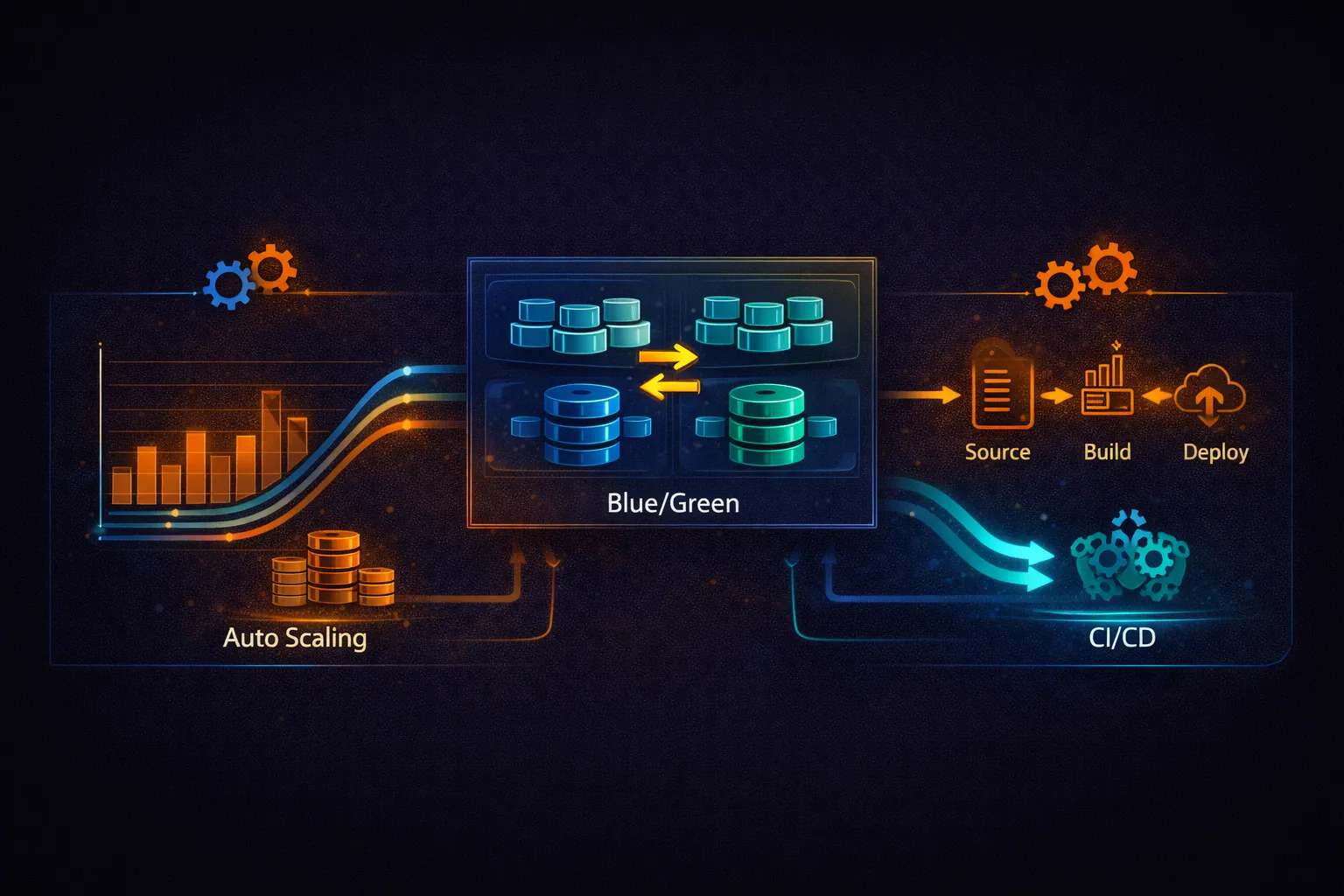
This is Part 2 of 3 in the Containers on AWS series. Part 1 covered ECR, ECS core concepts, task definitions, and Fargate. This part covers production patterns: deployment strategies, auto-scaling, capacity providers, Fargate Spot, secrets management, CI/CD pipelines, and cost optimization. Part 3 covers EKS (Kubernetes on AWS).
Deployment Strategies
ECS supports three deployment strategies. The right choice depends on your tolerance for downtime, risk appetite, and whether you need instant rollback.
Rolling Update (Default)
# Rolling update: ECS gradually replaces old tasks with new ones
# This is the default deployment strategy

aws ecs update-service \
    --cluster prod-cluster \
    --service api-service \
    --task-definition api-service:5 \
    --deployment-configuration '{
        "maximumPercent": 200,
        "minimumHealthyPercent": 100,
        "deploymentCircuitBreaker": {
            "enable": true,
            "rollback": true
        }
    }'

# How it works with desired=3, max=200%, minHealthy=100%:
#
# Step 1: Start 3 new tasks (v2)     Running: 3 old + 3 new = 6 tasks (200%)
# Step 2: New tasks pass health check
# Step 3: Stop 3 old tasks (v1)      Running: 3 new = 3 tasks (100%)
#
# Zero downtime: old tasks serve traffic until new ones are healthy
#
# With minHealthy=50%:
# Step 1: Stop 1 old task             Running: 2 old = 2 tasks (67%)
# Step 2: Start 1 new task            Running: 2 old + 1 new
# Step 3: New task healthy, stop next old task
# ... repeat until all replaced
# Slower but uses fewer resources during deployment

# Circuit breaker:
# If new tasks keep failing (crash loops, health check failures),
# ECS automatically rolls back to the previous task definition.
# Without circuit breaker, ECS keeps trying to launch failing tasks forever.
Blue/Green with CodeDeploy
# Blue/Green: run two complete environments, switch traffic at once
# Uses AWS CodeDeploy for traffic shifting and automatic rollback

# Architecture:
#
#  ALB
#   |--- Production Listener (port 443) --> Blue Target Group (current)
#   |--- Test Listener (port 8443)      --> Green Target Group (new)
#
# During deployment:
# 1. Green target group receives new tasks
# 2. Test listener lets you validate the new version
# 3. Production listener switches from Blue to Green
# 4. Old (Blue) tasks are terminated after a wait period

# CloudFormation setup for Blue/Green:
#
# Service:
#   Type: AWS::ECS::Service
#   Properties:
#     DeploymentController:
#       Type: CODE_DEPLOY        # Enable CodeDeploy integration
#     LoadBalancers:
#       - TargetGroupArn: !Ref BlueTargetGroup
#         ContainerName: api
#         ContainerPort: 8080
# appspec.yaml for CodeDeploy ECS blue/green
version: 0.0
Resources:
- TargetService:
Type: AWS::ECS::Service
Properties:
TaskDefinition: "arn:aws:ecs:us-east-1:123456789012:task-definition/api-service:5"
LoadBalancerInfo:
ContainerName: "api"
ContainerPort: 8080
PlatformVersion: "LATEST"
Hooks:
- BeforeInstall: "LambdaFunctionToValidateBeforeInstall"
- AfterInstall: "LambdaFunctionToValidateAfterInstall"
- AfterAllowTestTraffic: "LambdaFunctionToRunIntegrationTests"
- BeforeAllowTraffic: "LambdaFunctionToValidateBeforeTraffic"
- AfterAllowTraffic: "LambdaFunctionToValidateAfterTraffic"# CodeDeploy traffic shifting options:
# AllAtOnce -- switch 100% immediately
# Linear10PercentEvery1Minutes -- shift 10% every minute (10 minutes total)
# Linear10PercentEvery3Minutes -- shift 10% every 3 minutes (30 minutes total)
# Canary10Percent5Minutes -- 10% for 5 minutes, then 100%
# Canary10Percent15Minutes -- 10% for 15 minutes, then 100%
# Create a CodeDeploy deployment group
aws deploy create-deployment-group \
--application-name ecs-app \
--deployment-group-name prod \
--service-role-arn arn:aws:iam::123456789012:role/CodeDeployRole \
--deployment-config-name CodeDeployDefault.ECSCanary10Percent5Minutes \
--ecs-services clusterName=prod-cluster,serviceName=api-service \
--load-balancer-info '{
"targetGroupPairInfoList": [{
"targetGroups": [
{"name": "blue-tg"},
{"name": "green-tg"}
],
"prodTrafficRoute": {
"listenerArns": ["arn:aws:elasticloadbalancing:...:listener/app/api-alb/.../..."]
},
"testTrafficRoute": {
"listenerArns": ["arn:aws:elasticloadbalancing:...:listener/app/api-alb/.../..."]
}
}]
}' \
--auto-rollback-configuration enabled=true,events=DEPLOYMENT_FAILURE \
--blue-green-deployment-configuration '{
"terminateBlueInstancesOnDeploymentSuccess": {
"action": "TERMINATE",
"terminationWaitTimeInMinutes": 60
},
"deploymentReadyOption": {
"actionOnTimeout": "CONTINUE_DEPLOYMENT",
"waitTimeInMinutes": 0
}
}'
# Trigger a deployment
aws deploy create-deployment \
--application-name ecs-app \
--deployment-group-name prod \
--revision '{
"revisionType": "AppSpecContent",
"appSpecContent": {
"content": "{...appspec content...}"
}
}'Deployment Strategy Comparison
# Strategy comparison:
#
# Feature              Rolling Update       Blue/Green (CodeDeploy)
# ------------------------------------------------------------------
# Downtime             Zero                 Zero
# Rollback speed       Minutes (new deploy) Seconds (traffic switch)
# Resource cost        Up to 2x during      2x during deployment
#                      deployment
# Traffic control      No (all-or-nothing   Canary, linear, all-at-once
#                      per task)
# Test before switch   No                   Yes (test listener)
# Lifecycle hooks      No                   Yes (Lambda validation)
# Complexity           Low                  Medium (CodeDeploy setup)
# Cost                 Free                 Free (CodeDeploy for ECS)
#
# Recommendation:
# - Rolling update: most services, simple and reliable
# - Blue/Green: critical services where instant rollback and
#   pre-production validation are required
Auto-Scaling
ECS uses Application Auto Scaling to adjust the desired count of tasks in a service. Three scaling policy types are available: target tracking, step scaling, and scheduled scaling.
Target Tracking (Recommended)
# Register the service as a scalable target
aws application-autoscaling register-scalable-target \
    --service-namespace ecs \
    --resource-id service/prod-cluster/api-service \
    --scalable-dimension ecs:service:DesiredCount \
    --min-capacity 2 \
    --max-capacity 50

# Scale based on CPU utilization
aws application-autoscaling put-scaling-policy \
    --service-namespace ecs \
    --resource-id service/prod-cluster/api-service \
    --scalable-dimension ecs:service:DesiredCount \
    --policy-name cpu-target-tracking \
    --policy-type TargetTrackingScaling \
    --target-tracking-scaling-policy-configuration '{
        "PredefinedMetricSpecification": {
            "PredefinedMetricType": "ECSServiceAverageCPUUtilization"
        },
        "TargetValue": 70.0,
        "ScaleInCooldown": 300,
        "ScaleOutCooldown": 60
    }'

# Scale based on memory utilization
aws application-autoscaling put-scaling-policy \
    --service-namespace ecs \
    --resource-id service/prod-cluster/api-service \
    --scalable-dimension ecs:service:DesiredCount \
    --policy-name memory-target-tracking \
    --policy-type TargetTrackingScaling \
    --target-tracking-scaling-policy-configuration '{
        "PredefinedMetricSpecification": {
            "PredefinedMetricType": "ECSServiceAverageMemoryUtilization"
        },
        "TargetValue": 75.0,
        "ScaleInCooldown": 300,
        "ScaleOutCooldown": 60
    }'

# Scale based on ALB request count per target
aws application-autoscaling put-scaling-policy \
    --service-namespace ecs \
    --resource-id service/prod-cluster/api-service \
    --scalable-dimension ecs:service:DesiredCount \
    --policy-name requests-target-tracking \
    --policy-type TargetTrackingScaling \
    --target-tracking-scaling-policy-configuration '{
        "PredefinedMetricSpecification": {
            "PredefinedMetricType": "ALBRequestCountPerTarget",
            "ResourceLabel": "app/api-alb/abc123/targetgroup/api-tg/def456"
        },
        "TargetValue": 1000.0,
        "ScaleInCooldown": 300,
        "ScaleOutCooldown": 60
    }'

# Multiple target tracking policies can coexist on the same service.
# The service scales out when ANY policy says "scale out"
# and scales in only when ALL policies agree "scale in".
# This prevents conflicting decisions.
Step Scaling
# Step scaling: different scaling actions for different alarm thresholds
# More control than target tracking, but more complex to configure

# Create a CloudWatch alarm
aws cloudwatch put-metric-alarm \
    --alarm-name api-queue-depth-high \
    --metric-name ApproximateNumberOfMessagesVisible \
    --namespace AWS/SQS \
    --dimensions Name=QueueName,Value=api-work-queue \
    --statistic Average \
    --period 60 \
    --evaluation-periods 2 \
    --threshold 100 \
    --comparison-operator GreaterThanThreshold \
    --alarm-actions arn:aws:autoscaling:...  # Step scaling policy ARN

# Create a step scaling policy
aws application-autoscaling put-scaling-policy \
    --service-namespace ecs \
    --resource-id service/prod-cluster/worker-service \
    --scalable-dimension ecs:service:DesiredCount \
    --policy-name queue-depth-scaling \
    --policy-type StepScaling \
    --step-scaling-policy-configuration '{
        "AdjustmentType": "ChangeInCapacity",
        "StepAdjustments": [
            {"MetricIntervalLowerBound": 0, "MetricIntervalUpperBound": 500, "ScalingAdjustment": 2},
            {"MetricIntervalLowerBound": 500, "MetricIntervalUpperBound": 2000, "ScalingAdjustment": 5},
            {"MetricIntervalLowerBound": 2000, "ScalingAdjustment": 10}
        ],
        "Cooldown": 60
    }'

# Queue depth 100-600:   add 2 tasks
# Queue depth 600-2100:  add 5 tasks
# Queue depth 2100+:     add 10 tasks
Scheduled Scaling
# Pre-scale for known traffic patterns

# Scale up for business hours (Monday-Friday 8 AM EST)
aws application-autoscaling put-scheduled-action \
    --service-namespace ecs \
    --resource-id service/prod-cluster/api-service \
    --scalable-dimension ecs:service:DesiredCount \
    --scheduled-action-name scale-up-business-hours \
    --schedule "cron(0 13 ? * MON-FRI *)" \
    --scalable-target-action MinCapacity=10,MaxCapacity=50

# Scale down for nights (Monday-Friday 8 PM EST)
aws application-autoscaling put-scheduled-action \
    --service-namespace ecs \
    --resource-id service/prod-cluster/api-service \
    --scalable-dimension ecs:service:DesiredCount \
    --scheduled-action-name scale-down-night \
    --schedule "cron(0 1 ? * TUE-SAT *)" \
    --scalable-target-action MinCapacity=2,MaxCapacity=10

# Combine scheduled scaling with target tracking:
# Scheduled scaling sets the min/max boundaries
# Target tracking adjusts within those boundaries based on actual load
Capacity Providers and Fargate Spot
# Capacity providers control WHERE tasks run (Fargate, Fargate Spot, EC2 ASG)
# and HOW they are distributed

# Fargate Spot: up to 70% cheaper than regular Fargate
# Trade-off: tasks can be interrupted with 2 minutes notice
# Best for: stateless workloads, batch jobs, worker services

# Create a service with mixed capacity
aws ecs create-service \
    --cluster prod-cluster \
    --service-name api-service \
    --task-definition api-service:5 \
    --desired-count 6 \
    --capacity-provider-strategy '[
        {
            "capacityProvider": "FARGATE",
            "weight": 1,
            "base": 2
        },
        {
            "capacityProvider": "FARGATE_SPOT",
            "weight": 3
        }
    ]' \
    --network-configuration '{...}'

# How this distributes 6 tasks:
# base=2 on FARGATE: first 2 tasks always run on regular Fargate
# Remaining 4 tasks split by weight ratio (1:3):
#   1 on FARGATE, 3 on FARGATE_SPOT
# Result: 3 Fargate + 3 Fargate Spot

# Cost calculation (1 vCPU, 2 GB per task, 720 hours/month, ARM64 Graviton):
#
# ARM64 (Graviton) pricing:
#   vCPU: $0.03238/hr, Memory: $0.00356/hr per GB
#   Per task: (0.03238 + 2 * 0.00356) * 720 = $28.44/month
#
# x86 pricing (for comparison):
#   vCPU: $0.04048/hr, Memory: $0.00445/hr per GB
#   Per task: (0.04048 + 2 * 0.00445) * 720 = $35.55/month
#
# Using ARM64 Graviton in this example:
# 3 Fargate tasks:      3 * $28.44 = $85.32
# 3 Fargate Spot tasks: 3 * $8.53  = $25.59 (70% discount)
# Total: $110.91 vs $170.64 (all Fargate on-demand) = 35% savings
# vs x86 all on-demand: $213.30 -- ARM64 + Spot saves 48%
#
# Note: Fargate Spot pricing is a discount off the on-demand price
# and may vary by Region and availability.

# Handle Spot interruptions:
# - ECS sends SIGTERM before termination, but the grace period depends on
#   your container definition stopTimeout (default is 30 seconds).
#   Set stopTimeout: 120 to get the full 2-minute window.
# - Use deployment circuit breaker to prevent cascading failures
# - Keep enough on-demand (base) tasks to handle load during interruptions
# - ECS automatically replaces interrupted tasks
# SIGTERM handler for graceful Spot shutdown
import signal
import sys
def sigterm_handler(signum, frame):
# Fargate sends SIGTERM before termination. The grace period is determined
# by the container definition stopTimeout (default: 30 seconds).
# Set stopTimeout: 120 in your task definition to get the full 2-minute window.
# Stop accepting new work
# Finish in-progress requests
# Flush buffers, close connections
print("SIGTERM received, shutting down gracefully...")
# Complete current request
server.stop_accepting()
# Wait for in-flight requests (up to stopTimeout - 10 seconds buffer)
server.drain(timeout=110)
sys.exit(0)
signal.signal(signal.SIGTERM, sigterm_handler)Secrets Management
# Two services for injecting secrets into ECS tasks:
# 1. AWS Secrets Manager -- for credentials, API keys, certificates
# 2. SSM Parameter Store -- for configuration values, feature flags

# Store a secret
aws secretsmanager create-secret \
    --name prod/api/db-password \
    --secret-string '{"username":"admin","password":"s3cur3P@ss"}'

# Store a parameter
aws ssm put-parameter \
    --name /prod/api/feature-flags \
    --type SecureString \
    --value '{"new_checkout":true,"dark_mode":false}'

# Reference in task definition:
# "secrets": [
#     {
#         "name": "DB_PASSWORD",
#         "valueFrom": "arn:aws:secretsmanager:us-east-1:123456789012:secret:prod/api/db-password"
#     },
#     {
#         "name": "FEATURE_FLAGS",
#         "valueFrom": "arn:aws:ssm:us-east-1:123456789012:parameter/prod/api/feature-flags"
#     }
# ]
#
# ECS injects the secret value as an environment variable at task startup.
# The execution role needs permission to read these secrets.
# Secrets are fetched once at task start -- to rotate, redeploy the service.

# Extract a specific JSON key from a Secrets Manager secret:
# "valueFrom": "arn:aws:secretsmanager:...:secret:db-password:password::"
# This injects only the "password" field, not the entire JSON
ECS Service Connect
# Service Connect simplifies service-to-service communication
# Built on Cloud Map + Envoy proxy (managed by ECS)
# Provides: DNS-based discovery, load balancing, retries, circuit breaking,
# observability metrics -- all without code changes

# Enable Service Connect on a namespace
aws ecs create-cluster \
    --cluster-name prod-cluster \
    --service-connect-defaults namespace=prod.local

# Configure a service as a Service Connect endpoint
aws ecs create-service \
    --cluster prod-cluster \
    --service-name user-api \
    --task-definition user-api \
    --desired-count 3 \
    --service-connect-configuration '{
        "enabled": true,
        "namespace": "prod.local",
        "services": [{
            "portName": "http",
            "discoveryName": "user-api",
            "clientAliases": [{
                "port": 8080,
                "dnsName": "user-api.prod.local"
            }]
        }]
    }' \
    --network-configuration '{...}'

# Other services in the same namespace can call:
#   http://user-api.prod.local:8080/users
# without a load balancer, and with automatic:
# - Client-side load balancing across healthy tasks
# - Connection draining during deployments
# - CloudWatch metrics (connection count, latency, errors)

# Service Connect vs Cloud Map service discovery:
# Cloud Map: DNS round-robin, no health-aware routing, basic
# Service Connect: Envoy proxy, health-aware routing, metrics, retries
CI/CD Pipeline
# buildspec.yml for CodeBuild
version: 0.2

phases:
  pre_build:
    commands:
      - echo "Logging in to ECR..."
      - aws ecr get-login-password --region us-east-1 |
          docker login --username AWS --password-stdin
          123456789012.dkr.ecr.us-east-1.amazonaws.com
      - COMMIT_HASH=$(echo $CODEBUILD_RESOLVED_SOURCE_VERSION | cut -c 1-7)
      - IMAGE_TAG=${COMMIT_HASH:=latest}

  build:
    commands:
      - echo "Building Docker image..."
      - docker build -t api-service:$IMAGE_TAG .
      - docker tag api-service:$IMAGE_TAG
          123456789012.dkr.ecr.us-east-1.amazonaws.com/api-service:$IMAGE_TAG
      - docker tag api-service:$IMAGE_TAG
          123456789012.dkr.ecr.us-east-1.amazonaws.com/api-service:latest

  post_build:
    commands:
      - echo "Pushing to ECR..."
      - docker push 123456789012.dkr.ecr.us-east-1.amazonaws.com/api-service:$IMAGE_TAG
      - docker push 123456789012.dkr.ecr.us-east-1.amazonaws.com/api-service:latest
      - echo "Writing image definitions file..."
      - printf '[{"name":"api","imageUri":"123456789012.dkr.ecr.us-east-1.amazonaws.com/api-service:%s"}]' $IMAGE_TAG > imagedefinitions.json

artifacts:
  files: imagedefinitions.json

# Note: imagedefinitions.json is used for standard ECS rolling deployments.
# Blue/green deployments with CodeDeploy use a different artifact format
# called imageDetail.json, which contains ImageSizeInBytes, ImageTags,
# ImageDigest, ImagePushedAt, RegistryId, RepositoryName, and ImageURI.
# Full pipeline: Source (GitHub) -> Build (CodeBuild) -> Deploy (ECS)
# Create the pipeline
aws codepipeline create-pipeline --pipeline '{
"name": "api-pipeline",
"roleArn": "arn:aws:iam::123456789012:role/CodePipelineRole",
"stages": [
{
"name": "Source",
"actions": [{
"name": "GitHub",
"actionTypeId": {
"category": "Source",
"owner": "AWS",
"provider": "CodeStarSourceConnection",
"version": "1"
},
"configuration": {
"ConnectionArn": "arn:aws:codeconnections:us-east-1:123456789012:connection/abc-def-123",
"FullRepositoryId": "my-org/api-service",
"BranchName": "main"
},
"outputArtifacts": [{"name": "SourceOutput"}]
}]
},
{
"name": "Build",
"actions": [{
"name": "DockerBuild",
"actionTypeId": {
"category": "Build",
"owner": "AWS",
"provider": "CodeBuild",
"version": "1"
},
"configuration": {
"ProjectName": "api-build"
},
"inputArtifacts": [{"name": "SourceOutput"}],
"outputArtifacts": [{"name": "BuildOutput"}]
}]
},
{
"name": "Deploy",
"actions": [{
"name": "ECS",
"actionTypeId": {
"category": "Deploy",
"owner": "AWS",
"provider": "ECS",
"version": "1"
},
"configuration": {
"ClusterName": "prod-cluster",
"ServiceName": "api-service"
},
"inputArtifacts": [{"name": "BuildOutput"}]
}]
}
]
}'
# Pipeline flow:
# 1. Push to GitHub main branch
# 2. CodePipeline detects change
# 3. CodeBuild builds Docker image, pushes to ECR
# 4. CodePipeline updates ECS service with new image
# 5. ECS performs rolling deployment
# Total time: ~5-8 minutes from commit to productionAWS Batch (Container Batch Processing)
# AWS Batch runs container workloads as batch jobs
# Use it for: data processing, ETL, ML training, rendering, simulations
# Batch manages compute resources and job scheduling -- you just submit jobs

# Create a compute environment (Fargate)
aws batch create-compute-environment \
    --compute-environment-name batch-fargate \
    --type MANAGED \
    --state ENABLED \
    --compute-resources '{
        "type": "FARGATE_SPOT",
        "maxvCpus": 256,
        "subnets": ["subnet-private-1a", "subnet-private-1b"],
        "securityGroupIds": ["sg-batch"]
    }'

# Create a job queue
aws batch create-job-queue \
    --job-queue-name processing-queue \
    --state ENABLED \
    --priority 1 \
    --compute-environment-order order=1,computeEnvironment=batch-fargate

# Register a job definition
aws batch register-job-definition \
    --job-definition-name process-data \
    --type container \
    --platform-capabilities FARGATE \
    --container-properties '{
        "image": "123456789012.dkr.ecr.us-east-1.amazonaws.com/processor:latest",
        "resourceRequirements": [
            {"type": "VCPU", "value": "1"},
            {"type": "MEMORY", "value": "2048"}
        ],
        "executionRoleArn": "arn:aws:iam::123456789012:role/ecsTaskExecutionRole",
        "jobRoleArn": "arn:aws:iam::123456789012:role/batch-job-role",
        "logConfiguration": {
            "logDriver": "awslogs",
            "options": {
                "awslogs-group": "/aws/batch/job",
                "awslogs-region": "us-east-1",
                "awslogs-stream-prefix": "process-data"
            }
        }
    }'

# Submit a job
aws batch submit-job \
    --job-name "process-batch-001" \
    --job-queue processing-queue \
    --job-definition process-data \
    --container-overrides '{
        "environment": [
            {"name": "INPUT_BUCKET", "value": "s3://data-input/batch-001"},
            {"name": "OUTPUT_BUCKET", "value": "s3://data-output/batch-001"}
        ]
    }'

# Submit an array job (parallel processing)
aws batch submit-job \
    --job-name "process-all-batches" \
    --job-queue processing-queue \
    --job-definition process-data \
    --array-properties size=100

# Runs 100 parallel jobs. Each job gets AWS_BATCH_JOB_ARRAY_INDEX (0-99)
# to determine which chunk of data to process.
Cost Optimization
# 1. Use Fargate Spot for non-critical workloads (up to 70% savings)
#    See capacity providers section above

# 2. Use ARM64 (Graviton) -- 20% cheaper than x86 on Fargate
#    Set in task definition: runtimePlatform.cpuArchitecture: "ARM64"
#    Build multi-arch images:
docker buildx build --platform linux/amd64,linux/arm64 \
    -t 123456789012.dkr.ecr.us-east-1.amazonaws.com/api:latest \
    --push .

# 3. Right-size tasks -- check actual CPU/memory usage
aws cloudwatch get-metric-statistics \
    --namespace AWS/ECS \
    --metric-name CPUUtilization \
    --dimensions Name=ServiceName,Value=api-service Name=ClusterName,Value=prod-cluster \
    --start-time 2025-04-28T00:00:00Z \
    --end-time 2025-05-05T00:00:00Z \
    --period 86400 \
    --statistics Average Maximum

# If average CPU is 15% and max is 40%, you are over-provisioned.
# Downsize from 1 vCPU to 0.5 vCPU = 50% cost reduction.

# 4. Use Compute Savings Plans (up to 66% savings)
#    Commit to a $/hour spend for 1 or 3 years.
#    The maximum discount (66%) applies to a 3-year all-upfront commitment.
#    Applies to Fargate (and EC2, Lambda).
#    No upfront changes to your infrastructure.

# 5. Set up auto-scaling to scale down during low traffic
#    Combine target tracking + scheduled scaling (see above)

# 6. Clean up ECR images with lifecycle policies
#    See Part 1 for lifecycle policy configuration

# 7. Use VPC endpoints to avoid NAT Gateway data transfer costs
aws ec2 create-vpc-endpoint \
    --vpc-id vpc-abc123 \
    --service-name com.amazonaws.us-east-1.ecr.dkr \
    --vpc-endpoint-type Interface \
    --subnet-ids subnet-private-1a subnet-private-1b \
    --security-group-ids sg-vpc-endpoints

aws ec2 create-vpc-endpoint \
    --vpc-id vpc-abc123 \
    --service-name com.amazonaws.us-east-1.ecr.api \
    --vpc-endpoint-type Interface \
    --subnet-ids subnet-private-1a subnet-private-1b \
    --security-group-ids sg-vpc-endpoints

aws ec2 create-vpc-endpoint \
    --vpc-id vpc-abc123 \
    --service-name com.amazonaws.us-east-1.s3 \
    --vpc-endpoint-type Gateway \
    --route-table-ids rtb-private

aws ec2 create-vpc-endpoint \
    --vpc-id vpc-abc123 \
    --service-name com.amazonaws.us-east-1.logs \
    --vpc-endpoint-type Interface \
    --subnet-ids subnet-private-1a subnet-private-1b \
    --security-group-ids sg-vpc-endpoints

# VPC endpoints: $0.01/hour per AZ per endpoint + $0.01/GB data processed
# With 2 AZs (as above), each Interface endpoint costs $0.02/hour.
# NAT Gateway: $0.045/hour + $0.045/GB data processed
# For high-traffic ECS clusters, VPC endpoints are significantly cheaper
Security Best Practices
- Use separate IAM roles: execution role (for ECS agent) and task role (for your code). Never give both the same permissions.
- Follow least privilege: task roles should only have permissions the application actually uses. Do not attach AdministratorAccess or PowerUserAccess.
- Use
secrets, notenvironment, for credentials: plaintextenvironmententries in the task definition are visible in the ECS console and DescribeTaskDefinition API -- never use them for secrets. Use thesecretsblock instead, which resolves values from Secrets Manager or SSM Parameter Store at runtime. Both appear as environment variables inside the container, butsecretsentries are never stored in the task definition itself. - Scan images with ECR: enable scan-on-push (basic) or enhanced scanning (Inspector) to detect CVEs before deployment.
- Use private subnets: tasks should run in private subnets with no public IP. Use an ALB in public subnets for inbound traffic and a NAT Gateway or VPC endpoints for outbound.
- Restrict security groups: task security groups should only allow traffic from the load balancer security group on the application port. No wide-open ingress.
- Enable ECS Exec audit logging: log all execute-command sessions to CloudTrail for compliance and forensics.
- Use read-only root filesystem where possible: set
readonlyRootFilesystem: truein the container definition and mount writable volumes only where needed. - Pin image tags: use version tags (v1.2.3) instead of :latest in task definitions for reproducible deployments.
Monitoring and Troubleshooting
# Check service events (deployment status, task failures)
aws ecs describe-services \
    --cluster prod-cluster \
    --services api-service \
    --query 'services[0].events[:10]'

# Common service event messages:
# "has reached a steady state"  -- deployment successful
# "unable to place a task"      -- no capacity (check subnets, security groups, CPU/memory limits)
# "task failed ELB health checks" -- app not responding on health check path
# "service api-service was unable to stop or start tasks during a deployment"

# Check stopped task reason
aws ecs describe-tasks \
    --cluster prod-cluster \
    --tasks arn:aws:ecs:...:task/abc123 \
    --query 'tasks[0].{status:lastStatus,reason:stoppedReason,exitCode:containers[0].exitCode}'

# Common stopped reasons:
# "Essential container in task exited"      -- app crashed (check logs)
# "Task failed ELB health checks"           -- health check failing
# "Scaling activity initiated by (deployment)" -- normal during deployments
# "SIGTERM received"                         -- Spot interruption or manual stop

# CloudWatch Container Insights metrics:
# CpuUtilized, CpuReserved         -- actual vs allocated CPU
# MemoryUtilized, MemoryReserved   -- actual vs allocated memory
# RunningTaskCount                  -- number of running tasks
# NetworkRxBytes, NetworkTxBytes   -- network throughput
In Part 3, we cover EKS (Elastic Kubernetes Service): cluster creation with eksctl, managed node groups, Fargate profiles for EKS, Kubernetes manifests, IAM Roles for Service Accounts (IRSA), the AWS Load Balancer Controller, Karpenter for autoscaling, and the ECS vs EKS decision guide.
Go Deeper: The State of AWS Security 2026
This article is just the start. Get the full picture with our free whitepaper - 8 chapters covering IAM, S3, VPC, monitoring, agentic AI security, compliance, and a prioritized action plan with 50+ CLI commands.
Toc Consulting: AWS Security & Cloud Architecture
Want expert help with AWS Mastery?
Our team helps engineering teams secure and architect AWS the right way: assessment in week one, a prioritized action plan in week two.
More Articles
AWS Architecture Patterns: Proven Blueprints for Scalable Cloud Applications
Six production-proven AWS architecture patterns: three-tier web apps, serverless APIs, event-driven processing, static websites, data lakes, and multi-region disaster recovery with diagrams and implementation guides.
AWS Cost Optimization: Reduce Your Cloud Bill Without Sacrificing Performance
Complete guide to AWS cost optimization covering Cost Explorer, Compute Optimizer, Savings Plans, Spot Instances, S3 lifecycle policies, gp2 to gp3 migration, scheduling, budgets, and production best practices.
AWS AI and ML Services: Add Intelligence to Your Applications
Complete guide to AWS AI services including Rekognition, Comprehend, Textract, Polly, Translate, Transcribe, and Bedrock with CLI commands, pricing, and production best practices.