
Containers on AWS: ECR, ECS, and Fargate Deep Dive (Part 1/3)
Tarek Cheikh
Founder & AWS Cloud Architect
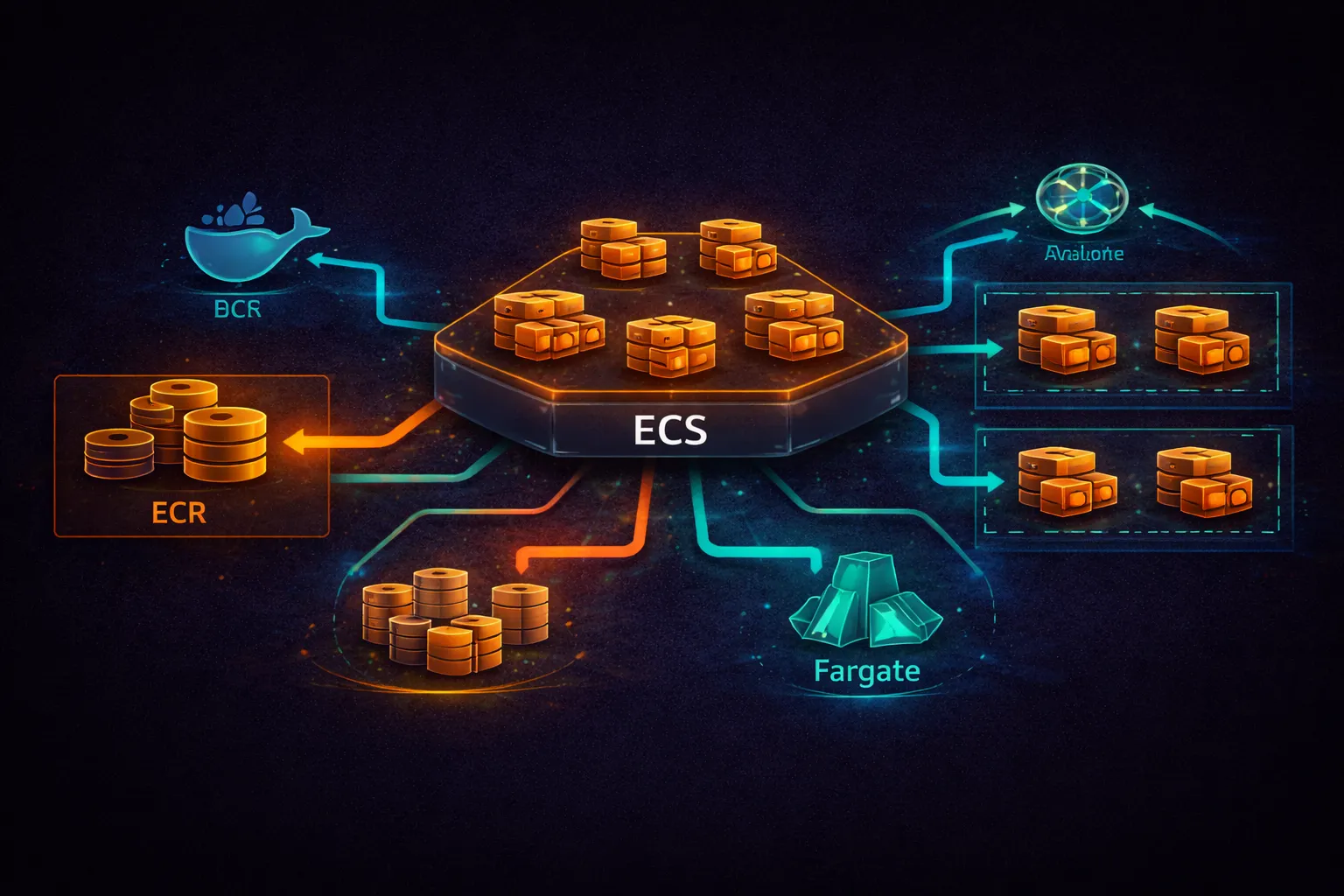
This is Part 1 of 3 in the Containers on AWS series. This part covers the foundational services: ECR for storing container images, ECS for orchestrating containers, and the two launch types (EC2 and Fargate). Part 2 covers production deployment patterns, auto-scaling, and CI/CD. Part 3 covers EKS (Kubernetes on AWS).
Why Containers on AWS
A container packages your application code, runtime, libraries, and system tools into a single image that runs identically everywhere. On AWS, containers solve three problems: consistent deployments across environments, higher compute density than VMs (multiple containers per EC2 instance), and faster scaling (containers start in seconds vs. minutes for EC2 instances).
AWS offers three container services:
- ECR (Elastic Container Registry) — store and manage container images
- ECS (Elastic Container Service) — AWS-native container orchestration
- EKS (Elastic Kubernetes Service) — managed Kubernetes (covered in Part 3)
ECS runs containers using two launch types:
- EC2 launch type — you manage the underlying EC2 instances
- Fargate launch type — AWS manages the infrastructure, you define only CPU and memory
Amazon ECR (Elastic Container Registry)
ECR is a fully managed Docker registry. It stores your container images, scans them for vulnerabilities, and integrates with ECS and EKS for image pulling. Each AWS account gets a private registry at {account_id}.dkr.ecr.{region}.amazonaws.com.
# Create a repository
aws ecr create-repository \
    --repository-name my-app \
    --image-scanning-configuration scanOnPush=true \
    --encryption-configuration encryptionType=AES256

# Output:
# repositoryUri: 123456789012.dkr.ecr.us-east-1.amazonaws.com/my-app

# Authenticate Docker to ECR (valid for 12 hours)
aws ecr get-login-password --region us-east-1 | \
    docker login --username AWS --password-stdin \
    123456789012.dkr.ecr.us-east-1.amazonaws.com

# Build, tag, and push an image
docker build -t my-app:latest .
docker tag my-app:latest 123456789012.dkr.ecr.us-east-1.amazonaws.com/my-app:latest
docker tag my-app:latest 123456789012.dkr.ecr.us-east-1.amazonaws.com/my-app:v1.2.3
docker push 123456789012.dkr.ecr.us-east-1.amazonaws.com/my-app:latest
docker push 123456789012.dkr.ecr.us-east-1.amazonaws.com/my-app:v1.2.3

# Always push both a version tag and latest
# Use version tags in task definitions for reproducible deployments
Image Scanning
# ECR offers two scanning modes:
# Basic scanning: uses a built-in CVE database, runs on push
# Enhanced scanning: uses Amazon Inspector for continuous scanning

# Enable enhanced scanning (Inspector-based, continuous)
aws ecr put-registry-scanning-configuration \
    --scan-type ENHANCED \
    --rules '[{"repositoryFilters":[{"filter":"*","filterType":"WILDCARD"}],"scanFrequency":"CONTINUOUS_SCAN"}]'

# Check scan results
aws ecr describe-image-scan-findings \
    --repository-name my-app \
    --image-id imageTag=latest

# Basic scanning: free, runs on push, uses a built-in CVE database
# Enhanced scanning: $0.09 per image rescanned per month (Inspector pricing)
Lifecycle Policies
# Automatically clean up old images to control storage costs
aws ecr put-lifecycle-policy \
    --repository-name my-app \
    --lifecycle-policy-text '{
        "rules": [
            {
                "rulePriority": 1,
                "description": "Keep last 10 tagged images",
                "selection": {
                    "tagStatus": "tagged",
                    "tagPrefixList": ["v"],
                    "countType": "imageCountMoreThan",
                    "countNumber": 10
                },
                "action": {"type": "expire"}
            },
            {
                "rulePriority": 2,
                "description": "Delete untagged images older than 1 day",
                "selection": {
                    "tagStatus": "untagged",
                    "countType": "sinceImagePushed",
                    "countUnit": "days",
                    "countNumber": 1
                },
                "action": {"type": "expire"}
            }
        ]
    }'

# ECR storage pricing: $0.10 per GB per month
# Data transfer: free within the same region, standard rates cross-region
ECS Core Concepts
ECS has four main components. Understanding how they relate is essential before deploying anything.
# ECS architecture:
#
# Cluster
#   The logical grouping of tasks and services.
#   A cluster can use EC2 instances, Fargate, or both.
#
# Task Definition
#   A blueprint for your application. Specifies:
#   - Container image(s)
#   - CPU and memory
#   - Port mappings
#   - Environment variables
#   - Logging configuration
#   - IAM roles
#   Versioned: each registration creates a new revision (my-app:1, my-app:2, ...)
#
# Task
#   A running instance of a task definition.
#   One task can run one or more containers (sidecar pattern).
#   Ephemeral -- if a task stops, it is gone.
#
# Service
#   Maintains a desired count of tasks.
#   If a task fails, the service launches a replacement.
#   Integrates with load balancers for traffic distribution.
#   Handles rolling deployments.
#
# Relationship:
# Cluster contains Services
# Service references a Task Definition
# Service maintains N running Tasks
# Each Task runs the containers defined in the Task Definition
Create a Cluster
# Create a Fargate-only cluster (no EC2 instances to manage)
aws ecs create-cluster \
    --cluster-name prod-cluster \
    --capacity-providers FARGATE FARGATE_SPOT \
    --default-capacity-provider-strategy \
        capacityProvider=FARGATE,weight=1,base=1 \
        capacityProvider=FARGATE_SPOT,weight=3 \
    --settings name=containerInsights,value=enabled

# This creates a cluster that:
# - Uses Fargate (no EC2 instances)
# - Defaults to 75% Spot / 25% On-Demand (weight ratio 3:1)
# - Keeps at least 1 task on regular Fargate (base=1)
# - Has Container Insights enabled for monitoring

# ECS cluster cost: $0 (you pay for the tasks running inside it)
Task Definitions
A task definition is a JSON document that describes one or more containers. It is the most important ECS concept -- every deployment, scaling decision, and configuration starts here.
Register the following task definition with: aws ecs register-task-definition --cli-input-json file://task-def.json
{
    "family": "api-service",
    "networkMode": "awsvpc",
    "requiresCompatibilities": ["FARGATE"],
    "cpu": "512",
    "memory": "1024",
    "executionRoleArn": "arn:aws:iam::123456789012:role/ecsTaskExecutionRole",
    "taskRoleArn": "arn:aws:iam::123456789012:role/api-service-task-role",
    "containerDefinitions": [
        {
            "name": "api",
            "image": "123456789012.dkr.ecr.us-east-1.amazonaws.com/api-service:v1.2.3",
            "essential": true,
            "portMappings": [
                {
                    "containerPort": 8080,
                    "protocol": "tcp"
                }
            ],
            "environment": [
                {"name": "APP_ENV", "value": "production"},
                {"name": "LOG_LEVEL", "value": "info"}
            ],
            "secrets": [
                {
                    "name": "DB_PASSWORD",
                    "valueFrom": "arn:aws:secretsmanager:us-east-1:123456789012:secret:db-password"
                },
                {
                    "name": "API_KEY",
                    "valueFrom": "arn:aws:ssm:us-east-1:123456789012:parameter/api/key"
                }
            ],
            "logConfiguration": {
                "logDriver": "awslogs",
                "options": {
                    "awslogs-group": "/ecs/api-service",
                    "awslogs-region": "us-east-1",
                    "awslogs-stream-prefix": "api"
                }
            },
            "healthCheck": {
                "command": ["CMD-SHELL", "curl -f http://localhost:8080/health || exit 1"],
                "interval": 30,
                "timeout": 5,
                "retries": 3,
                "startPeriod": 60
            },
            "linuxParameters": {
                "initProcessEnabled": true
            }
        }
    ],
    "runtimePlatform": {
        "cpuArchitecture": "ARM64",
        "operatingSystemFamily": "LINUX"
    }
}
# Key task definition fields explained:
# family
# The name of the task definition. Each registration creates a new revision.
# "api-service" -> api-service:1, api-service:2, api-service:3, ...
# networkMode: "awsvpc"
# Each task gets its own ENI (elastic network interface) with a private IP.
# Required for Fargate. Recommended for EC2 launch type as well.
# cpu / memory (Fargate)
# Fargate enforces specific CPU/memory combinations:
#
# CPU (units) Memory (MiB)
# 256 (0.25 vCPU) 512, 1024, 2048
# 512 (0.5 vCPU) 1024 - 4096 (1 GB increments)
# 1024 (1 vCPU) 2048 - 8192 (1 GB increments)
# 2048 (2 vCPU) 4096 - 16384 (1 GB increments)
# 4096 (4 vCPU) 8192 - 30720 (1 GB increments)
# 8192 (8 vCPU) 16384 - 61440 (4 GB increments)
# 16384 (16 vCPU) 32768 - 122880 (8 GB increments)
# executionRoleArn
# IAM role used by the ECS agent to pull images from ECR,
# fetch secrets from Secrets Manager/SSM, and push logs to CloudWatch.
# This is NOT the role your application code uses.
# taskRoleArn
# IAM role assumed by the containers at runtime.
# Your application code uses this role to call AWS services
# (e.g., DynamoDB, S3, SQS). Follow least privilege.
# essential: true
# If this container stops, the entire task stops.
# Set to false for sidecar containers (log routers, proxies)
# that should not kill the task if they crash.
# secrets
# Inject secrets from Secrets Manager or SSM Parameter Store.
# Values are injected as environment variables at task startup.
# The execution role needs permission to read these secrets.
# linuxParameters.initProcessEnabled: true
# Runs an init process (tini) as PID 1 inside the container.
# Properly handles signal forwarding and zombie process reaping.
# Always enable this.
# runtimePlatform.cpuArchitecture: "ARM64"
# Run on Graviton processors. 20% cheaper than x86 on Fargate.
# Your image must be built for ARM64 (or multi-arch).Multi-Container Task (Sidecar Pattern)
{
    "family": "api-with-sidecar",
    "networkMode": "awsvpc",
    "requiresCompatibilities": ["FARGATE"],
    "cpu": "512",
    "memory": "1024",
    "executionRoleArn": "arn:aws:iam::123456789012:role/ecsTaskExecutionRole",
    "taskRoleArn": "arn:aws:iam::123456789012:role/api-service-task-role",
    "containerDefinitions": [
        {
            "name": "api",
            "image": "123456789012.dkr.ecr.us-east-1.amazonaws.com/api:v1.0.0",
            "essential": true,
            "portMappings": [{"containerPort": 8080}],
            "logConfiguration": {
                "logDriver": "awslogs",
                "options": {
                    "awslogs-group": "/ecs/api-with-sidecar",
                    "awslogs-region": "us-east-1",
                    "awslogs-stream-prefix": "api"
                }
            }
        },
        {
            "name": "xray-daemon",
            "image": "public.ecr.aws/xray/aws-xray-daemon:3.x",
            "essential": false,
            "portMappings": [{"containerPort": 2000, "protocol": "udp"}],
            "logConfiguration": {
                "logDriver": "awslogs",
                "options": {
                    "awslogs-group": "/ecs/api-with-sidecar",
                    "awslogs-region": "us-east-1",
                    "awslogs-stream-prefix": "xray"
                }
            }
        },
        {
            "name": "cloudwatch-agent",
            "image": "public.ecr.aws/cloudwatch-agent/cloudwatch-agent:latest",
            "essential": false,
            "logConfiguration": {
                "logDriver": "awslogs",
                "options": {
                    "awslogs-group": "/ecs/api-with-sidecar",
                    "awslogs-region": "us-east-1",
                    "awslogs-stream-prefix": "cwagent"
                }
            }
        }
    ]
}
Sidecar pattern: multiple containers in the same task share the same network namespace (localhost communication), the same task IAM role, and the same lifecycle (they start together, but only containers with essential: true stop the entire task if they exit).
Common sidecars include the X-Ray daemon (distributed tracing), CloudWatch agent (custom metrics), Envoy proxy (service mesh with App Mesh), Fluent Bit log router (for custom log destinations), and third-party agents such as Datadog or New Relic.
ECS Services
A service ensures that a desired number of tasks are always running. If a task fails or is terminated, the service scheduler launches a replacement. Services integrate with load balancers for traffic distribution and with auto-scaling for dynamic capacity.
# Create a service with ALB integration
aws ecs create-service \
    --cluster prod-cluster \
    --service-name api-service \
    --task-definition api-service:3 \
    --desired-count 3 \
    --launch-type FARGATE \
    --platform-version LATEST \
    --network-configuration '{
        "awsvpcConfiguration": {
            "subnets": ["subnet-private-1a", "subnet-private-1b"],
            "securityGroups": ["sg-api-tasks"],
            "assignPublicIp": "DISABLED"
        }
    }' \
    --load-balancers '[{
        "targetGroupArn": "arn:aws:elasticloadbalancing:us-east-1:123456789012:targetgroup/api-tg/abc123",
        "containerName": "api",
        "containerPort": 8080
    }]' \
    --health-check-grace-period-seconds 120 \
    --deployment-configuration '{
        "maximumPercent": 200,
        "minimumHealthyPercent": 100,
        "deploymentCircuitBreaker": {
            "enable": true,
            "rollback": true
        }
    }' \
    --enable-execute-command
# Key service configuration explained:
# desired-count: 3
# The service will always try to maintain 3 running tasks.
# If one fails, a new one starts automatically.
# subnets: private subnets
# Tasks run in private subnets. Traffic reaches them through the ALB
# which sits in public subnets.
# assignPublicIp: DISABLED
# Tasks in private subnets use a NAT Gateway for outbound internet
# (to pull images from ECR, etc.). No public IP needed.
# Set to ENABLED only for tasks in public subnets (dev/test).
# health-check-grace-period-seconds: 120
# Give the container 120 seconds to start before the ALB health check
# marks it unhealthy. Without this, slow-starting apps get killed
# before they finish initializing.
# deploymentCircuitBreaker with rollback: true
# If new tasks fail to start or fail health checks, ECS automatically
# rolls back to the previous working task definition.
# Without this, a bad deployment keeps trying forever.
# enable-execute-command
# Allows "aws ecs execute-command" to open a shell inside a running task.
# Uses SSM Session Manager. Requires the task role to have SSM permissions.ECS Exec (Debug Running Containers)
# Open a shell inside a running container
aws ecs execute-command \
    --cluster prod-cluster \
    --task arn:aws:ecs:us-east-1:123456789012:task/prod-cluster/abc123def456 \
    --container api \
    --interactive \
    --command "/bin/sh"

# Requirements:
# 1. Service created with --enable-execute-command
# 2. Task role has SSM permissions:
#    {
#        "Effect": "Allow",
#        "Action": [
#            "ssmmessages:CreateControlChannel",
#            "ssmmessages:CreateDataChannel",
#            "ssmmessages:OpenControlChannel",
#            "ssmmessages:OpenDataChannel"
#        ],
#        "Resource": "*"
#    }
# 3. Install the Session Manager plugin locally:
#    https://docs.aws.amazon.com/systems-manager/latest/userguide/session-manager-working-with-install-plugin.html

# List running tasks to find the task ARN
aws ecs list-tasks --cluster prod-cluster --service-name api-service
Networking
awsvpc Network Mode
# Architecture: ALB + Fargate tasks in private subnets
#
#  Internet
#     |
#  [ALB] (public subnets: subnet-pub-1a, subnet-pub-1b)
#     |
#     +---- [Task 1] 10.0.1.15  (private subnet 1a)
#     +---- [Task 2] 10.0.2.23  (private subnet 1b)
#     +---- [Task 3] 10.0.1.42  (private subnet 1a)
#     |
#  [NAT Gateway] (for outbound internet: pull ECR images, call external APIs)
#
# Each task gets its own ENI with a private IP address.
# Security groups are attached at the task level (not the instance level).
# Tasks communicate with each other directly via private IPs or service discovery.

# Security group for tasks (allow traffic only from the ALB)
aws ec2 create-security-group \
    --group-name ecs-api-tasks \
    --description "Allow traffic from ALB to API tasks" \
    --vpc-id vpc-abc123

# Note: sg-api-tasks and sg-alb below are placeholder names.
# Replace them with actual security group IDs (e.g., sg-0abc1234def56789a).
aws ec2 authorize-security-group-ingress \
    --group-id sg-api-tasks \
    --protocol tcp \
    --port 8080 \
    --source-group sg-alb    # Only the ALB security group can reach port 8080

# VPC endpoints for private subnets:
# Tasks in private subnets need either a NAT Gateway or VPC endpoints
# to pull images and communicate with AWS services. Required endpoints:
#   - com.amazonaws.{region}.ecr.api    (ECR API calls)
#   - com.amazonaws.{region}.ecr.dkr    (Docker image layer pulls)
#   - com.amazonaws.{region}.s3         (Gateway endpoint, image layers stored in S3)
#   - com.amazonaws.{region}.logs       (CloudWatch Logs, if using awslogs driver)
# VPC endpoints avoid NAT Gateway data processing charges for ECR traffic.
Load Balancer Integration
# Create an ALB for ECS
aws elbv2 create-load-balancer \
    --name api-alb \
    --subnets subnet-pub-1a subnet-pub-1b \
    --security-groups sg-alb \
    --scheme internet-facing

# Create a target group (type: ip, because Fargate tasks register by IP)
aws elbv2 create-target-group \
    --name api-tg \
    --protocol HTTP \
    --port 8080 \
    --vpc-id vpc-abc123 \
    --target-type ip \
    --health-check-path /health \
    --health-check-interval-seconds 15 \
    --healthy-threshold-count 2 \
    --unhealthy-threshold-count 3

# Create a listener
aws elbv2 create-listener \
    --load-balancer-arn arn:aws:elasticloadbalancing:... \
    --protocol HTTPS \
    --port 443 \
    --certificates CertificateArn=arn:aws:acm:... \
    --default-actions Type=forward,TargetGroupArn=arn:aws:elasticloadbalancing:...

# Key point: target-type must be "ip" for Fargate tasks
# EC2 launch type can use "instance" target type
# ECS automatically registers/deregisters task IPs with the target group
Service Discovery (AWS Cloud Map)
# Service discovery lets containers find each other by DNS name
# without a load balancer (for internal service-to-service communication)

# Create a private DNS namespace
aws servicediscovery create-private-dns-namespace \
    --name services.internal \
    --vpc vpc-abc123

# Create a service discovery service
aws servicediscovery create-service \
    --name api \
    --namespace-id ns-abc123 \
    --dns-config '{
        "DnsRecords": [{"Type": "A", "TTL": 10}]
    }' \
    --health-check-custom-config FailureThreshold=1

# Attach to ECS service
aws ecs create-service \
    --cluster prod-cluster \
    --service-name api-service \
    --task-definition api-service \
    --desired-count 3 \
    --service-registries registryArn=arn:aws:servicediscovery:...:service/srv-abc123 \
    --launch-type FARGATE \
    --network-configuration '...'

# Other services can now reach the API at:
#   api.services.internal
# DNS returns the private IPs of healthy tasks
# No load balancer needed for internal east-west traffic
Logging
# awslogs driver sends container stdout/stderr to CloudWatch Logs
# This is configured in the task definition (see above)

# Log group naming convention:
# /ecs/{service-name}
# Stream format: {prefix}/{container-name}/{task-id}
# Example: api/api/abc123def456

# Create the log group with retention before deploying
aws logs create-log-group --log-group-name /ecs/api-service
aws logs put-retention-policy \
    --log-group-name /ecs/api-service \
    --retention-in-days 14

# View logs for a specific task
aws logs get-log-events \
    --log-group-name /ecs/api-service \
    --log-stream-name api/api/abc123def456

# Alternative: use FireLens (Fluent Bit sidecar) for routing logs
# to S3, Elasticsearch, Datadog, Splunk, etc.
# FireLens is a log router that runs as a sidecar container
Fargate vs EC2 Launch Type
# Decision guide and pricing comparison:

                        Fargate                    EC2 Launch Type
---------------------------------------------------------------------------
Server management       None (AWS manages)         You manage EC2 instances
Scaling                 Per-task                   Per-instance + per-task
Startup time            ~30-60 seconds             Depends on AMI + instance
Max task size           16 vCPU / 120 GB           Limited by instance type
Pricing model           Per vCPU-second +          EC2 instance pricing
                        per GB-second              (On-Demand, Reserved, Spot)
GPU support             No                         Yes
Ephemeral storage       20 GB default,             Full EBS support
                        up to 200 GB total
EFS support             Yes                        Yes
Windows containers      Yes                        Yes

# Fargate pricing (us-east-1, Linux/ARM):
# vCPU: $0.03238 per vCPU per hour
# Memory: $0.00356 per GB per hour
#
# Example: 1 vCPU, 2 GB, running 24/7 for 30 days:
# CPU:    1 * $0.03238 * 720 = $23.31
# Memory: 2 * $0.00356 * 720 = $5.13
# Total:  $28.44/month per task
#
# Fargate Spot: up to 70% discount
# Same task on Spot: ~$8.53/month

# EC2 comparison (t3.medium: 2 vCPU, 4 GB):
# On-Demand: $0.0416/hr * 720 = $29.95/month
# But you can run multiple tasks per instance
# With 4 tasks per t3.medium: $7.49/month per task

# When to use Fargate:
# - Small to medium workloads (1-4 vCPU per task)
# - Variable/unpredictable traffic
# - Teams that do not want to manage EC2 instances
# - Batch jobs and scheduled tasks

# When to use EC2:
# - High and steady utilization (Reserved Instances save 40-60%)
# - GPU workloads (ML inference, video processing)
# - Large tasks (> 16 vCPU or > 120 GB memory)
# - Need EBS volumes, custom AMIs, or specific instance features
IAM Roles for ECS
# ECS uses two distinct IAM roles per task:

# 1. Task Execution Role (used by the ECS agent)
#    Permissions needed:
#    - Pull images from ECR
#    - Push logs to CloudWatch
#    - Read secrets from Secrets Manager / SSM
#    AWS provides a managed policy: AmazonECSTaskExecutionRolePolicy

aws iam create-role \
    --role-name ecsTaskExecutionRole \
    --assume-role-policy-document '{
        "Version": "2012-10-17",
        "Statement": [{
            "Effect": "Allow",
            "Principal": {"Service": "ecs-tasks.amazonaws.com"},
            "Action": "sts:AssumeRole"
        }]
    }'

aws iam attach-role-policy \
    --role-name ecsTaskExecutionRole \
    --policy-arn arn:aws:iam::aws:policy/service-role/AmazonECSTaskExecutionRolePolicy

# Add permissions for secrets (if using secrets in task definition)
# {
#     "Effect": "Allow",
#     "Action": [
#         "secretsmanager:GetSecretValue",
#         "ssm:GetParameters"
#     ],
#     "Resource": [
#         "arn:aws:secretsmanager:us-east-1:123456789012:secret:db-*",
#         "arn:aws:ssm:us-east-1:123456789012:parameter/api/*"
#     ]
# }

# 2. Task Role (used by your application code)
#    Permissions your application needs at runtime.
#    Example: read/write DynamoDB, publish to SNS, read from S3

aws iam create-role \
    --role-name api-service-task-role \
    --assume-role-policy-document '{
        "Version": "2012-10-17",
        "Statement": [{
            "Effect": "Allow",
            "Principal": {"Service": "ecs-tasks.amazonaws.com"},
            "Action": "sts:AssumeRole"
        }]
    }'

# Attach only the permissions your application needs
# Follow least privilege -- do not use AdministratorAccess
Deploying with CloudFormation / SAM
# cloudformation/ecs-fargate.yaml
AWSTemplateFormatVersion: '2010-09-09'
Description: ECS Fargate service with ALB

Parameters:
  ImageUri:
    Type: String
    Description: ECR image URI (e.g., 123456789012.dkr.ecr.us-east-1.amazonaws.com/api:v1.0.0)
  VpcId:
    Type: AWS::EC2::VPC::Id
  PublicSubnets:
    Type: List<AWS::EC2::Subnet::Id>
  PrivateSubnets:
    Type: List<AWS::EC2::Subnet::Id>

Resources:
  Cluster:
    Type: AWS::ECS::Cluster
    Properties:
      ClusterName: prod-cluster
      ClusterSettings:
        - Name: containerInsights
          Value: enabled

  LogGroup:
    Type: AWS::Logs::LogGroup
    Properties:
      LogGroupName: /ecs/api-service
      RetentionInDays: 14

  TaskDefinition:
    Type: AWS::ECS::TaskDefinition
    Properties:
      Family: api-service
      NetworkMode: awsvpc
      RequiresCompatibilities: [FARGATE]
      Cpu: '512'
      Memory: '1024'
      ExecutionRoleArn: !GetAtt ExecutionRole.Arn
      TaskRoleArn: !GetAtt TaskRole.Arn
      RuntimePlatform:
        CpuArchitecture: ARM64
        OperatingSystemFamily: LINUX
      ContainerDefinitions:
        - Name: api
          Image: !Ref ImageUri
          Essential: true
          PortMappings:
            - ContainerPort: 8080
          LogConfiguration:
            LogDriver: awslogs
            Options:
              awslogs-group: !Ref LogGroup
              awslogs-region: !Ref AWS::Region
              awslogs-stream-prefix: api
          HealthCheck:
            Command: ['CMD-SHELL', 'curl -f http://localhost:8080/health || exit 1']
            Interval: 30
            Timeout: 5
            Retries: 3
            StartPeriod: 60
          LinuxParameters:
            InitProcessEnabled: true

  Service:
    Type: AWS::ECS::Service
    DependsOn: Listener
    Properties:
      Cluster: !Ref Cluster
      ServiceName: api-service
      TaskDefinition: !Ref TaskDefinition
      DesiredCount: 3
      LaunchType: FARGATE
      NetworkConfiguration:
        AwsvpcConfiguration:
          Subnets: !Ref PrivateSubnets
          SecurityGroups: [!Ref TaskSecurityGroup]
          AssignPublicIp: DISABLED
      LoadBalancers:
        - TargetGroupArn: !Ref TargetGroup
          ContainerName: api
          ContainerPort: 8080
      HealthCheckGracePeriodSeconds: 120
      DeploymentConfiguration:
        MaximumPercent: 200
        MinimumHealthyPercent: 100
        DeploymentCircuitBreaker:
          Enable: true
          Rollback: true
      EnableExecuteCommand: true

  ALB:
    Type: AWS::ElasticLoadBalancingV2::LoadBalancer
    Properties:
      Name: api-alb
      Scheme: internet-facing
      Subnets: !Ref PublicSubnets
      SecurityGroups: [!Ref ALBSecurityGroup]

  TargetGroup:
    Type: AWS::ElasticLoadBalancingV2::TargetGroup
    Properties:
      Name: api-tg
      Protocol: HTTP
      Port: 8080
      VpcId: !Ref VpcId
      TargetType: ip
      HealthCheckPath: /health
      HealthCheckIntervalSeconds: 15
      HealthyThresholdCount: 2
      UnhealthyThresholdCount: 3

  # Simplified for this example. In production, use HTTPS on port 443
  # with an ACM certificate and redirect HTTP:80 to HTTPS:443.
  Listener:
    Type: AWS::ElasticLoadBalancingV2::Listener
    Properties:
      LoadBalancerArn: !Ref ALB
      Protocol: HTTP
      Port: 80
      DefaultActions:
        - Type: forward
          TargetGroupArn: !Ref TargetGroup

  ALBSecurityGroup:
    Type: AWS::EC2::SecurityGroup
    Properties:
      GroupDescription: ALB security group
      VpcId: !Ref VpcId
      SecurityGroupIngress:
        - IpProtocol: tcp
          FromPort: 80
          ToPort: 80
          CidrIp: 0.0.0.0/0
        - IpProtocol: tcp
          FromPort: 443
          ToPort: 443
          CidrIp: 0.0.0.0/0

  TaskSecurityGroup:
    Type: AWS::EC2::SecurityGroup
    Properties:
      GroupDescription: ECS tasks security group
      VpcId: !Ref VpcId
      SecurityGroupIngress:
        - IpProtocol: tcp
          FromPort: 8080
          ToPort: 8080
          SourceSecurityGroupId: !Ref ALBSecurityGroup

  ExecutionRole:
    Type: AWS::IAM::Role
    Properties:
      AssumeRolePolicyDocument:
        Version: '2012-10-17'
        Statement:
          - Effect: Allow
            Principal:
              Service: ecs-tasks.amazonaws.com
            Action: sts:AssumeRole
      ManagedPolicyArns:
        - arn:aws:iam::aws:policy/service-role/AmazonECSTaskExecutionRolePolicy

  TaskRole:
    Type: AWS::IAM::Role
    Properties:
      AssumeRolePolicyDocument:
        Version: '2012-10-17'
        Statement:
          - Effect: Allow
            Principal:
              Service: ecs-tasks.amazonaws.com
            Action: sts:AssumeRole

Outputs:
  ALBUrl:
    Value: !GetAtt ALB.DNSName
  ClusterName:
    Value: !Ref Cluster
  ServiceName:
    Value: !Ref Service
Common Operations
# Update a service (deploy new image)
# Note: --force-new-deployment is only needed when redeploying the same
# task definition revision (e.g., to pick up a new image behind a :latest tag).
# When specifying a new revision (as below), ECS automatically starts a new deployment.
aws ecs update-service \
    --cluster prod-cluster \
    --service api-service \
    --task-definition api-service:4 \
    --force-new-deployment

# Wait for deployment to stabilize
aws ecs wait services-stable \
    --cluster prod-cluster \
    --services api-service

# Scale a service
aws ecs update-service \
    --cluster prod-cluster \
    --service api-service \
    --desired-count 5

# Stop a specific task
aws ecs stop-task \
    --cluster prod-cluster \
    --task arn:aws:ecs:us-east-1:123456789012:task/prod-cluster/abc123 \
    --reason "Manual stop for debugging"

# List services in a cluster
aws ecs list-services --cluster prod-cluster

# Describe a service (see running/pending/desired counts, events)
aws ecs describe-services \
    --cluster prod-cluster \
    --services api-service \
    --query 'services[0].{desired:desiredCount,running:runningCount,pending:pendingCount,events:events[:5]}'

# View task definition
aws ecs describe-task-definition --task-definition api-service:3
In Part 2, we cover deployment strategies (rolling updates, blue-green with CodeDeploy), auto-scaling, capacity providers with Fargate Spot, secrets management, CI/CD pipelines, and cost optimization patterns.
Go Deeper: The State of AWS Security 2026
This article is just the start. Get the full picture with our free whitepaper - 8 chapters covering IAM, S3, VPC, monitoring, agentic AI security, compliance, and a prioritized action plan with 50+ CLI commands.
Toc Consulting: AWS Security & Cloud Architecture
Want expert help with AWS Mastery?
Our team helps engineering teams secure and architect AWS the right way: assessment in week one, a prioritized action plan in week two.
More Articles
AWS Architecture Patterns: Proven Blueprints for Scalable Cloud Applications
Six production-proven AWS architecture patterns: three-tier web apps, serverless APIs, event-driven processing, static websites, data lakes, and multi-region disaster recovery with diagrams and implementation guides.
AWS Cost Optimization: Reduce Your Cloud Bill Without Sacrificing Performance
Complete guide to AWS cost optimization covering Cost Explorer, Compute Optimizer, Savings Plans, Spot Instances, S3 lifecycle policies, gp2 to gp3 migration, scheduling, budgets, and production best practices.
AWS AI and ML Services: Add Intelligence to Your Applications
Complete guide to AWS AI services including Rekognition, Comprehend, Textract, Polly, Translate, Transcribe, and Bedrock with CLI commands, pricing, and production best practices.