What You Can Do With an AWS Account That Behaves Like a Folder
KloudSec
Open-source AWS security tools
awsmount is an open source tool that shows an AWS account as a read-only folder: https://github.com/kloudsec-io/awsmount. This article shows what you can do with it. The examples use a test account: replace myprofile, the account directory and the region with yours. The first directory is the account alias if it has one, otherwise the 12-digit account id; awsmount ls / shows it. The examples write 123456789012.
Install it with pip install awsmount. The examples use one-shot commands (awsmount ... grep, ls, cat). If you run awsmount -p myprofile -r us-east-1 mount ~/aws, the same paths work as normal files under ~/aws/<account>/..., and you can use any tool you like.
1. Find security groups open to the world
Each security group has a rules.json with one object per rule. This first search matches the text 0.0.0.0/0 in any direction:
awsmount -p myprofile -r us-east-1 grep -r -l '"cidr": "0.0.0.0/0"' \
  /123456789012/us-east-1/vpc/security-groups
The command prints one rules.json path per matching group. Be careful with the result: it also matches outbound rules, and the default "allow all outbound" rule of a security group contains 0.0.0.0/0. On a lab account I tried it on, 56 of 57 groups in one region matched, and only 3 of them matched the port 22 filter below. That lab account has many deliberately open groups, so most of its matches were inbound rules on other ports; the outbound rule alone is enough to make every default group match in your account. A rule looks like this:
{
  "cidr": "0.0.0.0/0",
  "description": "public https",
  "direction": "ingress",
  "from_port": 443,
  "protocol": "tcp",
  "to_port": 443
}
Open on port 443 may be fine. Open on port 22 is the one you want to find. With a mount (or an export, see below) you can ask jq exactly that. This filter matches inbound rules from 0.0.0.0/0 or ::/0 that cover port 22, including wider port ranges and all-traffic rules. (If you use an export, the account directory is not part of it: go to <destination>/us-east-1/vpc/security-groups instead.)
cd ~/aws/123456789012/us-east-1/vpc/security-groups
for f in */rules.json; do
  jq -e 'any(.[]; .direction == "ingress" and (.cidr == "0.0.0.0/0" or .cidr == "::/0")
       and (.protocol == "-1" or (.from_port <= 22 and .to_port >= 22)))' \
     "$f" >/dev/null && echo "${f%/rules.json} $(cat "${f%/rules.json}/group-name")"
done
It prints one line per group that has such a rule: the group id and its name.
2. What uses this security group?
Before you change or delete a security group you want to know what depends on it. Security groups have a referenced-by/ directory:
awsmount -p myprofile -r us-east-1 ls \
  /123456789012/us-east-1/vpc/security-groups/sg-1f6f9221e955356b3/referenced-by
ec2-instances-i-82e5fa95bdf038498
ec2-instances-i-a1abf6e3bee5ac0f0
ec2-network-interfaces-eni-2d8e154a0a9a647c4
ec2-network-interfaces-eni-8b37a48f58daf4532
elbv2-load-balancers-awsmount-alb
vpc-security-groups-sg-872bd61da4cb9f414Each entry is a link to that resource, so you can read its name or describe.json straight from there. (On a macOS mount each entry is a text file that contains the relative target, so cat it to see where it points.) The sources are EC2 instances, network interfaces, other groups' rules, load balancers, Lambda functions, RDS instances and VPC endpoints in the same account and region. Building this index costs one cached list call per source collection.
3. Follow the links
Resources have a links/ directory with symlinks to the resources they are configured with. In the shell, tree shows it for an SQS queue (the output is cut short):
awsmount:/$ tree /123456789012/us-east-1/sqs
/123456789012/us-east-1/sqs
└── queues
    ├── awsmount-jobs
    │   ├── arn
    │   ├── describe.json
    │   ├── links
    │   │   ├── dead-letter-queue -> ../../awsmount-jobs-dlq
    │   │   └── kms-key -> ../../../../kms/keys/79804d1e-1e69-4a56-8eaa-ded2277bfe78
    │   ├── policy.json
    ...
cd links/kms-key moves into the key's directory, where ls shows its arn, describe.json, rotation.json and more. This works in the shell and on a Linux mount; on a macOS mount a link is a text file, so cat it to see the target.
4. Snapshots and "what changed since Monday?"
awsmount export writes a part of the tree into a normal directory. Run it twice and compare:
awsmount -p myprofile -r us-east-1 --services vpc,ec2 export /123456789012 ~/snap/monday
# ... later ...
awsmount -p myprofile -r us-east-1 --services vpc,ec2 export /123456789012 ~/snap/tuesday
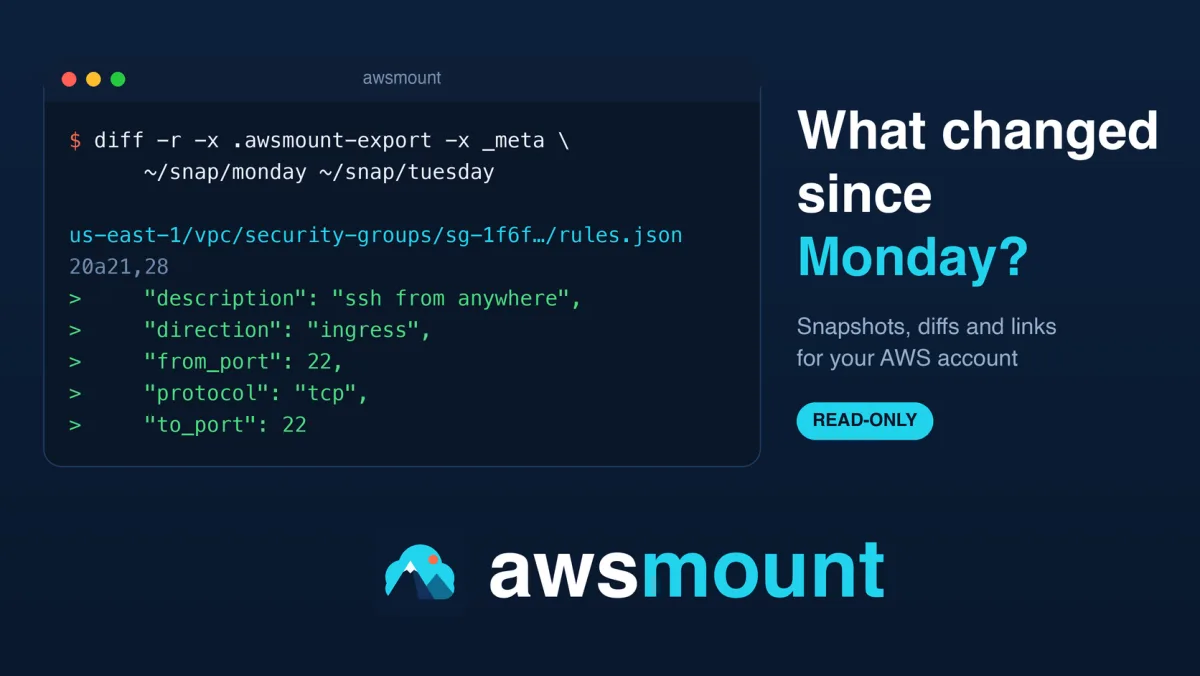
diff -r -x .awsmount-export -x _meta ~/snap/monday ~/snap/tuesday
Two things make this useful.
The output is mostly stable. AWS returns some lists in a different order from one call to the next (tags, route table associations and IP permissions, for example), so awsmount sorts exactly those. That keeps snapshots from showing changes that are not changes. Two exports of the same unchanged account give an empty diff -r for the services I compared on a test emulator. On a real sandbox account (VPC, EC2, SQS, Lambda and KMS), two exports in a row differed in one file out of 832: a KMS key policy where AWS returned the same list of service names in a different order. So expect an occasional false difference in policy documents, and read the diff before you trust it. Some fields also change by themselves, such as message counters in SQS queue data, last-modified timestamps in some services and the last-used.json of IAM roles.
A change shows up as a change. If a rule that opens SSH to the internet is added to a security group between the two snapshots, the diff of that group's rules.json shows the new rule:
20a21,28
>     "description": "ssh from anywhere",
>     "direction": "ingress",
>     "from_port": 22,
>     "protocol": "tcp",
>     "to_port": 22
>   },
>   {
>     "cidr": "0.0.0.0/0",
The last three lines are how diff aligns the added lines with the rule that follows. The describe.json of the same group shows the same rule in the raw API data, and no other file differs.
Notes: diff -r needs -x .awsmount-export, because every export writes a marker file with the export time. If you export a whole account directory, also exclude _meta, since its statistics can change from run to run. By default symlinks are written as small text files holding their target, because real symlinks form cycles that make macOS diff -r fail.
5. Your account in a Git repository
The same export works as a history of your infrastructure. Export into a folder, commit it, and run the last two commands again on a schedule. Every export rewrites the .awsmount-export marker (it holds the export time), and _meta/ holds run statistics and the identity of the caller (identity.json has the ARN and user id), so put both in a .gitignore of the history repository, or every commit will contain a change and your identity will be stored in the history:
mkdir -p ~/aws-history && cd ~/aws-history && git init
printf '.awsmount-export\n_meta/\n' > .gitignore
awsmount -p prod -r eu-west-1 --services vpc,ec2,elbv2,iam \
  export /acme-prod ~/aws-history/acme-prod --clean
git add -A && git commit -m "acme-prod snapshot $(date -u +%F)"
git log -p then shows how the account changed over time. Two precautions:
--cleandeletes what is in the destination before writing (it requires the marker of a previous export, or an empty or missing directory). Point it at a subdirectory of the repository, never at the repository root: if the root ever holds an export marker, it would delete.git.- Masking stays on unless you pass
--reveal. Do not use--revealfor something you commit. Exported files are readable by other users of the machine under the default umask, so runumask 077first if you ever export with--reveal.
Export reads every file and so makes many API calls. Narrow it with --services, as above.
6. Give an AI coding agent an account to read
Agents already know how to use a filesystem. You can give one a mount, or let it run one-shot commands:
awsmount -p prod -r eu-west-1 shell -c "grep -r -l orders-api /acme-prod/eu-west-1/lambda"With a mount, a call limit puts a ceiling on a runaway search. By default it counts calls per 10-minute window; add --budget-window 0 to limit the whole session:
awsmount -p prod -r eu-west-1 --max-api-calls 1000 mount ~/awsThis limits what an agent can do to AWS: awsmount refuses every operation that is not an allow-listed read, and secret values, S3 object bodies and log events are never fetched by mount, shell and serve. Secret-looking values in metadata are masked, but masking is not complete. Two risks remain. Everything the agent reads goes to your model provider, and text in tags, descriptions and policies can carry prompt injection. Use credentials with a read-only IAM policy, and do not combine an agent with --reveal: anything revealed can be read by every process that runs as your user, the agent included.
7. What it is not
- It is not complete. It covers 28 services and 63 resource types.
- It is not a replacement for the AWS CLI. If you need to change something, you still use your usual tools.
- Walking a whole large account (
find,tree,du) lists every directory and can cost thousands of API calls. Narrow the walk or use--services. - Some features have not been tested on real AWS: CloudFront, Organizations data, cross-account trust and accounts with thousands of resources. The README says so in "Verification status".
Help wanted
If one of these recipes does not work on your account, or a service you need is missing, please open an issue with the path and a sanitized copy of what you saw: https://github.com/kloudsec-io/awsmount. A star helps others find the project, and pull requests are welcome. The CONTRIBUTING.md file explains how.
Tarek Cheikh, KloudSec
Go Deeper: The State of AWS Security 2026
This article is just the start. Get the full picture with our free whitepaper - 8 chapters covering IAM, S3, VPC, monitoring, agentic AI security, compliance, and a prioritized action plan with 50+ CLI commands.
Related Services
AWS Security Assessment
A comprehensive review of your AWS environment to find misconfigurations, excessive access, and compliance gaps before they become incidents.
AWS Penetration Testing
Authorized, hands-on testing of your AWS-hosted applications and infrastructure to find exploitable vulnerabilities before an attacker does.
KloudSec, built by the team behind Toc Consulting
See AWS Security checked automatically, continuously
What you just read is a manual, one-time check. KloudSec runs this and 400+ more automated checks across 90+ AWS services, continuously, agentless, live in about 5 minutes.
Toc Consulting: AWS Security & Cloud Architecture
Want expert help with AWS Security?
Our team helps engineering teams secure and architect AWS the right way: assessment in week one, a prioritized action plan in week two.
More Articles
awsmount: Browse Your AWS Account Like a Folder
awsmount is a free, open-source tool from KloudSec that shows an AWS account as a read-only folder, so ls, cat, grep, find and diff work on it. Secret-looking values are hidden by default and awsmount only reads.
iam-to-english: Read Any AWS IAM Policy in Plain English and Catch Privilege Escalation Before It Ships
KloudSec releases iam-to-english, a free open-source CLI that explains AWS IAM policies in plain English, flags 21 known privilege escalation paths, including combinations spread across statements, diffs policy changes and gates CI. It runs offline.
AWS IAM Privilege Escalation: Paths, CloudTrail Events, and the Controls That Block Them
Twelve documented ways a limited IAM identity can raise its own permissions, the CloudTrail event each one leaves, and the AWS controls that block them. Commands and policies follow AWS documentation examples and the AWS CLI v2 reference.