
EC2 Instance Types Deep Dive: Choosing the Right Machine for Any Workload
Tarek Cheikh
Founder & AWS Cloud Architect
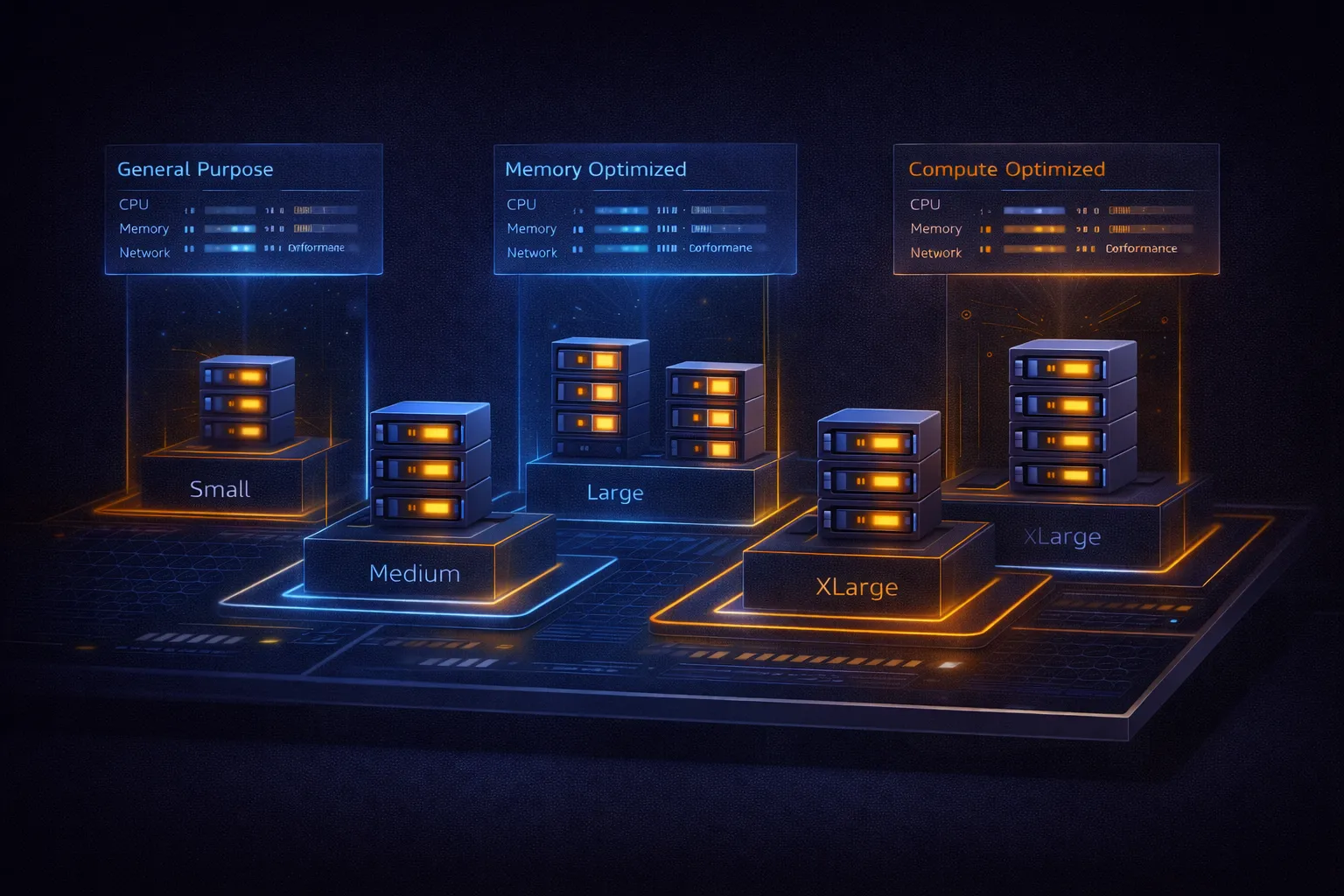
In the previous article, we launched a t3.micro instance and got a web server running. That was a good starting point, but in practice, choosing the right instance type is one of the most impactful decisions you make on AWS. The wrong choice wastes money on over-provisioned resources or creates performance bottlenecks on under-provisioned ones.
AWS offers hundreds of instance types organized into families, each optimized for different workload patterns. This article explains how to decode instance type names, what each family is designed for, how burstable instances and CPU credits work, how purchasing options reduce costs, how enhanced networking and placement groups affect performance, and how to right-size your instances based on real utilization data.
Instance Type Naming Convention
Every EC2 instance type follows a naming pattern that encodes its key characteristics:
c5n.xlarge
||| |
||| +-- Size (nano, micro, small, medium, large, xlarge, 2xlarge, ...)
||+---- Additional capability (n = enhanced networking, d = NVMe SSD, a = AMD, g = Graviton)
|+----- Generation (higher = newer, better price-performance)
+------ Family (c = compute, m = general purpose, r = memory, ...)
Examples:
m5.large-- General purpose, 5th generation, large sizec6i.2xlarge-- Compute optimized, 6th gen Intel, 2xlarger6g.xlarge-- Memory optimized, 6th gen Graviton (ARM), xlargei3en.large-- Storage optimized, 3rd gen with enhanced networking, large
Always prefer the latest generation available in your region. Newer generations provide better performance per dollar with no code changes required.
Instance Families Overview
AWS organizes instances into six main families, each optimized for different workload patterns:
Family                    Series              Optimized For
------                    ------              -------------
General Purpose           A, M, T             Balanced compute, memory, networking
Compute Optimized         C                   High-performance processors
Memory Optimized          R, X, Z             Large in-memory datasets
Storage Optimized         I, D, H             High sequential read/write to local storage
Accelerated Computing     P, G, F, Inf, Trn   GPUs, FPGAs, ML inference chips
High Performance Computing Hpc                Tightly-coupled parallel workloads
The right family depends on your workload's bottleneck. A web application with moderate traffic is balanced (M or T). A video encoding pipeline is CPU-bound (C). A Redis cluster is memory-bound (R). A Cassandra database is storage-bound (I). A deep learning training job needs GPUs (P or G).
General Purpose Instances
General purpose instances provide a balance of compute, memory, and networking. They suit the majority of workloads: web servers, application servers, small to medium databases, development environments, code repositories, and microservices.
T4g / T3 / T3a: Burstable Performance
What are Burstable Instances?
Burstable instances are designed for workloads that do not consistently need high CPU performance but occasionally require significant processing power. Most real-world applications -- web servers, development environments, small databases -- typically use only 10-30% of their CPU capacity most of the time, with occasional spikes to 80-100%.
Traditional fixed-performance instances (like M5 or C5) provide constant, dedicated CPU capacity. A c5.large gives you 2 full vCPUs running at 100% at all times. But if your application only uses 20% on average, you are paying for 80% idle capacity.
Burstable instances solve this by providing:
- Lower baseline performance (5-40% of vCPU capacity depending on size)
- Ability to burst above baseline when needed using CPU credits
- Significant cost savings (30-50% cheaper than comparable fixed-performance instances)
The CPU Credit System
The CPU credit system is how AWS meters burstable performance. Here is the complete breakdown:
Credits Earned  = Time x (Baseline % - Actual CPU %)     [when below baseline]
Credits Consumed = Time x (Actual CPU % - Baseline %)     [when above baseline]
Credit Balance   = Starting Credits + Earned - Consumed   [capped at max balance]
Credit accumulation rules:
- Below baseline usage: Instance earns credits. If baseline is 20% and you use 10%, you earn credits at 10% rate. Credits accumulate up to a maximum balance (24 hours of burst capacity).
- Above baseline usage: Instance consumes credits. If baseline is 20% and you use 60%, you consume credits at 40% rate. No credits are earned during burst periods.
- At baseline usage: No credits earned or consumed. This is the equilibrium state.
A practical example with a t3.medium (baseline: 20% of 2 vCPUs):
Night hours (8 hours, 5% CPU usage):
  Credits earned: 8 hours x (20% - 5%) = 8 x 15% = 120 credits

Peak hours (2 hours, 80% CPU usage):
  Credits consumed: 2 hours x (80% - 20%) = 2 x 60% = 120 credits

Net result: 120 earned - 120 consumed = 0 (balanced)
You can monitor your credit balance through CloudWatch:
# Check CPU credit balance
aws cloudwatch get-metric-statistics \
    --namespace AWS/EC2 \
    --metric-name CPUCreditBalance \
    --dimensions Name=InstanceId,Value=i-1234567890abcdef0 \
    --start-time 2024-01-01T00:00:00Z \
    --end-time 2024-01-01T23:59:59Z \
    --period 3600 \
    --statistics Average

# Set up a CloudWatch alarm for low credits
aws cloudwatch put-metric-alarm \
    --alarm-name "Low-CPU-Credits" \
    --alarm-description "Alert when CPU credits are low" \
    --metric-name CPUCreditBalance \
    --namespace AWS/EC2 \
    --statistic Average \
    --period 300 \
    --threshold 50 \
    --comparison-operator LessThanThreshold \
    --dimensions Name=InstanceId,Value=i-1234567890abcdef0 \
    --evaluation-periods 2 \
    --alarm-actions arn:aws:sns:us-east-1:123456789012:cpu-credits-topic
Standard Mode vs Unlimited Mode
Standard Mode (default for T2):
  - CPU performance limited by credit balance
  - Performance throttles to baseline when credits exhausted
  - Predictable costs
  - Best for: Variable workloads with known patterns

Unlimited Mode (default for T3/T3a/T4g):
  - Can burst beyond credits (incurs surplus charges at ~$0.05/vCPU-hour)
  - Performance never throttled
  - Variable costs (can increase significantly under sustained high CPU)
  - Best for: Applications requiring consistent performance
If you are running T3 with unlimited mode and notice unexpected charges, check whether your workload sustains high CPU for extended periods. In that case, a fixed-performance instance (M5 or C5) may be cheaper.
T4g Series (ARM-based Graviton2)
The T4g series uses AWS Graviton2 processors based on ARM architecture instead of traditional x86 (Intel/AMD). This is a significant architectural difference:
x86 Architecture (T3 series):
  - Complex Instruction Set (CISC)
  - Higher power consumption
  - Universal software compatibility
  - Mature ecosystem with 15+ years of optimization

ARM Graviton2 (T4g series):
  - Reduced Instruction Set (RISC)
  - 40% better price-performance vs T3
  - 20% lower cost than T3 at same size
  - Better energy efficiency and multi-threaded performance
T4g compatibility considerations:
# Check if your application binary supports ARM64
file /usr/bin/your-application
# Output for ARM: ELF 64-bit LSB executable, ARM aarch64

# ARM64-compatible software (no changes needed):
#   [OK] Node.js, Python, Java, Go, Rust, Ruby
#   [OK] Docker containers (if built for linux/arm64 or multi-arch)
#   [OK] Most Linux distributions (Amazon Linux 2, Ubuntu, Debian)
#   [OK] Popular web servers (Apache, Nginx)
#   [OK] Databases (PostgreSQL, MySQL, MongoDB, Redis)

# May require attention:
#   [WARN] Proprietary software without ARM builds
#   [WARN] Legacy x86-only compiled binaries
#   [WARN] Third-party native libraries without ARM builds
T4g specifications:
Instance     vCPU  Memory   Network        Baseline  Approx. Monthly (us-east-1)
t4g.nano     1     0.5 GB   Up to 5 Gbps   5%        ~$3.07
t4g.micro    1     1 GB     Up to 5 Gbps   10%       ~$6.13
t4g.small    1     2 GB     Up to 5 Gbps   20%       ~$12.26
t4g.medium   2     4 GB     Up to 5 Gbps   20%       ~$24.53
t4g.large    2     8 GB     Up to 5 Gbps   30%       ~$49.06
t4g.xlarge   4     16 GB    Up to 5 Gbps   40%       ~$98.11
T3 Series (x86-based Intel)
While T4g offers better price-performance, T3 instances remain necessary for:
- Legacy applications compiled only for x86
- Software that depends on x86-specific instructions (SSE4, AVX)
- Immediate migration without architecture changes
- Third-party software without ARM64 builds
T3 specifications:
Instance     vCPU  Memory   Network        Baseline  Credits/Hour  Approx. Monthly
t3.nano      1     0.5 GB   Up to 5 Gbps   5%        3             ~$3.80
t3.micro     1     1 GB     Up to 5 Gbps   10%       6             ~$7.59
t3.small     1     2 GB     Up to 5 Gbps   20%       12            ~$15.18
t3.medium    2     4 GB     Up to 5 Gbps   20%       24            ~$30.37
t3.large     2     8 GB     Up to 5 Gbps   30%       36            ~$60.74
t3.xlarge    4     16 GB    Up to 5 Gbps   40%       96            ~$121.47
When to Use (and Not Use) Burstable Instances
Good fit for burstable instances:
  - Development and test environments
  - Personal websites and blogs
  - Small business applications
  - Microservices with variable load
  - CI/CD build servers
  - Bastion hosts / jump boxes

Use with caution:
  - Production databases (monitor credit balance closely)
  - Real-time applications (latency-sensitive)
  - Applications with unpredictable sustained CPU

Avoid burstable instances:
  - Constant high-CPU workloads (video encoding, scientific computing)
  - Latency-critical applications requiring predictable performance
  - High-throughput web servers under sustained load
  - Machine learning training
M6i / M6g / M5 Series: Fixed General Purpose
M-series instances provide consistent, non-burstable performance. Unlike T-series, there are no CPU credits -- you get full access to all vCPUs at all times. Use M-series when your workload needs steady, predictable performance.
M6i (Intel, latest generation):
Instance      vCPU  Memory    Network         Approx. Monthly
m6i.large     2     8 GB      Up to 12.5 Gbps ~$69.12
m6i.xlarge    4     16 GB     Up to 12.5 Gbps ~$138.24
m6i.2xlarge   8     32 GB     Up to 12.5 Gbps ~$276.48
m6i.4xlarge   16    64 GB     Up to 12.5 Gbps ~$552.96
m6i.8xlarge   32    128 GB    12.5 Gbps       ~$1,105.92
M6g (Graviton2 ARM, best price-performance in M-series):
Instance      vCPU  Memory    Network         Approx. Monthly
m6g.large     2     8 GB      Up to 10 Gbps   ~$55.48
m6g.xlarge    4     16 GB     Up to 10 Gbps   ~$110.96
m6g.2xlarge   8     32 GB     Up to 10 Gbps   ~$221.92
m6g.4xlarge   16    64 GB     Up to 10 Gbps   ~$443.84
M5 (previous generation Intel, still widely used):
Instance      vCPU  Memory    Network         Approx. Monthly
m5.large      2     8 GB      Up to 10 Gbps   ~$70.08
m5.xlarge     4     16 GB     Up to 10 Gbps   ~$140.16
m5.2xlarge    8     32 GB     Up to 10 Gbps   ~$280.32
m5.4xlarge    16    64 GB     Up to 10 Gbps   ~$560.64
For new deployments, prefer M6g (Graviton2) if your software supports ARM64, or M6i (Intel) if you need x86 compatibility. M6g instances are approximately 20% cheaper than M6i at equivalent sizes.
Compute Optimized Instances
Compute optimized instances (C-series) provide the highest CPU performance per dollar. They use high-frequency processors and allocate more CPU relative to memory compared to general purpose instances. The memory-to-vCPU ratio is 2:1 (vs 4:1 for M-series).
Ideal workloads:
- High-performance web servers
- Scientific modeling and simulations
- Batch processing
- Machine learning inference
- Gaming servers
- Video encoding / transcoding
- Ad serving
C6i / C6g / C5 Series
C6i (Intel, latest generation):
Instance       vCPU  Memory    Network          Approx. Monthly
c6i.large      2     4 GB      Up to 12.5 Gbps  ~$61.92
c6i.xlarge     4     8 GB      Up to 12.5 Gbps  ~$123.84
c6i.2xlarge    8     16 GB     Up to 12.5 Gbps  ~$247.68
c6i.4xlarge    16    32 GB     Up to 12.5 Gbps  ~$495.36
c6i.8xlarge    32    64 GB     12.5 Gbps        ~$990.72
c6i.12xlarge   48    96 GB     18.75 Gbps       ~$1,486.08
c6i.16xlarge   64    128 GB    25 Gbps          ~$1,981.44
c6i.24xlarge   96    192 GB    37.5 Gbps        ~$2,972.16
C5 (previous generation, 3.0 GHz Intel Xeon Platinum):
Instance       vCPU  Memory    Network          Approx. Monthly
c5.large       2     4 GB      Up to 10 Gbps    ~$62.56
c5.xlarge      4     8 GB      Up to 10 Gbps    ~$125.12
c5.2xlarge     8     16 GB     Up to 10 Gbps    ~$250.24
c5.4xlarge     16    32 GB     Up to 10 Gbps    ~$500.48
For CPU-intensive workloads, C-series instances often cost the same or less than M-series despite completing work faster. A video encoding job that takes 4 hours on m5.large ($0.096/hr = $0.384 total) may take 2.5 hours on c5.large ($0.085/hr = $0.213 total) -- 35% faster and 45% cheaper.
Performance comparison for a CPU-intensive workload (video encoding):

Instance Type     Time     Cost/Hour   Total Cost   Relative Performance
t3.large          240 min  $0.0832     $0.333       1.0x (baseline)
m5.large          180 min  $0.096      $0.288       1.33x
c5.large          120 min  $0.085      $0.170       2.0x
c5.xlarge          60 min  $0.170      $0.170       4.0x
c5.2xlarge         30 min  $0.340      $0.170       8.0x
Key insight: for CPU-intensive workloads, larger compute-optimized instances often have the same total cost because they finish faster. This also frees the instance sooner, reducing wall-clock time.
Memory Optimized Instances
Memory optimized instances (R, X, Z series) provide the highest memory-to-vCPU ratios. R-series has 8 GB per vCPU (vs 4 GB for M-series). X-series pushes this to 30+ GB per vCPU for extreme memory workloads.
Ideal workloads:
- In-memory databases (Redis, Memcached, SAP HANA)
- Real-time analytics and data processing
- Apache Spark and Hadoop clusters
- High-performance computing (HPC)
- Genomics analysis
- Large application caches
R6i / R5 Series
R6i (Intel, latest generation):
Instance       vCPU  Memory     Network          Approx. Monthly
r6i.large      2     16 GB      Up to 12.5 Gbps  ~$97.92
r6i.xlarge     4     32 GB      Up to 12.5 Gbps  ~$195.84
r6i.2xlarge    8     64 GB      Up to 12.5 Gbps  ~$391.68
r6i.4xlarge    16    128 GB     Up to 12.5 Gbps  ~$783.36
r6i.8xlarge    32    256 GB     12.5 Gbps        ~$1,566.72
r6i.12xlarge   48    384 GB     18.75 Gbps       ~$2,350.08
r6i.16xlarge   64    512 GB     25 Gbps          ~$3,133.44
r6i.24xlarge   96    768 GB     37.5 Gbps        ~$4,700.16
R5 (previous generation):
Instance       vCPU  Memory     Network          Approx. Monthly
r5.large       2     16 GB      Up to 10 Gbps    ~$100.80
r5.xlarge      4     32 GB      Up to 10 Gbps    ~$201.60
r5.2xlarge     8     64 GB      Up to 10 Gbps    ~$403.20
r5.4xlarge     16    128 GB     Up to 10 Gbps    ~$806.40
X1e / X1 Series: Extreme Memory
X1e instances provide the highest memory capacity in EC2, designed for workloads like SAP HANA that require terabytes of RAM:
Instance        vCPU  Memory      Network    Approx. Monthly
x1e.xlarge      4     122 GB      Up to 10 Gbps  ~$834
x1e.2xlarge     8     244 GB      Up to 10 Gbps  ~$1,668
x1e.4xlarge     16    488 GB      Up to 10 Gbps  ~$3,337
x1e.8xlarge     32    976 GB      10 Gbps        ~$6,674
x1e.16xlarge    64    1,952 GB    10 Gbps        ~$13,348
x1e.32xlarge    128   3,904 GB    25 Gbps        ~$26,696
The cost difference between M-series and R-series is roughly the cost of the additional memory. If your workload actually needs the extra memory (e.g., running out of memory on M5, or spilling to disk on Spark), the R-series pays for itself through performance gains. If memory utilization is under 50%, you are probably over-provisioned.
Storage Optimized Instances
Storage optimized instances provide high sequential read/write access to very large datasets on local storage. Unlike EBS-backed instances, these include NVMe SSD or HDD storage directly attached to the host.
Ideal workloads:
- NoSQL databases (Cassandra, MongoDB, DynamoDB compatible)
- Data warehousing (Redshift, ClickHouse)
- Distributed file systems (HDFS, GlusterFS)
- Log processing and analytics (Elasticsearch, OpenSearch)
- High-IOPS transactional databases
I3 / I3en Series: NVMe SSD
I3 Series (NVMe SSD, high random IOPS):

Instance       vCPU  Memory      Local Storage      Approx. Monthly
i3.large       2     15.25 GB    475 GB NVMe        ~$113
i3.xlarge      4     30.5 GB     950 GB NVMe        ~$226
i3.2xlarge     8     61 GB       1,900 GB NVMe      ~$452
i3.4xlarge     16    122 GB      3,800 GB NVMe      ~$904
i3.8xlarge     32    244 GB      7,600 GB NVMe      ~$1,808
i3.16xlarge    64    488 GB      15,200 GB NVMe     ~$3,616

I3en Series (enhanced networking, more storage per instance):

Instance       vCPU  Memory      Local Storage      Approx. Monthly
i3en.large     2     16 GB       1,250 GB NVMe      ~$164
i3en.xlarge    4     32 GB       2,500 GB NVMe      ~$328
i3en.2xlarge   8     64 GB       5,000 GB NVMe      ~$656
i3en.3xlarge   12    96 GB       7,500 GB NVMe      ~$984
i3en.6xlarge   24    192 GB      15,000 GB NVMe     ~$1,968
Performance characteristics:
- I3 instances: up to 3.3 million random read IOPS (4K blocks)
- I3en instances: up to 2.2 million IOPS with enhanced networking
- Sequential throughput: up to 16 GB/s per instance
Important: local NVMe storage is ephemeral. Data is lost when the instance stops or terminates. Always replicate data at the application level (e.g., Cassandra replication factor 3) or back up to S3/EBS.
D3 Series: Dense HDD Storage
For workloads that need massive storage capacity at lower cost per GB (data warehousing, log archives):
Instance       vCPU  Memory     Local Storage              Approx. Monthly
d3.xlarge      4     32 GB      3 x 1,916 GB HDD (~5.7 TB) ~$300
d3.2xlarge     8     64 GB      6 x 1,916 GB HDD (~11.5 TB)~$600
d3.4xlarge     16    128 GB     12 x 1,916 GB HDD (~23 TB) ~$1,200
d3.8xlarge     32    256 GB     24 x 1,916 GB HDD (~46 TB) ~$2,400
Accelerated Computing Instances
Accelerated computing instances include hardware accelerators (GPUs, FPGAs, or custom ML chips) that perform certain functions far more efficiently than general-purpose CPUs. Matrix multiplication, for example, runs orders of magnitude faster on GPU tensor cores than on CPU cores.
Ideal workloads:
- Machine learning training and inference
- Scientific computing and simulations
- 3D rendering and visualization
- Video processing and transcoding
- Financial modeling (Monte Carlo simulations)
P4d / P3 Series: ML Training
Instance        vCPU  Memory      GPUs              GPU Memory    Approx. Monthly
p3.2xlarge      8     61 GB       1 x NVIDIA V100   16 GB HBM2    ~$2,203
p3.8xlarge      32    244 GB      4 x NVIDIA V100   64 GB HBM2    ~$8,812
p3.16xlarge     64    488 GB      8 x NVIDIA V100   128 GB HBM2   ~$17,625
p4d.24xlarge    96    1,152 GB    8 x NVIDIA A100   320 GB HBM2   ~$23,538
GPU instances dramatically change the economics of compute-intensive workloads:
Training a ResNet-50 model on ImageNet:

Instance         Training Time   Cost/Hour   Total Cost   GPUs
c5.18xlarge      48 hours        $3.06       $146.88      0 (CPU only)
p3.2xlarge       6 hours         $3.06       $18.36       1 x V100
p3.8xlarge       2 hours         $12.24      $24.48       4 x V100
p4d.24xlarge     45 minutes      $32.77      $24.58       8 x A100
The GPU instances cost 6-8x less in total because they finish the job 8-64x faster. The key is that ML training workloads are massively parallel matrix operations, which is exactly what GPU tensor cores are designed for.
G4dn Series: Graphics and ML Inference
G4dn instances use NVIDIA T4 GPUs, which are optimized for inference (running trained models) and graphics workloads rather than training:
Instance        vCPU  Memory     GPUs           GPU Memory   Approx. Monthly
g4dn.xlarge     4     16 GB      1 x NVIDIA T4  16 GB        ~$380
g4dn.2xlarge    8     32 GB      1 x NVIDIA T4  16 GB        ~$544
g4dn.4xlarge    16    64 GB      1 x NVIDIA T4  16 GB        ~$873
g4dn.8xlarge    32    128 GB     1 x NVIDIA T4  16 GB        ~$1,573
g4dn.12xlarge   48    192 GB     4 x NVIDIA T4  64 GB        ~$2,833
Use cases: ML inference endpoints, real-time video processing, remote graphics workstations, game streaming.
Specialized Instance Types
HPC Instances: High Performance Computing
HPC instances are designed for tightly-coupled parallel workloads that require massive compute power and low-latency inter-node communication. These workloads cannot simply be distributed across many small instances -- they need nodes that communicate constantly during computation.
Traditional HPC (On-Premises):
  - Massive upfront capital ($500K - $10M+)
  - Years of procurement and setup
  - Fixed capacity (over or under-utilized)
  - Dedicated facilities and cooling
  - Complex maintenance and upgrades

Cloud HPC (AWS):
  - Pay-per-second pricing
  - Launch clusters in minutes
  - Elastic scaling based on demand
  - No infrastructure management
  - Always access to latest hardware
HPC workload characteristics:
- Highly parallel: utilizes hundreds or thousands of CPU cores simultaneously
- Compute-intensive: CPU utilization consistently above 80%
- Tightly coupled: nodes need fast inter-node communication (MPI)
- Network sensitive: performance depends on low-latency networking
Hpc6a Series
Instance          vCPU  Memory    Network       Processor         Approx. Monthly
hpc6a.48xlarge    96    384 GB    100 Gbps EFA  AMD EPYC 7R13     ~$2,488
AMD EPYC 7R13 details:
- 48 physical cores (96 vCPUs with hyperthreading)
- Base frequency: 2.65 GHz, Boost: 3.6 GHz
- 256 MB L3 cache
- 8-channel DDR4-3200 memory
- PCIe 4.0 support (128 lanes)
Elastic Fabric Adapter (EFA)
EFA is AWS's custom network interface for HPC. It provides OS-bypass capabilities, allowing applications to communicate directly with the network hardware without going through the operating system kernel. This is similar to InfiniBand in traditional HPC clusters.
EFA Performance Characteristics:
  - Latency: sub-microsecond
  - Bandwidth: up to 100 Gbps
  - Message rate: 10+ million messages/second
  - CPU overhead: less than 5%
  - Scalability: up to 32,000+ cores
EFA is required for workloads that use MPI (Message Passing Interface) on AWS, such as weather modeling, computational fluid dynamics, molecular dynamics, and finite element analysis.
Mac Instances
Instance      Hardware          Memory    Approx. Monthly
mac1.metal    Mac mini (Intel)  32 GB     ~$817
mac2.metal    Mac mini (M1)     16 GB     ~$534
Dedicated Mac hardware for iOS/macOS development, Xcode builds, and macOS-specific testing. These run on actual Apple hardware in AWS data centers (required by Apple's licensing terms). Minimum allocation period: 24 hours.
Instance Purchasing Options
AWS offers five purchasing models. Choosing the right mix can reduce your compute costs by 30-90%.
Purchasing Model     Flexibility   Savings     Commitment   Best For
-----------------    -----------   -------     ----------   --------
On-Demand            Highest       0%          None         Dev/test, unpredictable workloads
Reserved Instances   Medium        20-72%      1-3 years    Steady-state production
Savings Plans        High          10-72%      1-3 years    Dynamic but committed usage
Spot Instances       Low           50-90%      None         Fault-tolerant batch jobs
Dedicated Hosts      Low           Varies      On-Demand/RI License compliance (BYOL)
On-Demand Instances
Pay by the second with no commitment. This is the default and simplest model.
When to use On-Demand:
- Development and testing environments
- Short-term projects, demos, proof-of-concepts
- Spiky or unpredictable workloads
- New applications where resource requirements are unknown
- Disaster recovery instances that may never be used
# Sample On-Demand hourly rates (us-east-1, Linux):
# t3.micro:   $0.0104/hr  (~$7.59/month)
# t3.medium:  $0.0416/hr  (~$30.37/month)
# m5.large:   $0.096/hr   (~$70.08/month)
# c5.large:   $0.085/hr   (~$62.05/month)
# r5.large:   $0.126/hr   (~$91.98/month)
Reserved Instances (RIs)
Commit to 1 or 3 years of usage in exchange for a discount. Reserved Instances are applied as a billing discount to matching running instances -- you do not need to launch special "reserved" instances.
RI Types
Standard RI:
  - Highest savings: up to 72% off On-Demand
  - Fixed attributes: instance family, region, OS, tenancy
  - Cannot change instance family (e.g., cannot convert M5 RI to C5)
  - Can sell unused RIs on the Reserved Instance Marketplace
  - Best for: stable, well-understood workloads

Convertible RI:
  - Moderate savings: up to 66% off On-Demand
  - Exchangeable: can change instance family, OS, tenancy
  - Cannot sell on Marketplace
  - Best for: workloads where requirements may evolve
RI Payment Options
Example for m5.large, 1-year Standard RI (us-east-1):

Payment Option        Upfront    Monthly    Total/Year   Effective Hourly   Savings
All Upfront           $547       $0         $547         $0.0625            35%
Partial Upfront       $267       $22.83     $541         $0.0617            36%
No Upfront            $0         $45.65     $548         $0.0625            35%

On-Demand comparison: $0.096/hr x 8,760 hrs = $840.96/year
The three payment options yield similar total costs for 1-year terms. The difference becomes more significant on 3-year terms, where All Upfront provides the largest discount.
Savings Plans
Savings Plans are AWS's newer, more flexible alternative to Reserved Instances. Instead of committing to a specific instance type, you commit to a consistent amount of compute spending (measured in $/hour) for 1 or 3 years.
Savings Plan Types
Compute Savings Plans (most flexible):
  - Up to 66% off On-Demand
  - Applies automatically to any EC2 instance, any family, any region
  - Also applies to Fargate and Lambda usage
  - No capacity reservation
  - Best for: organizations with diverse, changing compute needs

EC2 Instance Savings Plans (higher discount):
  - Up to 72% off On-Demand
  - Commit to a specific instance family (e.g., M5) in a specific region
  - Flexible across sizes within that family (m5.large, m5.xlarge, etc.)
  - Flexible across OS and tenancy
  - Best for: stable workloads where you know the instance family
Savings Plans vs Reserved Instances
Feature                  Reserved Instances       Savings Plans
Management overhead      High (per-instance)      Low (dollar commitment)
Flexibility              Limited                  High
Capacity reservation     Yes (optional)           No
Marketplace resale       Yes (Standard only)      No
Cross-region             No                       Yes (Compute SP only)
Cross-service            No                       Yes (Compute SP: EC2+Fargate+Lambda)
Discount level           Up to 72%                Up to 72%

Recommendation: For most organizations, Savings Plans are simpler to manage.
Use Reserved Instances only when you need capacity reservations or want
Marketplace liquidity.
Spot Instances
Spot Instances let you use spare EC2 capacity at up to 90% off On-Demand prices. The trade-off: AWS can reclaim Spot instances with a 2-minute warning when it needs the capacity back.
When to Use Spot
Workload requirements for Spot:
  - Fault-tolerant: can handle interruptions gracefully
  - Flexible timing: not time-critical (or can retry)
  - Stateless: no persistent local state (or state is checkpointed)
  - Horizontally scalable: can run across multiple instances

Good Spot workloads:
  - Batch processing (data pipelines, ETL jobs)
  - CI/CD build and test environments
  - Stateless web servers behind a load balancer
  - Big data processing (Spark, Hadoop)
  - Container workloads (ECS, EKS)
  - Scientific computing simulations
  - Image/video rendering
Spot Pricing and Interruption Handling
# Check current Spot prices
aws ec2 describe-spot-price-history \
    --instance-types m5.large c5.large r5.large \
    --product-descriptions "Linux/UNIX" \
    --start-time "$(date -u +%Y-%m-%dT%H:%M:%SZ)" \
    --max-items 10

# Check for Spot interruption notice (run on the instance)
# Returns HTTP 200 with action details if interruption is pending
# Returns HTTP 404 if no interruption
curl -s -o /dev/null -w "%{http_code}" \
    http://169.254.169.254/latest/meta-data/spot/instance-action
Spot best practices:
- Diversify instance types: Request multiple instance types and sizes. If one type has a price spike, others may still be available. Use the
diversifiedallocation strategy in Spot Fleets. - Diversify Availability Zones: Spot capacity and pricing vary by AZ.
- Implement graceful shutdown: Poll the instance metadata endpoint for interruption notices. When you get one, you have 2 minutes to save state, drain connections, and shut down cleanly.
- Use checkpointing: For long-running jobs, save progress regularly so you can resume on a new instance after interruption.
- Combine with On-Demand: Use On-Demand for a baseline of capacity and Spot for scaling. This is the mixed instance strategy described later in this article.
Dedicated Hosts
A Dedicated Host is a physical EC2 server fully dedicated to your use. You get visibility into the physical cores and sockets, which matters for:
- Software licensing: Licenses tied to physical cores or sockets (Windows Server, SQL Server, Oracle Database)
- Compliance: Regulatory requirements mandating physical isolation
- Bring Your Own License (BYOL): Use existing licenses instead of paying AWS license fees
Dedicated Hosts are the most expensive option. Only use them when licensing or compliance requirements make it necessary.
Network Performance and Enhanced Networking
Network performance is a critical but often overlooked factor in instance selection. The difference between traditional and enhanced networking can be 10x in latency and 2-5x in throughput.
Enhanced Networking and SR-IOV
Enhanced networking uses Single Root I/O Virtualization (SR-IOV) to bypass the hypervisor's virtual network switch. Instead of packets going through software switching in the hypervisor, each instance gets a virtual function (VF) that talks directly to the physical network card hardware.
Without SR-IOV (Traditional Virtualization):

  VM1    VM2    VM3    VM4
   |      |      |      |
   +------+------+------+
          |
   Virtual Network Switch (software, in hypervisor)
          |
   Physical NIC

   Latency: 100-500 microseconds
   Throughput: 60-80% of physical capacity
   CPU overhead: 10-20%


With SR-IOV (Enhanced Networking):

  VM1    VM2    VM3    VM4
   |      |      |      |
   VF1    VF2    VF3    VF4    (Virtual Functions - hardware)
   |      |      |      |
   +------+------+------+
          |
   Physical NIC (SR-IOV capable)

   Latency: 10-50 microseconds
   Throughput: 90-99% of physical capacity
   CPU overhead: 1-5%
SR-IOV benefits:
- Ultra-low latency: 10x reduction in network latency
- High throughput: near line-rate performance
- CPU efficiency: 80% reduction in CPU overhead for networking
- Scalability: support for thousands of concurrent connections
Elastic Network Adapter (ENA)
ENA is AWS's custom network driver that enables enhanced networking on current-generation instances. All M5, C5, R5, T3, and newer instance types use ENA.
# Check if ENA is enabled on your instance
ethtool -i eth0 | grep driver
# Expected output: driver: ena

# View ENA driver information
modinfo ena

# Check network performance capabilities
ethtool -g eth0    # Ring buffer settings
ethtool -c eth0    # Coalescing settings
ethtool -k eth0    # Offload features
ENA vs older Intel 82599 VF:
Feature ENA (current gen) Intel 82599 VF (older gen)
Max bandwidth 100 Gbps 10 Gbps
Max PPS 14 million 2 million
Latency sub-100 microseconds sub-200 microseconds
Instance families M5, C5, R5, T3, newer M4, C4, R4, olderNetwork Performance Tuning
For network-intensive workloads, these kernel and driver settings can improve throughput and reduce latency:
# Increase TCP buffer sizes for high-throughput transfers
sudo sysctl -w net.core.rmem_max=134217728
sudo sysctl -w net.core.wmem_max=134217728

# Enable TCP window scaling
sudo sysctl -w net.ipv4.tcp_window_scaling=1

# Use BBR congestion control (better for high-bandwidth, high-latency links)
sudo sysctl -w net.ipv4.tcp_congestion_control=bbr

# Increase connection backlog
sudo sysctl -w net.core.somaxconn=32768

# Increase network device budget (packets processed per softirq)
sudo sysctl -w net.core.netdev_budget=600

# Disable slow start after idle (better for bursty workloads)
sudo sysctl -w net.ipv4.tcp_slow_start_after_idle=0

# Enable MTU probing for jumbo frames
sudo sysctl -w net.ipv4.tcp_mtu_probing=1

# Increase ENA ring buffer size
sudo ethtool -G eth0 rx 4096 tx 4096
The "n" suffix on instance types (c5n, m5n, r5n) indicates enhanced networking with higher baseline bandwidth. For example, c5n.large provides up to 25 Gbps vs c5.large at up to 10 Gbps.
Placement Groups
Placement groups control how AWS places your instances on the underlying hardware. There are three strategies, each optimizing for different requirements.
Cluster Placement Group
All instances are placed close together on the same rack within a single Availability Zone. This minimizes network latency between instances.
Without Placement Group:

  Availability Zone 1a
  +----------+  +----------+  +----------+
  |  Rack 1  |  |  Rack 5  |  |  Rack 9  |
  |Instance 1|  |Instance 2|  |Instance 3|
  +----------+  +----------+  +----------+
  Network latency: 200-500 microseconds
  Bandwidth: shared across network fabric


With Cluster Placement Group:

  Availability Zone 1a
  +------------------------------------+
  |              Rack 1                |
  | Instance 1  Instance 2  Instance 3 |
  +------------------------------------+
  Network latency: 10-50 microseconds
  Bandwidth: high-bandwidth local switching
When to use cluster placement groups:
- High Performance Computing (MPI workloads)
- Distributed databases needing low-latency replication (Cassandra, MongoDB)
- Real-time gaming servers
- Financial trading systems
- ML training across multiple GPU instances
# Create a cluster placement group
aws ec2 create-placement-group \
    --group-name hpc-cluster \
    --strategy cluster

# Launch instances in the placement group
aws ec2 run-instances \
    --image-id ami-0c55b159cbfafe1d0 \
    --instance-type c5.xlarge \
    --count 4 \
    --placement GroupName=hpc-cluster \
    --key-name my-key \
    --security-group-ids sg-12345678
Cluster placement group best practices:
- Launch all instances simultaneously for the best chance of getting capacity on the same rack
- Use the same instance type within the group
- Enable enhanced networking
- Be aware: single-rack placement means a rack failure affects all instances
Partition Placement Group
Instances are spread across logical partitions (up to 7 per AZ). Each partition maps to a separate hardware rack. Instances in different partitions do not share underlying hardware.
Partition Placement Group:

  +----------------+  +----------------+  +----------------+
  |  Partition 1   |  |  Partition 2   |  |  Partition 3   |
  |   (Rack A)     |  |   (Rack B)     |  |   (Rack C)     |
  | node-1, node-2 |  | node-3, node-4 |  | node-5, node-6 |
  +----------------+  +----------------+  +----------------+

  If Rack B fails: nodes 3 and 4 go down,
  but nodes 1, 2, 5, 6 are unaffected.
When to use partition placement groups:
- Distributed databases (Cassandra, HBase, HDFS) -- place replicas in different partitions
- Big data clusters (Spark, Hadoop) -- spread workers across partitions
- Kafka clusters -- place brokers in different partitions for fault tolerance
Key properties:
- Up to 7 partitions per AZ
- No limit on instances per partition
- Each partition is on separate hardware (separate racks, power, networking)
- Can span multiple AZs
Spread Placement Group
Each instance is placed on a separate physical server. This provides maximum isolation -- no two instances share the same underlying hardware.
Spread Placement Group:

  +----------+  +----------+  +----------+
  | Server 1 |  | Server 2 |  | Server 3 |
  |Instance 1|  |Instance 2|  |Instance 3|
  +----------+  +----------+  +----------+
     Rack A        Rack B        Rack C

  Each instance on completely separate hardware.
  Maximum: 7 instances per AZ.
When to use spread placement groups:
- Critical application instances where hardware failure must not affect multiple instances
- High-availability web server tiers (small number of instances)
- Database primary and replicas (ensure they are on different hardware)
Limitations:
- Maximum 7 instances per Availability Zone
- Slightly higher inter-instance latency (instances may be far apart)
- For more than 7 instances, use multiple AZs or switch to partition placement
Choosing a Placement Strategy
Requirement                          Strategy     Trade-off
Lowest network latency               Cluster      Higher correlated failure risk
Fault isolation for replicated data  Partition    Moderate latency, good isolation
Maximum hardware isolation           Spread       Limited to 7 per AZ
No specific placement needs          None         AWS decides (default)
Cost Optimization: Right-Sizing
Right-sizing is the process of matching instance resources (CPU, memory, storage, network) to your workload's actual requirements. Studies consistently show that the average EC2 instance runs at 20-30% CPU utilization, meaning most organizations are significantly over-provisioned.
Step 1: Collect Baseline Metrics
Before changing anything, collect at least 2-4 weeks of utilization data to capture weekly patterns:
# Get 30 days of CPU utilization for an instance
aws cloudwatch get-metric-statistics \
    --namespace AWS/EC2 \
    --metric-name CPUUtilization \
    --dimensions Name=InstanceId,Value=i-1234567890abcdef0 \
    --start-time "$(date -u -v-30d +%Y-%m-%dT%H:%M:%SZ)" \
    --end-time "$(date -u +%Y-%m-%dT%H:%M:%SZ)" \
    --period 3600 \
    --statistics Average Maximum

# Get network utilization
aws cloudwatch get-metric-statistics \
    --namespace AWS/EC2 \
    --metric-name NetworkIn \
    --dimensions Name=InstanceId,Value=i-1234567890abcdef0 \
    --start-time "$(date -u -v-30d +%Y-%m-%dT%H:%M:%SZ)" \
    --end-time "$(date -u +%Y-%m-%dT%H:%M:%SZ)" \
    --period 3600 \
    --statistics Average Maximum
Note: EC2 basic monitoring provides CPU, disk I/O, and network metrics. For memory utilization, you need the CloudWatch Agent installed on the instance:
# Install CloudWatch Agent
sudo yum install -y amazon-cloudwatch-agent

# The agent publishes MemoryUtilization and DiskSpaceUtilization
# to CloudWatch under the CWAgent namespace
Step 2: Analyze Usage Patterns
Look at your metrics and classify each workload:
Pattern              Indicators                              Recommended Action
Underutilized        Avg CPU < 20%, max CPU < 50%           Downsize instance type
Over-provisioned     Avg memory < 30%, CPU moderate          Switch to smaller or different family
CPU-bound            Avg CPU > 70%, memory < 50%             Switch from M to C family
Memory-bound         Memory > 70%, CPU < 40%                 Switch from M to R family
Bursty               Avg CPU < 20%, max CPU > 80%            Switch to T-series burstable
Steady-state         Std deviation < 10%, avg CPU 40-70%     Good fit, consider Reserved Instances
I/O-bound            High disk IOPS or network, low CPU      Consider I-series or storage-optimized
Step 3: Test and Migrate
Never resize blindly. Follow this process:
- Deploy a test instance with the candidate type alongside the existing one
- Run your application on both and compare performance under synthetic load
- Validate that response times, error rates, and throughput meet your requirements
- Gradual migration: shift traffic incrementally (e.g., 10% to new type, then 25%, 50%, 100%)
- Monitor for at least one full business cycle after migration
- Keep rollback ready until the new configuration is validated
AWS Compute Optimizer
AWS Compute Optimizer analyzes your CloudWatch metrics and provides right-sizing recommendations automatically:
# Get EC2 instance recommendations
aws compute-optimizer get-ec2-instance-recommendations \
    --instance-arns arn:aws:ec2:us-east-1:123456789012:instance/i-1234567890abcdef0

# Get recommendations for all instances in the account
aws compute-optimizer get-ec2-instance-recommendations
Compute Optimizer requires at least 30 hours of metrics data and works best with 14+ days. It recommends instance types based on observed CPU, memory, network, and storage utilization.
Mixed Instance Types Strategy
Mixed Instance Types is an Auto Scaling feature that lets you use multiple instance types within a single Auto Scaling group. This combines different families, sizes, and purchasing options (On-Demand + Spot) for cost optimization and availability.
How It Works
Mixed Instance Types Architecture:

  +-------------------------------------------------------------+
  |                    Auto Scaling Group                        |
  |  +--------------+  +--------------+  +--------------+       |
  |  |  On-Demand   |  |    Spot      |  |    Spot      |       |
  |  |  m5.large    |  |  c5.large    |  |  m4.large    |       |
  |  |  (base)      |  | (diversified)|  | (diversified)|       |
  |  +--------------+  +--------------+  +--------------+       |
  |                                                             |
  |  Launch Template: Common AMI, security groups, user data    |
  |  Overrides: Different instance types with weighted capacity |
  |  Distribution: Controls On-Demand vs Spot allocation        |
  +-------------------------------------------------------------+
Weighted Capacity
Weighted capacity tells Auto Scaling how much computing power each instance type provides relative to others:
Instance Type    vCPU   Memory   Weight   Explanation
m5.large         2      8 GB     1        Baseline unit
m5.xlarge        4      16 GB    2        2x the capacity of baseline
m5.2xlarge       8      32 GB    4        4x the capacity of baseline
c5.large         2      4 GB     1        Same CPU as m5.large
If your Auto Scaling group has a desired capacity of 10 (in weighted units), it could be satisfied by 10 x m5.large, 5 x m5.xlarge, or any combination that sums to 10 weighted units.
Configuration Example
{
  "AutoScalingGroupName": "web-app-asg",
  "MixedInstancesPolicy": {
    "LaunchTemplate": {
      "LaunchTemplateSpecification": {
        "LaunchTemplateName": "web-app-template",
        "Version": "$Latest"
      },
      "Overrides": [
        { "InstanceType": "m5.large",  "WeightedCapacity": "1" },
        { "InstanceType": "m5.xlarge", "WeightedCapacity": "2" },
        { "InstanceType": "c5.large",  "WeightedCapacity": "1" },
        { "InstanceType": "c5.xlarge", "WeightedCapacity": "2" },
        { "InstanceType": "m4.large",  "WeightedCapacity": "1" }
      ]
    },
    "InstancesDistribution": {
      "OnDemandBaseCapacity": 2,
      "OnDemandPercentageAboveBaseCapacity": 20,
      "SpotAllocationStrategy": "capacity-optimized"
    }
  }
}
What this configuration does:
- OnDemandBaseCapacity: 2 -- always keep at least 2 On-Demand instances (your reliable baseline)
- OnDemandPercentageAboveBaseCapacity: 20 -- beyond the base 2, use 20% On-Demand and 80% Spot
- SpotAllocationStrategy: capacity-optimized -- launch Spot instances from pools with the most available capacity (reduces interruption risk)
- 5 instance types -- diversification across M5, C5, and M4 families reduces the chance that all Spot instances are interrupted simultaneously
Handling Spot Interruptions in a Mixed Fleet
When a Spot instance is interrupted:
- Auto Scaling automatically launches a replacement from another pool
- The On-Demand base capacity is never interrupted
- Your application continues running on the remaining instances
- The load balancer automatically routes traffic away from the interrupted instance
This makes mixed fleets a practical way to reduce costs by 50-70% for stateless workloads while maintaining high availability.
Monitoring and Continuous Optimization
Instance selection is not a one-time decision. Workloads change over time, and AWS regularly releases new instance types with better price-performance.
Key Metrics to Track
# Publish custom memory metrics using the CloudWatch Agent
# or a simple cron job:
import boto3, psutil
from datetime import datetime

cloudwatch = boto3.client('cloudwatch')

cloudwatch.put_metric_data(
    Namespace='Custom/EC2',
    MetricData=[
        {
            'MetricName': 'MemoryUtilization',
            'Dimensions': [{'Name': 'InstanceId', 'Value': instance_id}],
            'Value': psutil.virtual_memory().percent,
            'Unit': 'Percent',
            'Timestamp': datetime.utcnow()
        }
    ]
)
Optimization Schedule
Frequency     Action
Daily         Monitor CPU credit balance (burstable instances), check Spot prices
Weekly        Review utilization trends, check for underutilized instances
Monthly       Run Compute Optimizer, evaluate cost trends, review RI/SP coverage
Quarterly     Evaluate new instance generations, review architecture decisions
Annually      Full cost/performance audit, renegotiate Reserved Instances/Savings Plans
Instance Selection Decision Framework
When choosing an instance type for a new workload, follow this systematic approach:
1. IDENTIFY THE BOTTLENECK
   What resource does your application need most?
   +-- CPU-bound       --> C-series (compute optimized)
   +-- Memory-bound    --> R-series (memory optimized)
   +-- Storage-bound   --> I-series (NVMe SSD) or D-series (HDD)
   +-- GPU-bound       --> P-series (training) or G-series (inference)
   +-- Balanced        --> M-series (general purpose)
   +-- Variable/bursty --> T-series (burstable)

2. CHOOSE THE GENERATION
   Always prefer the latest generation (6th gen > 5th gen > 4th gen)
   Newer generations: better performance per dollar, same or lower cost

3. CHOOSE THE PROCESSOR
   +-- ARM compatible? --> Graviton (g suffix): 20-40% better price-performance
   +-- x86 required?   --> Intel (i suffix) or AMD (a suffix): universal compatibility

4. CHOOSE THE SIZE
   Start with the smallest size that could work
   Scale up based on load testing
   Leave 20-30% headroom for traffic spikes

5. CHOOSE THE PURCHASING OPTION
   +-- Unpredictable usage     --> On-Demand
   +-- Steady, long-term       --> Reserved Instances or Savings Plans
   +-- Fault-tolerant batch    --> Spot (50-90% savings)
   +-- License compliance      --> Dedicated Hosts

6. MONITOR AND ADJUST
   Collect metrics for 2-4 weeks
   Right-size based on actual utilization
   Re-evaluate quarterly
Summary
The right EC2 instance type depends entirely on your workload. Here are the key takeaways:
- Instance naming encodes family, generation, capabilities, and size -- learn to read it
- T-series burstable instances are the cheapest option for variable workloads, but understand CPU credits to avoid unexpected throttling or charges
- Graviton (ARM) instances provide 20-40% better price-performance -- use them when your software supports ARM64
- Match the family to your bottleneck: C for CPU, R for memory, I for storage, P/G for GPU
- Purchasing options can reduce costs by 30-90% -- Savings Plans are the simplest path for most organizations
- Enhanced networking and placement groups can reduce network latency by 10x -- critical for distributed systems
- Right-sizing based on actual utilization data is the single most impactful cost optimization
- Use the latest generation available in your region -- better performance at the same or lower price
In the next article, we will cover EC2 networking and security: VPCs, security groups, NACLs, and how to build a secure, well-architected network for your EC2 instances.
Go Deeper: The State of AWS Security 2026
This article is just the start. Get the full picture with our free whitepaper - 8 chapters covering IAM, S3, VPC, monitoring, agentic AI security, compliance, and a prioritized action plan with 50+ CLI commands.
Toc Consulting: AWS Security & Cloud Architecture
Want expert help with AWS Mastery?
Our team helps engineering teams secure and architect AWS the right way: assessment in week one, a prioritized action plan in week two.
More Articles
AWS Architecture Patterns: Proven Blueprints for Scalable Cloud Applications
Six production-proven AWS architecture patterns: three-tier web apps, serverless APIs, event-driven processing, static websites, data lakes, and multi-region disaster recovery with diagrams and implementation guides.
AWS Cost Optimization: Reduce Your Cloud Bill Without Sacrificing Performance
Complete guide to AWS cost optimization covering Cost Explorer, Compute Optimizer, Savings Plans, Spot Instances, S3 lifecycle policies, gp2 to gp3 migration, scheduling, budgets, and production best practices.
AWS AI and ML Services: Add Intelligence to Your Applications
Complete guide to AWS AI services including Rekognition, Comprehend, Textract, Polly, Translate, Transcribe, and Bedrock with CLI commands, pricing, and production best practices.