Amazon CloudWatch Deep Dive: Monitoring, Logging, and Observability on AWS
Tarek Cheikh
Founder & AWS Cloud Architect
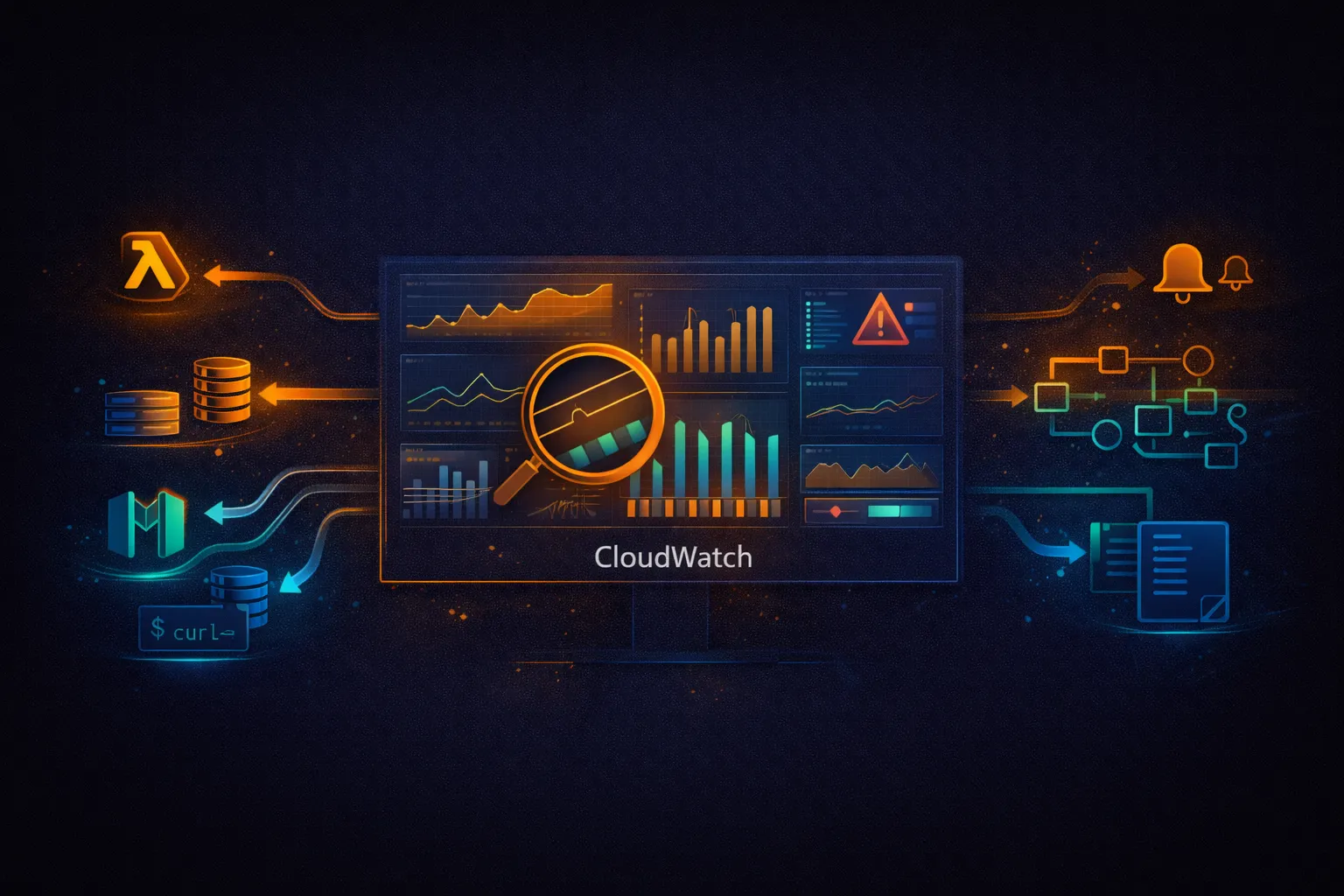
CloudWatch is the monitoring backbone of AWS. Every AWS service emits metrics and logs to CloudWatch by default. It collects metrics, stores logs, triggers alarms, and renders dashboards -- all without deploying any monitoring infrastructure.
This article covers CloudWatch from core concepts to production patterns: metrics, alarms, logs, dashboards, anomaly detection, Synthetics, Container Insights, X-Ray integration, and the cost decisions that determine your monthly bill.
CloudWatch Core Concepts
CloudWatch organizes data into three pillars: metrics (numeric time-series), logs (text streams), and traces (distributed request tracking via X-Ray). Understanding the data model is essential before configuring anything.
# CloudWatch data model:

Metrics
  Namespace          # Logical grouping (e.g., AWS/EC2, AWS/Lambda, MyApp)
    MetricName       # What is measured (CPUUtilization, Duration, Errors)
      Dimensions     # Key-value pairs that identify the source
                     # (InstanceId=i-abc123, FunctionName=my-handler)
        Datapoints   # Timestamp + Value + Unit + Statistics

Logs
  Log Group          # Container for related log streams (e.g., /aws/lambda/my-function)
    Log Stream       # Sequence of events from a single source (e.g., one Lambda instance)
      Log Events     # Timestamp + Message (raw text or JSON)

Alarms
  Metric Alarm       # Watches a single metric, triggers actions
  Composite Alarm    # Combines multiple alarms with AND/OR logic
Built-in Metrics (Free)
AWS services automatically publish metrics to CloudWatch at no extra cost. These metrics arrive at 1-minute or 5-minute intervals depending on the service and configuration.
# EC2 (5-minute intervals by default, 1-minute with detailed monitoring)
aws cloudwatch get-metric-statistics \
    --namespace AWS/EC2 \
    --metric-name CPUUtilization \
    --dimensions Name=InstanceId,Value=i-0abc123def456 \
    --start-time 2025-04-27T00:00:00Z \
    --end-time 2025-04-28T00:00:00Z \
    --period 3600 \
    --statistics Average Maximum

# Lambda (1-minute intervals, always free)
# Metrics: Invocations, Duration, Errors, Throttles, ConcurrentExecutions

# RDS (1-minute intervals)
# Metrics: CPUUtilization, FreeableMemory, ReadIOPS, WriteIOPS, DatabaseConnections

# DynamoDB (1-minute intervals)
# Metrics: ConsumedReadCapacityUnits, ConsumedWriteCapacityUnits, ThrottledRequests

# API Gateway (1-minute intervals)
# Metrics: Count, Latency, IntegrationLatency, 4XXError, 5XXError

# S3 (daily, request metrics are 1-minute but must be enabled)
# Metrics: BucketSizeBytes, NumberOfObjects
# Enable detailed monitoring on EC2 (1-minute intervals instead of 5)
aws ec2 monitor-instances --instance-ids i-0abc123def456
# Cost: $3.50/month per instance (7 metrics * $0.30/metric + $0.01/1000 API calls)
# Worth it for production instances where 5-minute gaps miss spikesCustom Metrics
Custom metrics let you track application-level data that AWS services do not measure: request latency percentiles, queue depth, active sessions, business KPIs.
# Publish a custom metric from the CLI
aws cloudwatch put-metric-data \
    --namespace MyApp \
    --metric-name RequestLatency \
    --value 142 \
    --unit Milliseconds \
    --dimensions Environment=prod,Service=api

# Publish multiple datapoints in one call (up to 1000 per request)
aws cloudwatch put-metric-data \
    --namespace MyApp \
    --metric-data '[
        {"MetricName":"ActiveUsers","Value":847,"Unit":"Count"},
        {"MetricName":"QueueDepth","Value":23,"Unit":"Count"},
        {"MetricName":"ErrorRate","Value":0.3,"Unit":"Percent"}
    ]'
# Publish custom metrics from Lambda
import boto3
from datetime import datetime
cloudwatch = boto3.client('cloudwatch')
def lambda_handler(event, context):
# Process request...
start = datetime.now()
result = process(event)
duration_ms = (datetime.now() - start).total_seconds() * 1000
cloudwatch.put_metric_data(
Namespace='MyApp',
MetricData=[
{
'MetricName': 'ProcessingTime',
'Value': duration_ms,
'Unit': 'Milliseconds',
'Dimensions': [
{'Name': 'FunctionName', 'Value': context.function_name},
{'Name': 'Environment', 'Value': 'prod'}
]
}
]
)
return result# Custom metric pricing:
# $0.30 per metric per month (first 10,000 metrics)
# $0.10 per metric per month (next 240,000)
# $0.05 per metric per month (next 750,000)
# A "metric" = unique combination of namespace + metric name + dimensions
# put-metric-data API calls: $0.01 per 1,000 requestsCloudWatch Alarms
Alarms watch a metric and trigger actions when the metric crosses a threshold. Actions include SNS notifications, Auto Scaling policies, EC2 actions (stop, terminate, reboot), and Systems Manager OpsItems.
Metric Alarms
# Create a CPU alarm that sends an SNS notification
aws cloudwatch put-metric-alarm \
    --alarm-name prod-api-high-cpu \
    --metric-name CPUUtilization \
    --namespace AWS/EC2 \
    --statistic Average \
    --period 300 \
    --evaluation-periods 2 \
    --threshold 80 \
    --comparison-operator GreaterThanThreshold \
    --dimensions Name=InstanceId,Value=i-0abc123def456 \
    --alarm-actions arn:aws:sns:us-east-1:123456789012:ops-alerts \
    --ok-actions arn:aws:sns:us-east-1:123456789012:ops-alerts \
    --alarm-description "CPU above 80% for 10 minutes"

# Alarm states:
# OK              -- metric is within the threshold
# ALARM           -- metric breached the threshold
# INSUFFICIENT_DATA -- not enough data to evaluate

# evaluation-periods=2, period=300 means:
# The alarm triggers when the average CPU exceeds 80%
# for 2 consecutive 5-minute periods (10 minutes total)
# Lambda error alarm
aws cloudwatch put-metric-alarm \
--alarm-name lambda-errors \
--metric-name Errors \
--namespace AWS/Lambda \
--statistic Sum \
--period 60 \
--evaluation-periods 3 \
--threshold 5 \
--comparison-operator GreaterThanThreshold \
--dimensions Name=FunctionName,Value=payment-processor \
--alarm-actions arn:aws:sns:us-east-1:123456789012:critical-alerts \
--treat-missing-data notBreaching
# treat-missing-data options:
# breaching -- missing data counts as breaching the threshold
# notBreaching -- missing data counts as within the threshold (default for most use cases)
# ignore -- current alarm state is maintained
# missing -- alarm goes to INSUFFICIENT_DATAComposite Alarms
# Combine multiple alarms with AND/OR logic
# Reduces alert noise -- trigger only when multiple conditions are true

aws cloudwatch put-composite-alarm \
    --alarm-name service-degraded \
    --alarm-rule 'ALARM("prod-api-high-cpu") AND ALARM("lambda-errors")' \
    --alarm-actions arn:aws:sns:us-east-1:123456789012:critical-alerts

# Only fires when BOTH CPU is high AND Lambda errors are elevated
# Without composite alarms, you get paged for CPU spikes during deployments
# (which are normal and transient)

# More complex rules:
# ALARM("A") AND (ALARM("B") OR ALARM("C"))
# ALARM("A") AND NOT ALARM("maintenance-window")
Anomaly Detection Alarms
# Let CloudWatch learn normal patterns and alert on deviations
# Uses machine learning to build a model of expected behavior

aws cloudwatch put-anomaly-detector \
    --namespace AWS/Lambda \
    --metric-name Duration \
    --stat Average \
    --dimensions Name=FunctionName,Value=api-handler

# Create an alarm using the anomaly detection band
aws cloudwatch put-metric-alarm \
    --alarm-name api-latency-anomaly \
    --evaluation-periods 3 \
    --metrics '[
        {
            "Id": "m1",
            "MetricStat": {
                "Metric": {
                    "Namespace": "AWS/Lambda",
                    "MetricName": "Duration",
                    "Dimensions": [{"Name":"FunctionName","Value":"api-handler"}]
                },
                "Period": 300,
                "Stat": "Average"
            }
        },
        {
            "Id": "ad1",
            "Expression": "ANOMALY_DETECTION_BAND(m1, 2)"
        }
    ]' \
    --threshold-metric-id ad1 \
    --comparison-operator LessThanLowerOrGreaterThanUpperThreshold \
    --alarm-actions arn:aws:sns:us-east-1:123456789012:ops-alerts

# The "2" in ANOMALY_DETECTION_BAND is the number of standard deviations
# Higher value = fewer false alarms, lower sensitivity
# The model adapts to daily and weekly patterns automatically
CloudWatch Logs
CloudWatch Logs stores and indexes log data from AWS services, EC2 instances, containers, and on-premises servers. Logs are organized into log groups (one per application or service) and log streams (one per source instance).
Log Groups and Retention
# Create a log group with retention
aws logs create-log-group --log-group-name /app/api-service

aws logs put-retention-policy \
    --log-group-name /app/api-service \
    --retention-in-days 30

# Retention options (days):
# 1, 3, 5, 7, 14, 30, 60, 90, 120, 150, 180, 365, 400, 545, 731,
# 1096, 1827, 2192, 2557, 2922, 3288, 3653
# Default: never expire (this gets expensive fast)

# Cost impact of retention:
# Log storage: $0.03 per GB per month
# A Lambda function logging 1 KB per invocation, 1M invocations/month = ~1 GB
# With no retention: grows 1 GB/month forever
# With 30-day retention: stays at ~1 GB

# List log groups with sizes
aws logs describe-log-groups \
    --query 'logGroups[*].[logGroupName,storedBytes]' \
    --output table
Metric Filters
# Extract metrics from log data without code changes
# CloudWatch scans incoming log events and increments a metric when the pattern matches

# Count ERROR occurrences
aws logs put-metric-filter \
    --log-group-name /aws/lambda/api-handler \
    --filter-name error-count \
    --filter-pattern "ERROR" \
    --metric-transformations \
        metricName=ErrorCount,metricNamespace=MyApp,metricValue=1

# Extract numeric values from structured logs
# Log line: {"latency": 142, "status": 200, "path": "/api/users"}
aws logs put-metric-filter \
    --log-group-name /app/api-service \
    --filter-name api-latency \
    --filter-pattern '{$.latency = *}' \
    --metric-transformations \
        metricName=APILatency,metricNamespace=MyApp,metricValue='$.latency'

# Filter pattern syntax:
# "ERROR"                           -- simple text match
# "ERROR -TIMEOUT"                  -- ERROR but not TIMEOUT
# '{$.status = 500}'                -- JSON field equals value
# '{$.latency > 1000}'              -- JSON field greater than
# '{$.status = 5* && $.path = "/api/*"}'  -- multiple JSON conditions
# '[ip, user, timestamp, request, status_code = 5*, bytes]' -- space-delimited
CloudWatch Logs Insights
# SQL-like query language for searching and analyzing log data
# Scans logs on demand -- you pay per GB scanned ($0.005/GB)

# Find the 20 most recent errors
aws logs start-query \
    --log-group-name /aws/lambda/api-handler \
    --start-time $(date -d '1 hour ago' +%s) \
    --end-time $(date +%s) \
    --query-string '
        fields @timestamp, @message
        | filter @message like /ERROR/
        | sort @timestamp desc
        | limit 20
    '

# Get the query results (queries are asynchronous)
aws logs get-query-results --query-id "query-id-from-above"
# Logs Insights query examples:
# Top 10 slowest Lambda invocations
fields @timestamp, @duration, @requestId
| filter @type = "REPORT"
| sort @duration desc
| limit 10
# Error rate by 5-minute buckets
filter @message like /ERROR/
| stats count() as errors by bin(5m)
| sort bin(5m) desc
# P50, P90, P99 latency from structured logs
filter ispresent(latency)
| stats avg(latency) as avg_ms,
pct(latency, 50) as p50,
pct(latency, 90) as p90,
pct(latency, 99) as p99
by bin(1h)
# Cold starts analysis for Lambda
filter @type = "REPORT"
| stats count() as invocations,
sum(strcontains(@message, "Init Duration")) as cold_starts
by bin(1h)
| display invocations, cold_starts,
(cold_starts / invocations * 100) as cold_start_pct
# Find Lambda timeouts
filter @message like /Task timed out/
| fields @timestamp, @requestId, @message
| sort @timestamp descCloudWatch Agent
The CloudWatch Agent runs on EC2 instances (and on-premises servers) to collect system-level metrics and application logs that are not available through the built-in EC2 metrics.
# Install the CloudWatch Agent on Amazon Linux 2 / AL2023
sudo yum install -y amazon-cloudwatch-agent

# Or download directly
wget https://s3.amazonaws.com/amazoncloudwatch-agent/amazon_linux/amd64/latest/amazon-cloudwatch-agent.rpm
sudo rpm -U ./amazon-cloudwatch-agent.rpm
// /opt/aws/amazon-cloudwatch-agent/etc/amazon-cloudwatch-agent.json
{
"agent": {
"metrics_collection_interval": 60,
"run_as_user": "cwagent"
},
"metrics": {
"namespace": "CWAgent",
"metrics_collected": {
"cpu": {
"measurement": ["cpu_usage_idle", "cpu_usage_user", "cpu_usage_system"],
"totalcpu": true
},
"mem": {
"measurement": ["mem_used_percent", "mem_available"]
},
"disk": {
"measurement": ["disk_used_percent", "disk_free"],
"resources": ["/", "/data"],
"ignore_file_system_types": ["tmpfs", "devtmpfs"]
},
"net": {
"measurement": ["bytes_sent", "bytes_recv", "packets_sent", "packets_recv"],
"resources": ["eth0"]
}
}
},
"logs": {
"logs_collected": {
"files": {
"collect_list": [
{
"file_path": "/var/log/messages",
"log_group_name": "/ec2/system/messages",
"log_stream_name": "{instance_id}",
"retention_in_days": 14
},
{
"file_path": "/var/log/app/*.log",
"log_group_name": "/ec2/app/logs",
"log_stream_name": "{instance_id}/{file_name}",
"retention_in_days": 30,
"multi_line_start_pattern": "^\d{4}-\d{2}-\d{2}"
}
]
}
}
}
}# Start the agent with the config
sudo /opt/aws/amazon-cloudwatch-agent/bin/amazon-cloudwatch-agent-ctl \
-a fetch-config \
-m ec2 \
-s \
-c file:/opt/aws/amazon-cloudwatch-agent/etc/amazon-cloudwatch-agent.json
# Check agent status
sudo /opt/aws/amazon-cloudwatch-agent/bin/amazon-cloudwatch-agent-ctl \
-a status
# Built-in EC2 metrics vs CloudWatch Agent metrics:
#
# Built-in (free) CloudWatch Agent (custom metric cost)
# --------------------------------------------------------
# CPUUtilization cpu_usage_user, cpu_usage_system, cpu_usage_iowait
# NetworkIn/Out net bytes_sent/recv per interface
# DiskReadOps/WriteOps disk_used_percent, disk_free, disk_inodes_free
# StatusCheckFailed mem_used_percent, mem_available, mem_cached
# swap_used_percent
# processes running/blocked/zombie
#
# The Agent collects metrics that the hypervisor cannot see:
# memory usage, disk space, per-process stats, custom app logsCloudWatch Dashboards
# Create a dashboard from the CLI
aws cloudwatch put-dashboard \
    --dashboard-name prod-overview \
    --dashboard-body '{
        "widgets": [
            {
                "type": "metric",
                "x": 0, "y": 0, "width": 12, "height": 6,
                "properties": {
                    "metrics": [
                        ["AWS/Lambda", "Invocations", "FunctionName", "api-handler",
                         {"stat": "Sum", "period": 300}],
                        [".", "Errors", ".", ".",
                         {"stat": "Sum", "period": 300}]
                    ],
                    "view": "timeSeries",
                    "title": "Lambda Invocations and Errors",
                    "region": "us-east-1"
                }
            },
            {
                "type": "metric",
                "x": 12, "y": 0, "width": 12, "height": 6,
                "properties": {
                    "metrics": [
                        ["AWS/Lambda", "Duration", "FunctionName", "api-handler",
                         {"stat": "p50"}],
                        ["...", {"stat": "p90"}],
                        ["...", {"stat": "p99"}]
                    ],
                    "view": "timeSeries",
                    "title": "Lambda Duration Percentiles",
                    "yAxis": {"left": {"label": "ms"}}
                }
            },
            {
                "type": "log",
                "x": 0, "y": 6, "width": 24, "height": 6,
                "properties": {
                    "query": "fields @timestamp, @message\n| filter @message like /ERROR/\n| sort @timestamp desc\n| limit 20",
                    "region": "us-east-1",
                    "stacked": false,
                    "title": "Recent Errors",
                    "view": "table"
                }
            }
        ]
    }'

# Dashboard pricing:
# First 3 dashboards: free
# Each additional dashboard: $3.00/month
# A dashboard can have up to 500 metrics
Metric Math
# Compute derived metrics using expressions
# No extra cost -- computed at query time

# Error rate as percentage
aws cloudwatch get-metric-data \
    --metric-data-queries '[
        {
            "Id": "errors",
            "MetricStat": {
                "Metric": {
                    "Namespace": "AWS/Lambda",
                    "MetricName": "Errors",
                    "Dimensions": [{"Name":"FunctionName","Value":"api-handler"}]
                },
                "Period": 300,
                "Stat": "Sum"
            },
            "ReturnData": false
        },
        {
            "Id": "invocations",
            "MetricStat": {
                "Metric": {
                    "Namespace": "AWS/Lambda",
                    "MetricName": "Invocations",
                    "Dimensions": [{"Name":"FunctionName","Value":"api-handler"}]
                },
                "Period": 300,
                "Stat": "Sum"
            },
            "ReturnData": false
        },
        {
            "Id": "error_rate",
            "Expression": "(errors / invocations) * 100",
            "Label": "Error Rate %",
            "ReturnData": true
        }
    ]' \
    --start-time 2025-04-27T00:00:00Z \
    --end-time 2025-04-28T00:00:00Z

# Common metric math expressions:
# METRICS("m1") / METRICS("m2") * 100     -- ratio as percentage
# SUM(METRICS("m1"))                       -- aggregate across dimensions
# FILL(m1, 0)                              -- replace missing data with 0
# IF(m1 > 100, m1, 0)                     -- conditional
# RUNNING_SUM(m1)                          -- cumulative sum
CloudWatch Synthetics
Synthetics canaries are configurable scripts that run on a schedule to monitor endpoints and APIs. They use a headless Chromium browser (for UI tests) or HTTP calls (for API tests) and report availability and latency metrics.
# Create a heartbeat canary (simple URL check)
aws synthetics create-canary \
    --name api-health-check \
    --artifact-s3-location s3://my-canary-artifacts/api-health/ \
    --execution-role-arn arn:aws:iam::123456789012:role/canary-execution-role \
    --schedule Expression="rate(5 minutes)" \
    --run-config TimeoutInSeconds=60 \
    --code Handler=apiCanary.handler,S3Bucket=my-canary-code,S3Key=canary.zip

# The canary Lambda function runs on a schedule and reports:
# SuccessPercent    -- percentage of runs that succeeded
# Duration          -- how long the canary took to run
# These metrics appear under the CloudWatch Synthetics namespace
// API canary script (Node.js)
const synthetics = require('Synthetics');
const log = require('SyntheticsLogger');
const apiCanary = async function () {
// Step 1: Check health endpoint
const healthCheck = await synthetics.executeHttpStep(
'Health Check',
{
hostname: 'api.myapp.com',
method: 'GET',
path: '/health',
port: 443,
protocol: 'https:'
}
);
// Step 2: Check API response
const apiCheck = await synthetics.executeHttpStep(
'List Products',
{
hostname: 'api.myapp.com',
method: 'GET',
path: '/products',
port: 443,
protocol: 'https:',
headers: {
'Authorization': await getApiKey()
}
},
(res) => {
return new Promise((resolve, reject) => {
if (res.statusCode !== 200) {
reject('Expected 200, got ' + res.statusCode);
}
resolve();
});
}
);
};
exports.handler = async () => {
return await apiCanary();
};Container Insights
# Enable Container Insights on an ECS cluster
aws ecs update-cluster-settings \
    --cluster prod-cluster \
    --settings name=containerInsights,value=enabled

# Container Insights collects:
# - Cluster-level: CPU/memory reservation and utilization
# - Service-level: running task count, desired task count, CPU, memory
# - Task-level: CPU, memory, network, storage
# - Container-level: CPU, memory per container

# Metrics appear under the ECS/ContainerInsights namespace
# Performance logs go to /aws/ecs/containerinsights/{cluster}/performance

# Query container performance in Logs Insights:
# Log group: /aws/ecs/containerinsights/prod-cluster/performance
fields @timestamp, TaskDefinitionFamily, CpuUtilized, MemoryUtilized
| filter Type = "Task"
| stats avg(CpuUtilized) as avg_cpu, avg(MemoryUtilized) as avg_mem
  by TaskDefinitionFamily
| sort avg_cpu desc

# Container Insights pricing:
# Custom metrics: depends on number of tasks and containers
# Performance logs: standard log ingestion ($0.50/GB) and storage ($0.03/GB)
AWS X-Ray (Distributed Tracing)
X-Ray traces requests as they flow through your distributed system. Each trace shows the full path: API Gateway to Lambda to DynamoDB, with timing for each segment. X-Ray integrates with CloudWatch for a unified observability view.
# Enable X-Ray tracing on Lambda
aws lambda update-function-configuration \
    --function-name api-handler \
    --tracing-config Mode=Active

# Enable X-Ray on API Gateway (REST API)
aws apigateway update-stage \
    --rest-api-id abc123 \
    --stage-name prod \
    --patch-operations '[{
        "op": "replace",
        "path": "/tracingEnabled",
        "value": "true"
    }]'
# Instrument Python code with X-Ray SDK
# pip install aws-xray-sdk
from aws_xray_sdk.core import xray_recorder
from aws_xray_sdk.core import patch_all
# Patch all supported libraries (boto3, requests, sqlite3, etc.)
patch_all()
def lambda_handler(event, context):
# X-Ray automatically traces:
# - The Lambda invocation (framework segment)
# - All boto3 calls (DynamoDB, S3, SQS, etc.)
# - HTTP requests made with 'requests' library
# Add custom subsegments for your own code
with xray_recorder.in_subsegment('process-payment') as subsegment:
result = process_payment(event['body'])
subsegment.put_annotation('payment_id', result['id'])
subsegment.put_metadata('response', result)
return {'statusCode': 200, 'body': json.dumps(result)}# Query traces
aws xray get-trace-summaries \
--start-time 2025-04-27T00:00:00Z \
--end-time 2025-04-28T00:00:00Z \
--filter-expression 'service("api-handler") AND duration > 5'
# X-Ray trace structure:
#
# Trace (one per request)
# Segment: API Gateway (12ms)
# Subsegment: Lambda invoke
# Segment: Lambda function (145ms)
# Subsegment: DynamoDB GetItem (8ms)
# Subsegment: DynamoDB PutItem (12ms)
# Subsegment: process-payment (98ms)
# X-Ray pricing:
# Traces recorded: $5.00 per million
# Traces scanned: $0.50 per million
# Free tier: 100,000 traces recorded + 1M traces scanned per monthEmbedded Metric Format (EMF)
EMF lets you publish custom metrics by writing structured JSON to stdout. CloudWatch extracts the metrics automatically -- no put-metric-data API calls needed. This is the recommended approach for Lambda custom metrics because it has zero API overhead.
# Write EMF-formatted logs from Lambda
import json
import time

def lambda_handler(event, context):
    start = time.time()
    result = process(event)
    duration = (time.time() - start) * 1000

    # Print EMF-formatted JSON to stdout
    # CloudWatch automatically extracts the metrics
    print(json.dumps({
        "_aws": {
            "Timestamp": int(time.time() * 1000),
            "CloudWatchMetrics": [{
                "Namespace": "MyApp",
                "Dimensions": [["Service", "Environment"]],
                "Metrics": [
                    {"Name": "ProcessingTime", "Unit": "Milliseconds"},
                    {"Name": "RecordsProcessed", "Unit": "Count"}
                ]
            }]
        },
        "Service": "payment-api",
        "Environment": "prod",
        "ProcessingTime": duration,
        "RecordsProcessed": len(event.get('Records', [])),
        "RequestId": context.aws_request_id
    }))

    return result

# Advantages over put_metric_data:
# - No API call latency added to Lambda execution
# - No extra IAM permissions needed (just CloudWatch Logs)
# - Metrics and logs in the same event (correlated automatically)
# - No batching logic needed
Log Subscriptions and Export
# Stream logs to another destination in real time

# Subscribe a Lambda function to process log events
aws logs put-subscription-filter \
    --log-group-name /aws/lambda/api-handler \
    --filter-name error-processor \
    --filter-pattern "ERROR" \
    --destination-arn arn:aws:lambda:us-east-1:123456789012:function:log-processor

# Stream to Kinesis Data Firehose (for S3, Elasticsearch, Splunk)
aws logs put-subscription-filter \
    --log-group-name /aws/lambda/api-handler \
    --filter-name all-logs-to-s3 \
    --filter-pattern "" \
    --destination-arn arn:aws:firehose:us-east-1:123456789012:deliverystream/logs-to-s3 \
    --role-arn arn:aws:iam::123456789012:role/CWLtoFirehose

# Export logs to S3 (batch, not real-time -- for archival)
aws logs create-export-task \
    --log-group-name /aws/lambda/api-handler \
    --from 1714176000000 \
    --to 1714262400000 \
    --destination my-log-archive-bucket \
    --destination-prefix logs/lambda/api-handler

# Limit: 1 active export task per account
# For continuous export, use subscription filters with Firehose
CloudWatch Pricing Summary
# CloudWatch pricing (us-east-1):

# Metrics:
# Built-in metrics (EC2, Lambda, RDS, etc.)       Free
# Detailed monitoring (EC2, 1-min intervals)       $3.50/instance/month
# Custom metrics                                   $0.30/metric/month (first 10K)
# API requests (GetMetricData, PutMetricData)      $0.01/1,000 requests

# Alarms:
# Standard alarms                                  $0.10/alarm/month
# High-resolution alarms (10-sec period)           $0.30/alarm/month
# Composite alarms                                 $0.50/alarm/month
# Anomaly detection alarms                         $0.30/alarm/month

# Logs:
# Ingestion                                        $0.50/GB
# Storage                                          $0.03/GB/month
# Logs Insights queries                            $0.005/GB scanned
# Vended logs (VPC flow, Route53, etc.)             $0.05/GB (90% cheaper)

# Dashboards:
# First 3 dashboards                               Free
# Additional dashboards                             $3.00/month each

# Synthetics:
# Canary runs                                      $0.0012/run

# X-Ray:
# Traces recorded                                  $5.00/million
# Traces scanned                                   $0.50/million

# Cost optimization tips:
# 1. Set retention policies on all log groups (default is never expire)
# 2. Use metric filters instead of Logs Insights for recurring queries
# 3. Use EMF instead of put-metric-data API calls from Lambda
# 4. Use vended logs where available (VPC Flow Logs, Route53 query logs)
# 5. Consolidate alarms with composite alarms where possible
Best Practices
Metrics and Alarms
- Set alarms on what matters to users: error rates, latency percentiles, availability -- not just CPU
- Use composite alarms to reduce alert fatigue by combining related conditions
- Use anomaly detection for metrics with variable baselines (traffic patterns that change by day/hour)
- Use
treat-missing-data: notBreachingfor Lambda alarms to avoid false alarms during low-traffic periods - Name alarms with a consistent convention:
{env}-{service}-{condition}(e.g.,prod-api-high-error-rate)
Logs
- Set retention policies on every log group -- the default is to keep logs forever
- Use structured logging (JSON) so metric filters and Logs Insights queries can parse individual fields
- Use EMF for Lambda custom metrics -- zero API overhead and metrics are correlated with logs
- Use subscription filters to stream critical logs to alerting systems in real time
- Export infrequently accessed logs to S3 for long-term storage at lower cost
Observability
- Enable X-Ray tracing on Lambda and API Gateway to trace requests across services
- Use CloudWatch Synthetics canaries to detect availability issues before users do
- Enable Container Insights on ECS/EKS clusters for task-level visibility
- Build dashboards that answer "is the system healthy?" at a glance -- include error rates, latency percentiles, and throughput
- Create runbooks for every alarm so on-call engineers know what to check and how to remediate
Go Deeper: The State of AWS Security 2026
This article is just the start. Get the full picture with our free whitepaper - 8 chapters covering IAM, S3, VPC, monitoring, agentic AI security, compliance, and a prioritized action plan with 50+ CLI commands.
Toc Consulting: AWS Security & Cloud Architecture
Want expert help with AWS Mastery?
Our team helps engineering teams secure and architect AWS the right way: assessment in week one, a prioritized action plan in week two.
More Articles
AWS Architecture Patterns: Proven Blueprints for Scalable Cloud Applications
Six production-proven AWS architecture patterns: three-tier web apps, serverless APIs, event-driven processing, static websites, data lakes, and multi-region disaster recovery with diagrams and implementation guides.
AWS Cost Optimization: Reduce Your Cloud Bill Without Sacrificing Performance
Complete guide to AWS cost optimization covering Cost Explorer, Compute Optimizer, Savings Plans, Spot Instances, S3 lifecycle policies, gp2 to gp3 migration, scheduling, budgets, and production best practices.
AWS AI and ML Services: Add Intelligence to Your Applications
Complete guide to AWS AI services including Rekognition, Comprehend, Textract, Polly, Translate, Transcribe, and Bedrock with CLI commands, pricing, and production best practices.